Frontend
Stock application
The Stock Application is the store-facing tool for day-to-day inventory operations. It works with products from the stock catalogue and lets users remove, replenish, transfer, or adjust stock from a specific store.
Operational users can use it from mobile or desktop devices to browse stock, search products, scan QR codes, execute transactions, and review transaction history.
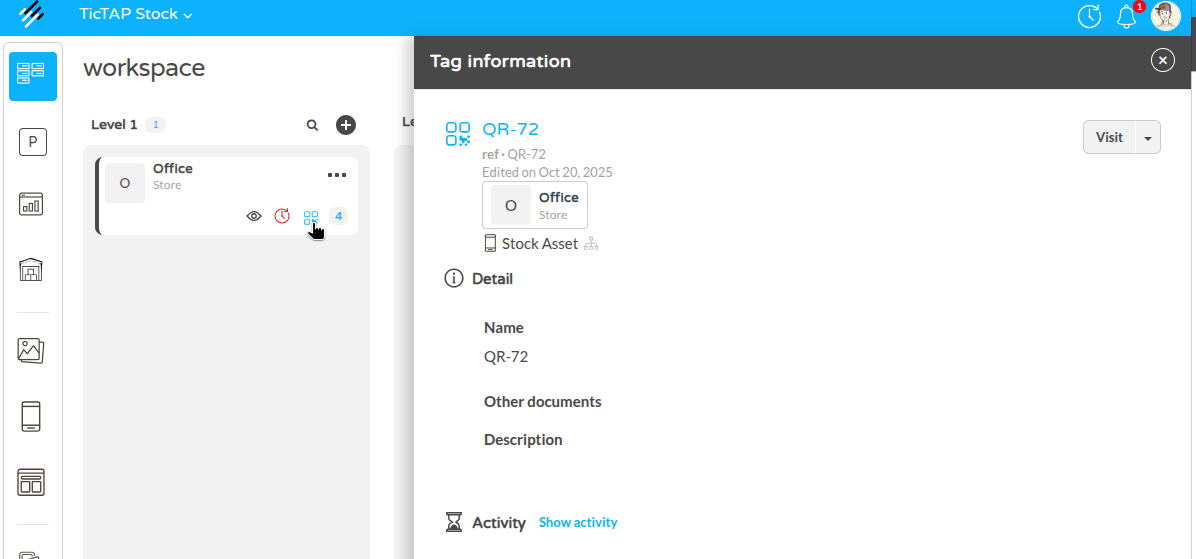
Accessing the Store via QR Code
To use the Stock Application, you typically access it through the store's QR code. If a store does not yet have a QR code, you can create and assign one to it from the backend. Once you scan the store's QR code, you are directed to that store's stock application.
Main Application Screen
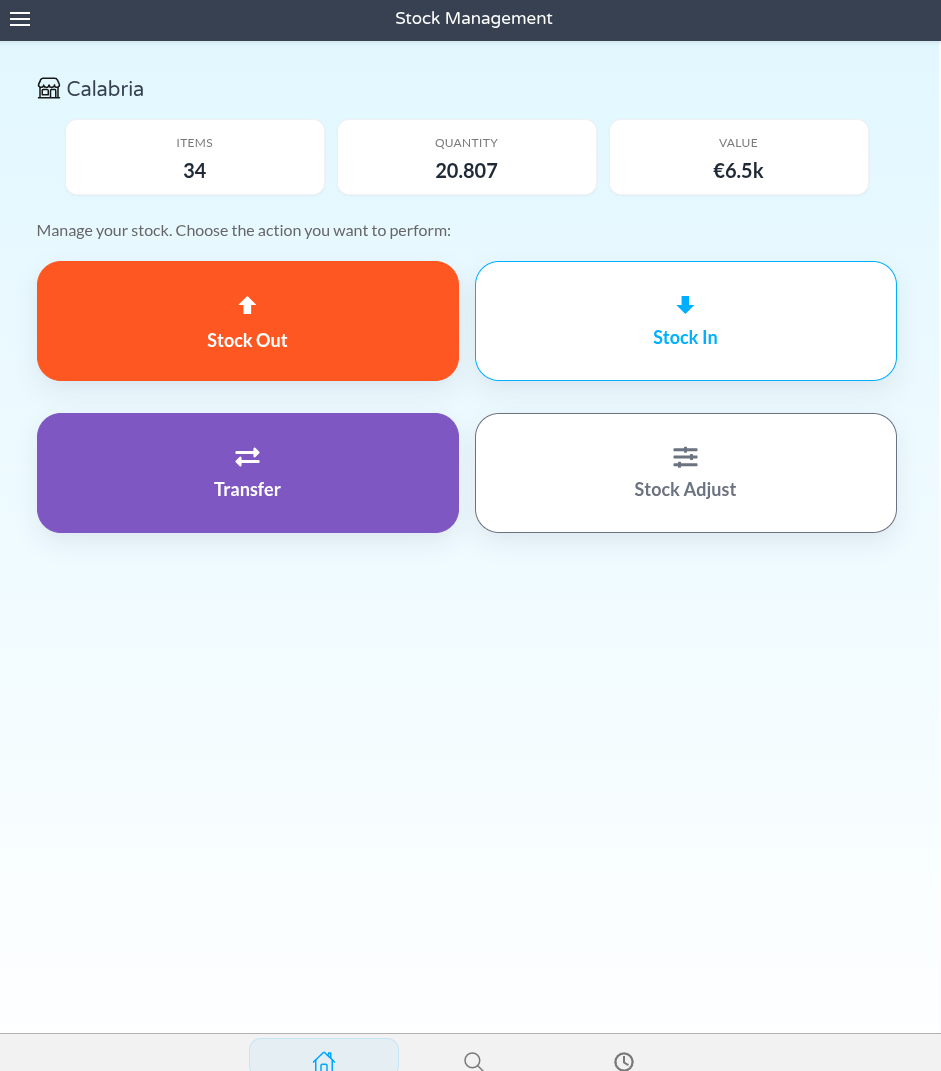
When you enter a store, the main screen summarizes the current inventory:
- How many unique products exist in the store.
- The total quantity of units.
- The combined value of all products currently in stock.
Selecting an Action
Before selecting products, choose the stock action that matches the real movement you want to record. The selected action controls how quantities are applied when the transaction is confirmed:
- Stock out: use this when products leave the store inventory, for example because they were consumed, delivered, installed, or otherwise removed from that location.
- Stock in: use this when products are added to the store inventory. This increases the current quantity for the selected products.
- Transfer: use this when products move from the current store to another store. The transaction decreases stock in the source store and increases it in the destination store, keeping both sides of the movement linked.
- Stock adjust: use this when the recorded quantity needs to be corrected to match a physical count. Instead of adding or removing a relative amount, the operation sets the final quantity for the product.
Selecting Products: Search, Browse, or Scan
To pick products for a stock operation, you can:
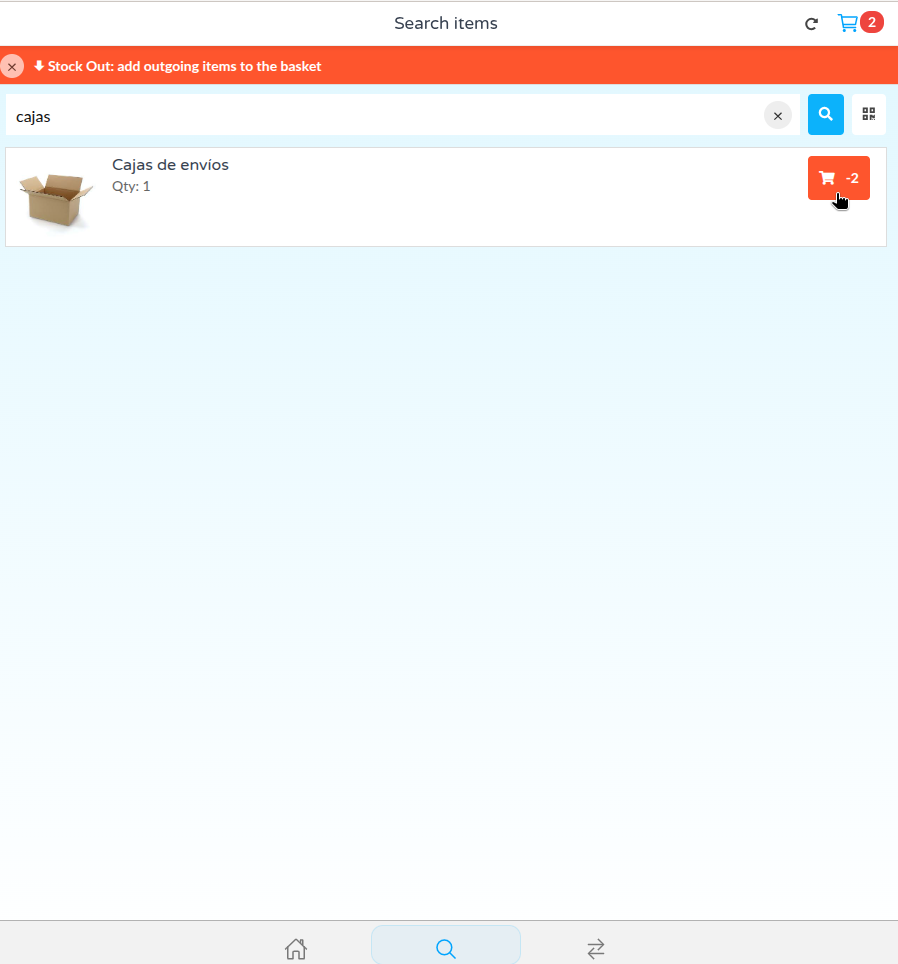
- Search: Type the product name or part number to find catalogue products available to the store.
- Browse: Navigate through the store tree, where product holdings are grouped by their catalogue categories.
- Scan QR: Use the scanner to identify a product by its QR code.
- Sync catalog: Reload the latest product catalogue from the server when new products or catalogue changes are expected.
Browsing and Product Details
The stock tree follows the catalogue category structure. Users can browse categories, open subcategories, and select products without knowing the exact part number.
Opening a product shows the operational stock information for the current store, including the product identity, available quantity, catalogue details, and any QR-driven access configured for that product. If the product has a QR code, scanning it can take the user directly to the matching stock item, avoiding manual search.
Adding Products to the Basket
When you select a product, it is added to the basket for the active operation. Selecting the same product again increases the basket quantity. For larger quantities, open the basket and enter the desired amount directly.
In Stock Out and Transfer operations, the application prevents confirming quantities that exceed the available stock in the source store.
Editing Quantities in the Basket
Inside the basket, review and adjust the quantity for each product before finalizing the operation.
Finalizing the Stock Operation
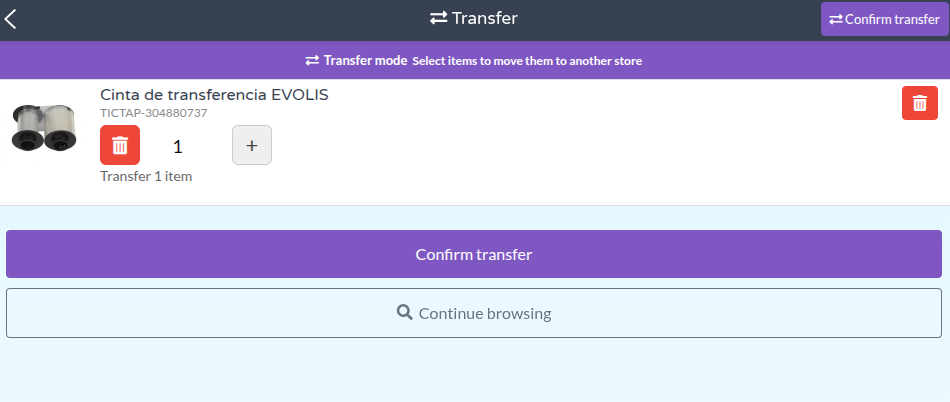
When the basket contains all products and quantities for the operation, press the appropriate finalize button, such as Finalize Stock Out, to review a summary of the transaction.
You can:
- Review the products and quantities included in the transaction.
- Select the reason for the operation.
- Add a note.
- Add an order number when needed.
- Select a destination store for Stock Transfer operations.
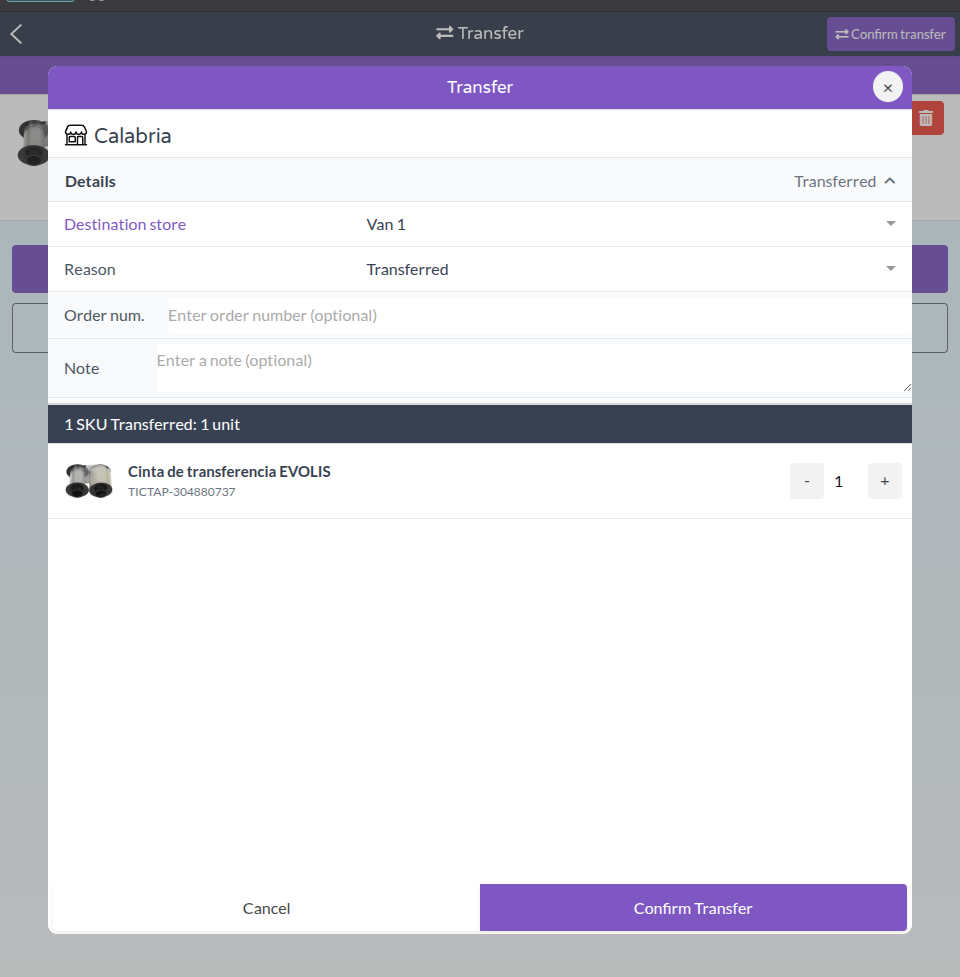
Confirm the operation to update the inventory and create the transaction record. For Stock Transfer, the transaction removes the selected quantities from the current store and adds them to the destination store.
Some actions may depend on permissions. For example, Stock Adjust can be limited to supervisors or administrators because it directly corrects the recorded quantity. If the user does not have permission for an action, that action may be hidden or blocked by the application.
Viewing Transactions
After confirmation, the operation is recorded in the transactions section. You can review recent transactions and use filters such as date range, type, user, and product. Transfer transactions show the store-to-store movement context.
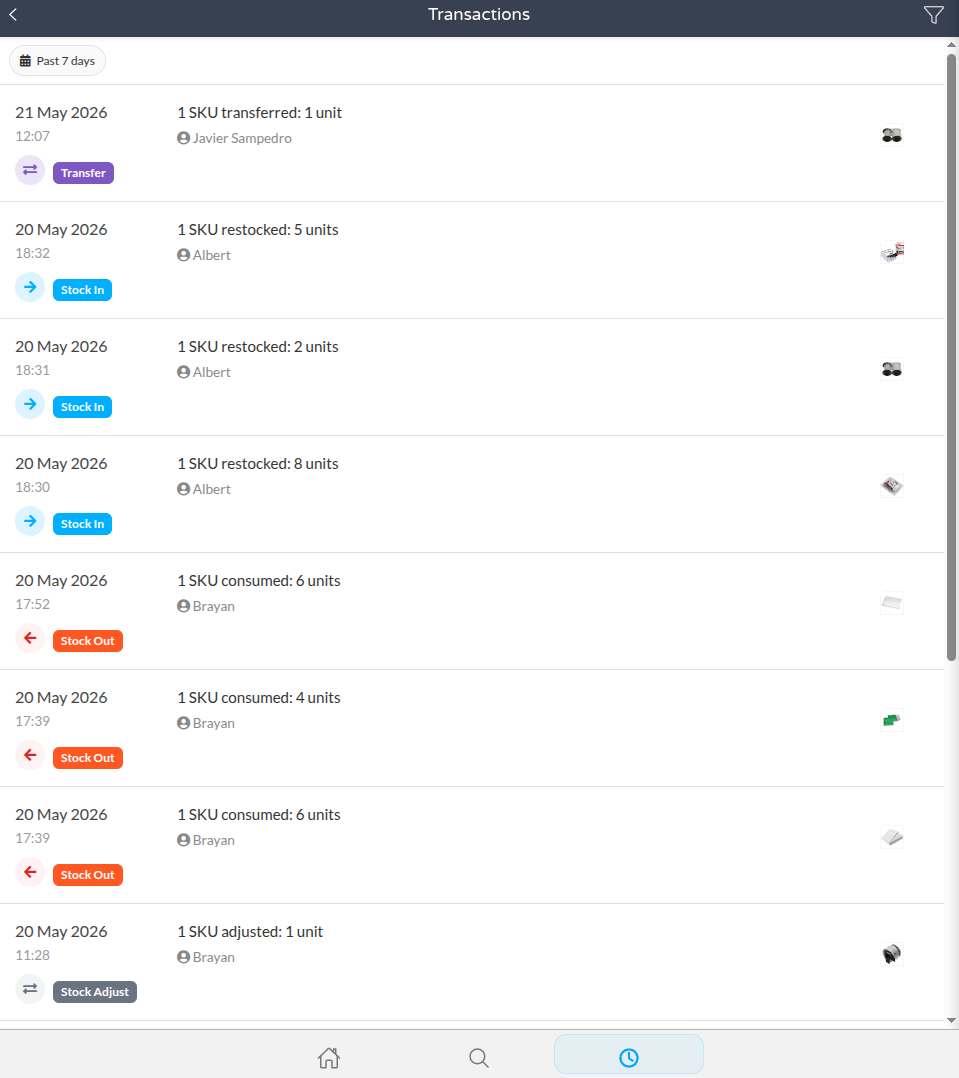
Each transaction detail can be reviewed for product quantities, notes, order number, user, and date.
The transaction history helps operational teams validate recent movements, track who performed each action, and confirm that transfers, replenishments, adjustments, and stock out operations were recorded correctly.
Error Handling
The application validates each operation before it is confirmed. Common blocking cases include:
- Trying to remove or transfer more units than are available in the source store.
- Missing required transaction information, such as the reason.
- Missing destination store for a transfer.
- Attempting an action that the current user is not allowed to perform.
Managing in the Backend
All transaction information is also available from the backend interface, where administrators can filter and analyze stock out, replenish, transfer, or adjustment transactions. Managing store inventory
Related Articles: