Users
Introduction to users
In TicTAP, user management is divided into two main types of users: Members and App Users. Each type plays a specific role within the platform, depending on their access level and functionality.
Members
Members are users with full administrative access. They can manage assets, design apps, templates, and tags, and handle submissions and agendas through the Workspace. Members are involved in the entire lifecycle of managing the TicTAP platform. Typically, they handle two key phases:
- Content Creation: In the initial setup, members create and configure apps, templates, and tags.
- Asset Interaction: Once content is set up, members manage assets and asset locations, interacting with the platform to monitor, update, and track the assets as needed.
For more information on configuring members, visit the Member Guide.
App Users
App Users are those who interact with the platform by scanning QR codes or NFC tags. App users typically include engineers or workers who need to access information about assets quickly via their mobile phones. They:
- Scan QR Codes: App users scan QR codes to access the asset’s information.
- Interact with Pages: They navigate through the application’s pages and forms, filling out relevant data and submitting forms as needed.
- Role-based Access: App users can have restricted access to specific pages based on the roles assigned to them. The platform allows for defining a role hierarchy, which controls what information an app user can see and interact with.
For more information on configuring App users, visit the Member Guide.
Accessing User Settings
To access the User Settings in TicTAP, follow these steps:
-
Navigate to the Team Management Menu:
- At the top-left corner of the interface, click on the team name (e.g., Team Fire Management Demo).
-
Select the "Users" Option:
- From the dropdown menu, select the Users option. This will take you to the User Management section where you can manage both members and app users.
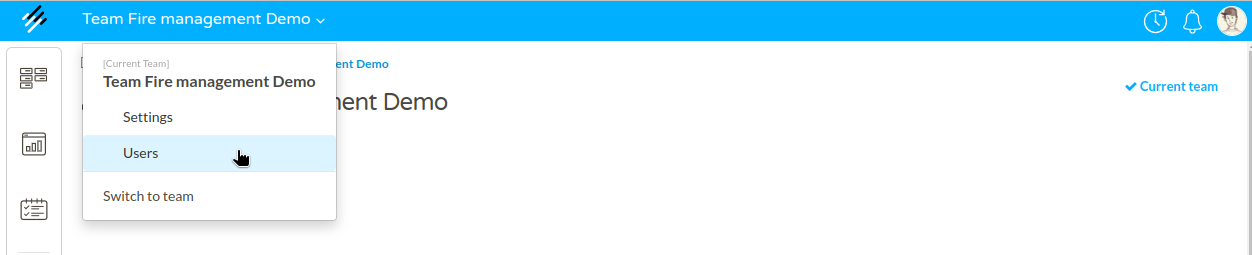
By following these steps, you’ll be able to invite, remove, or edit users within your team.
Members
Learn how to manage members
Inviting members to a Team
Inviting New Members to a Team
In TicTAP, you can easily invite new members to join your team. Once invited, the user will receive an email with an invitation to join, allowing them to access your workspace, manage assets, and collaborate on your team’s projects. Below are the steps for inviting a new member.
Steps to Invite a New Member
-
Go to the Users Tab:
- Navigate to the Users section in your workspace by selecting the Users tab at the top of the screen.
-
Click on "Add Member":
- In the Members section, click the blue Add member button to open the invitation form.
-
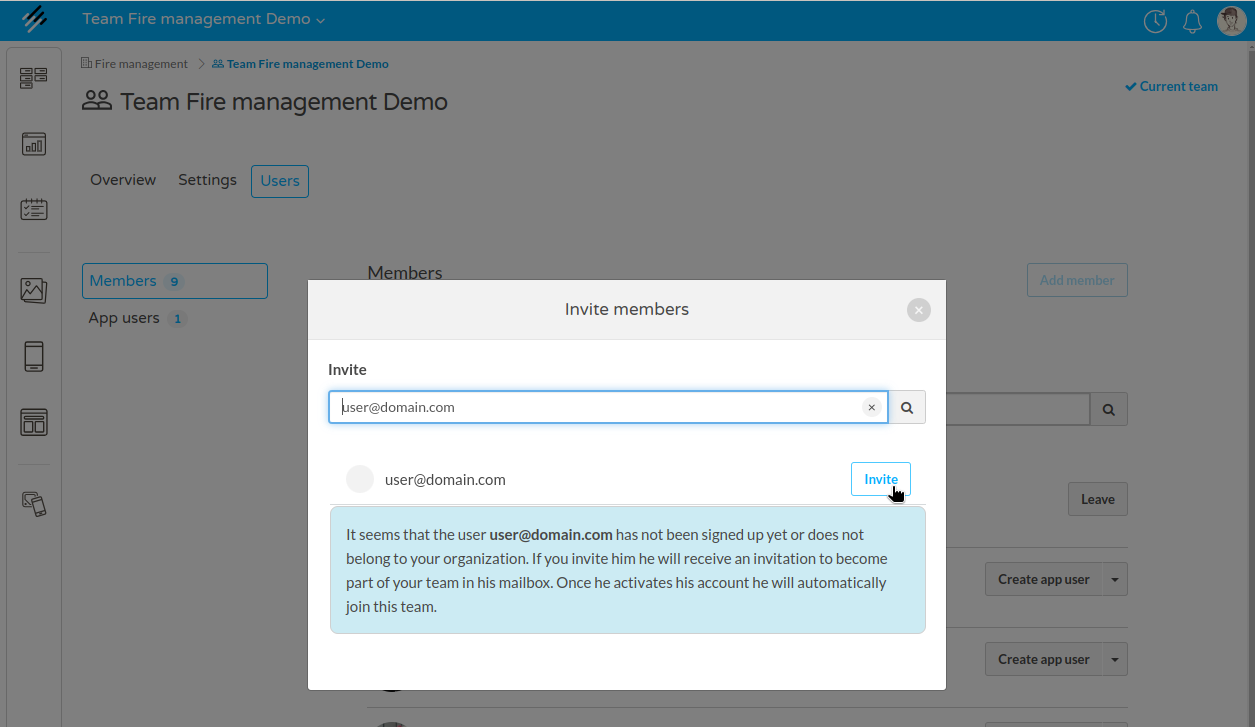
Enter the Email Address:
- In the popup window, type the email address of the person you want to invite. You can invite any user by entering their email address in the text field (e.g., [email protected]).
-
Review the Invitation Status:
- Once you enter the email, TicTAP checks whether the user is already part of the organization or not. If the user is not registered, a message will appear, indicating that the user will receive an invitation email. The message states:
- "It seems that the user [email protected] has not been signed up yet or does not belong to your organization. If you invite him he will receive an invitation to become part of your team in his mailbox. Once he activates his account he will automatically join this team."
- Once you enter the email, TicTAP checks whether the user is already part of the organization or not. If the user is not registered, a message will appear, indicating that the user will receive an invitation email. The message states:
-
Choose the Role:
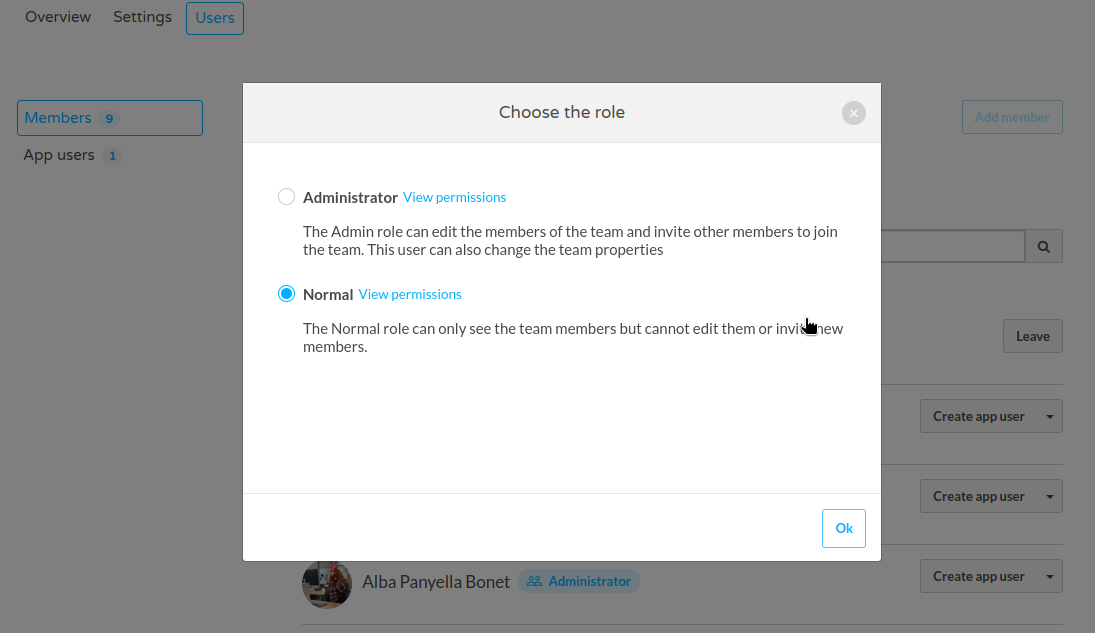
- After entering the email address, a new window will appear asking you to assign a role to the new member.
- You can select one of the following roles:
- Administrator: Administrators can manage team members, invite new members, and change team properties.
- Normal: Normal users can only see the team members but cannot edit them or invite new members.
- You can also view the specific permissions associated with each role by clicking on View permissions.
- Send the Invitation:
- After selecting the appropriate role, click Invite to send the invitation.
What Happens Next?
- The invited user will receive an email with an invitation link. By clicking the link, they can create a TicTAP account (if they don’t have one) and join your team.
- Once the user activates their account, they will automatically become a member of your team, gaining access to the workspace and its resources.
Invitation Management
- You can monitor who has accepted or declined their invitations in the Members section of the team.
- If an invitee needs a new invitation or if the email is entered incorrectly, you can resend the invitation by removing the incorrect one and inviting the user again.
By following these steps, you can ensure that new members are seamlessly added to your team, helping them quickly get involved in your TicTAP workspace.
Managing members
Managing Members in TicTAP
The Members section in TicTAP allows you to manage the users who have administrative access to the platform. These members are responsible for managing assets, apps, templates, and other critical components of the TicTAP workspace.
Accessing the Members Section
- Go to the Users Tab:
- Click on the Users tab in the main navigation, as shown in the screenshot.
- In this section, you’ll see two categories: Members and App Users. By default, the Members tab is selected.
Member List Overview
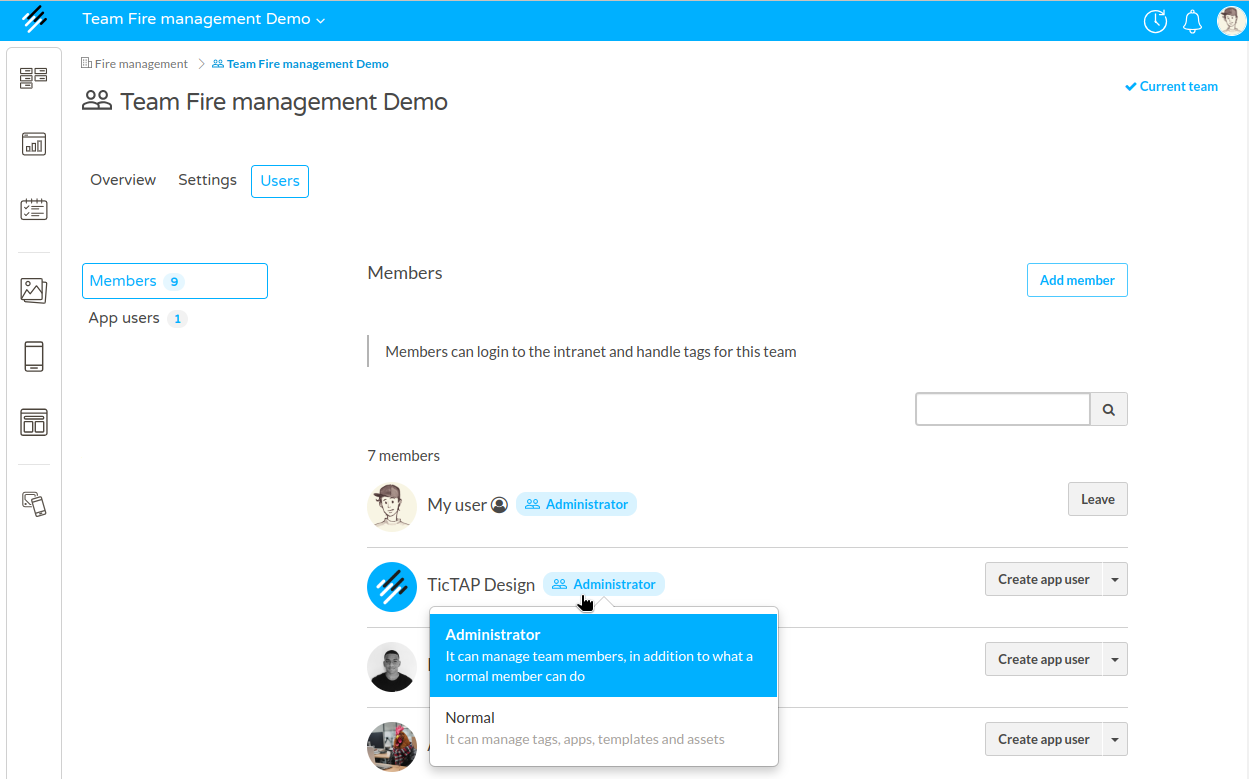
In the Members section, you can view a list of all the current members in your team. Each member is displayed with their profile picture, name, and role. The roles define the access level for each member:
- Administrator: This role grants full control, including managing team members in addition to creating and managing apps, assets, and templates.
- Normal: This role allows the user to manage tags, apps, templates, and assets, but they cannot manage team members.
Member Actions:
- Add Member: Clicking the Add member button allows you to invite a new member to the team. You’ll be prompted to assign a role upon adding a member.
- Change Role: To change a member’s role, click on their current role (e.g., Administrator or Normal) and choose a new role from the dropdown menu.
- Leave Team: If you’re a member and wish to leave the team, you can click the Leave button. Note that leaving a team will revoke your access to its assets and configurations.
Adding App Users from the Members List
In addition to managing roles, you can also create app users directly from the Members section:
- Click the Create app user dropdown next to a member’s name to invite them as an App User. This gives them access to interact with QR codes and mobile applications without full administrative access.
Searching for Members
If your team has many members, you can use the Search function to quickly locate a specific member. Enter the name or part of the member’s name in the search field, and the list will filter accordingly.
By using the Members section effectively, you can manage who has access to your TicTAP platform and control their level of authority within the team. Make sure to assign roles carefully based on the user’s responsibilities to maintain a secure and organized workspace.
App users
App User management
In TicTAP, App Users are users who interact with your applications by scanning QR codes or NFC tags. Their access and capabilities are defined by the roles assigned to them. This section explains how to manage app users within your team.
Accessing the App User Management Section
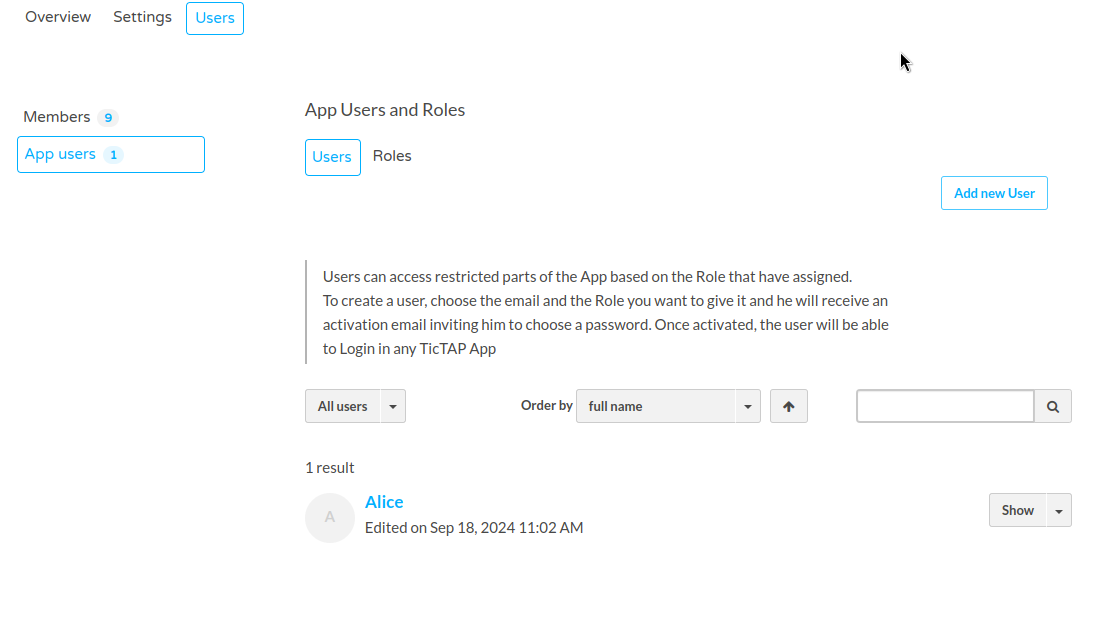
- Navigate to the Users Tab:
- Click on the Users tab in your team workspace.
- In the Members section, switch to the App Users tab on the left-hand side, as shown in the screenshot.
Adding a New App User
-
Click on "Add New User":
- To add a new app user, click the Add New User button on the right side of the screen.
-
Enter the Email Address:
- You will be prompted to enter the email address of the app user you wish to invite.
- Once entered, the app user will receive an activation email inviting them to choose a password and activate their account.
-
Role Assignment:
- Once activated, the app user can log in to any TicTAP app and will have access to restricted parts of the app based on the role assigned to them.
Managing Existing App Users
-
Viewing App Users:
- The list of app users appears below the invitation area. You can filter the list, search for specific users by name, and sort them alphabetically.
-
Editing an App User:
- Click the Show dropdown next to a user’s name to view or manage their details and permissions.
By managing app users and their access properly, you ensure that only authorized personnel can interact with your applications and data.
Role management
In TicTAP, the App User Roles define the level of access and permissions that users have within the app. You can assign roles to both app users and members to control what they can see and do. This section explains how to manage roles for app users.
Accessing the Roles Section
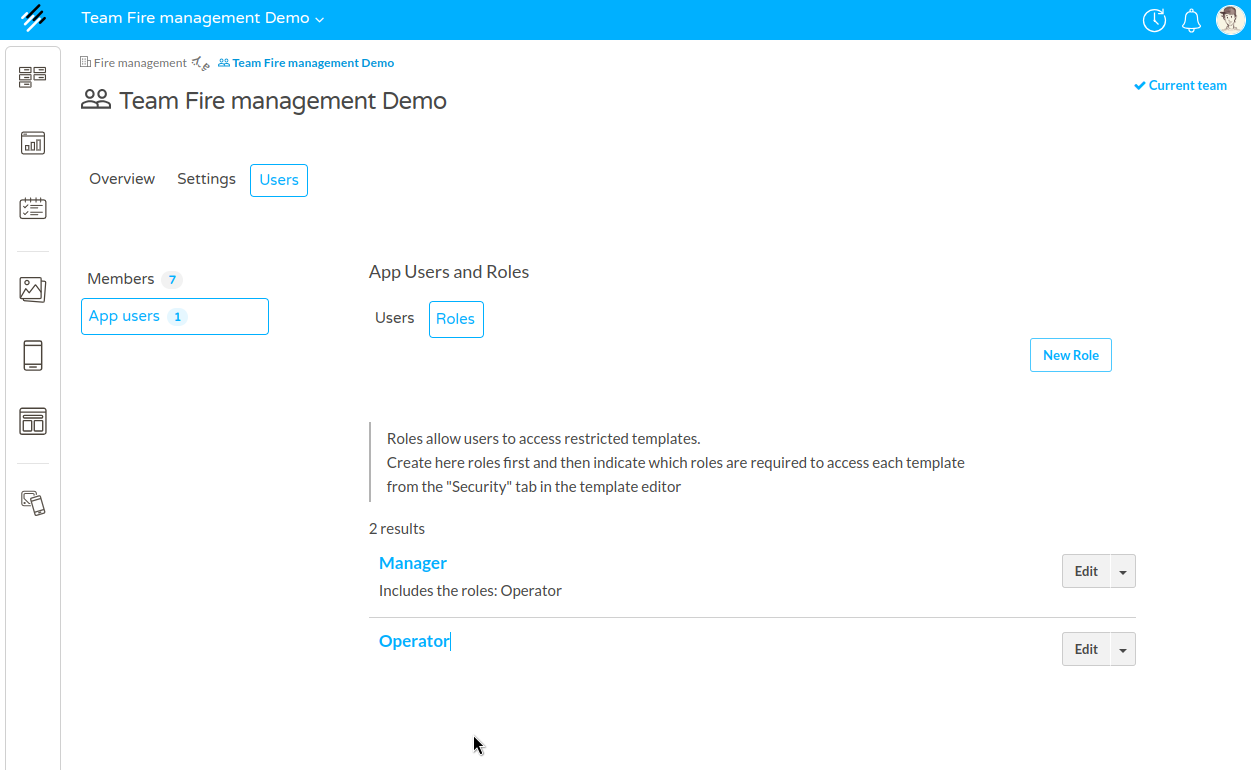
- Go to the Roles Tab:
- From the Users tab, select the Roles section on the right-hand side, as shown in the screenshot.
Creating a New Role
-
Click on "New Role":
- To create a new role, click the New Role button located at the top right.
-
Define Role Details:
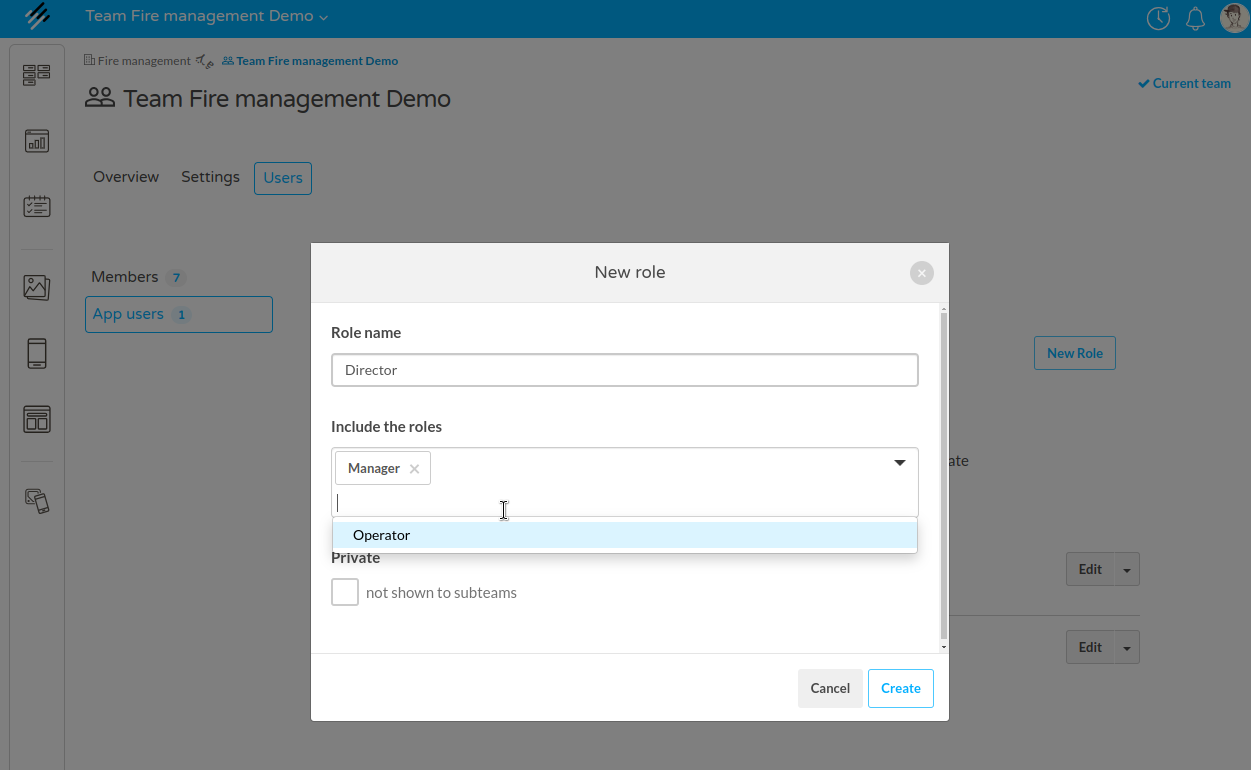
- In the New Role dialog box, you’ll need to:
- Enter a Role Name (e.g., Director).
- Select the roles that this new role will inherit (e.g., Manager, Operator). This will include permissions from those roles.
- Optionally, you can mark the role as Private, meaning it will not be shown to subteams.
- In the New Role dialog box, you’ll need to:
-
Create the Role:
- Once the role details are set, click Create to add the new role.
Editing and Managing Existing Roles
-
View Existing Roles:
- The existing roles, such as Manager and Operator, will be listed in the Roles section. Each role shows its included permissions and any roles it inherits.
-
Edit a Role:
- Click the Edit button next to a role to modify its permissions or details. You can add or remove included roles and adjust its visibility.
Applying Roles to Templates
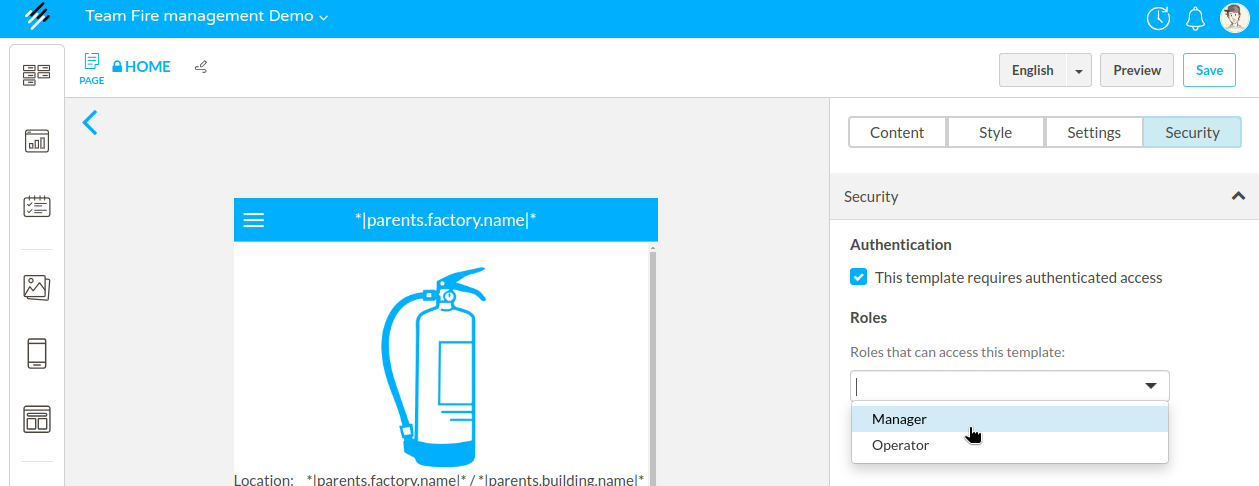
Roles can be assigned to templates, allowing you to control who can access restricted content within the app. This is done through the template’s Security tab, where you can specify which roles are required to access the template.
By effectively managing roles, you can ensure that app users only have access to the sections and functionalities they are authorized to use, creating a more secure and controlled environment.
How to activate your App User
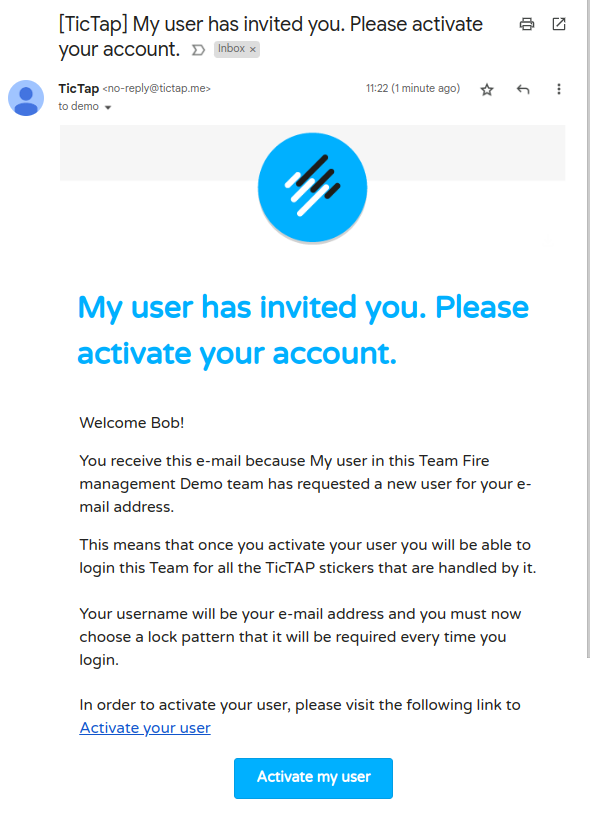
When a new App User is invited to your TicTAP team, they receive an email with an activation link. The user must complete a simple onboarding process to activate their account and gain access to the TicTAP platform. Follow the steps below to activate your App User account.
Step 1: Invitation Email
After being invited, you will receive an email from TicTAP with the subject: [TicTAP] My user has invited you. Please activate your account. Open the email, and you’ll see a message welcoming you to the team. Click the blue Activate my user button at the bottom of the email to begin the activation process.
Step 2: Accept Terms and Conditions
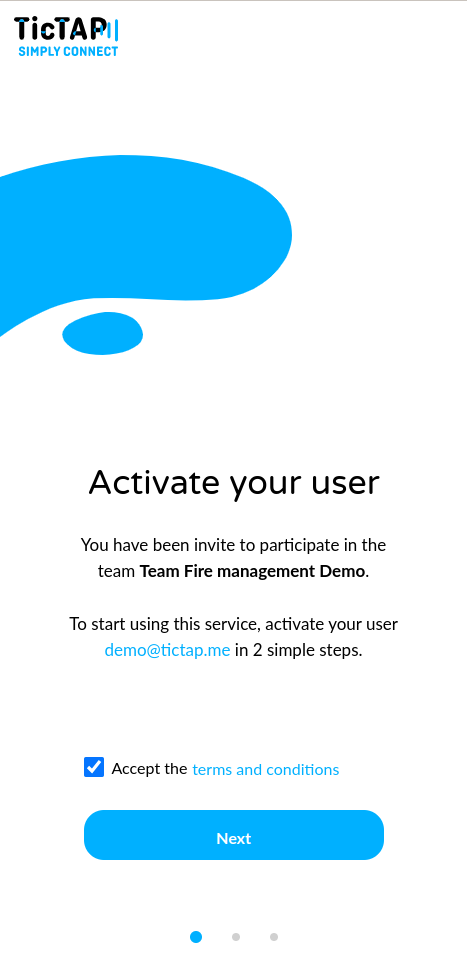
Once you click the activation link, you’ll be directed to the TicTAP platform to begin the onboarding process. You will be asked to Accept the terms and conditions. To proceed, check the box next to Accept the terms and conditions. After accepting the terms, click the Next button.
Step 3: Create a Lock Pattern
As part of the security process, you’ll need to create a lock pattern that will be required each time you log in to your account. Draw your lock pattern by connecting the dots on the screen. Make sure to remember this pattern, as it will be used for future logins.

Step 4: Activation Success
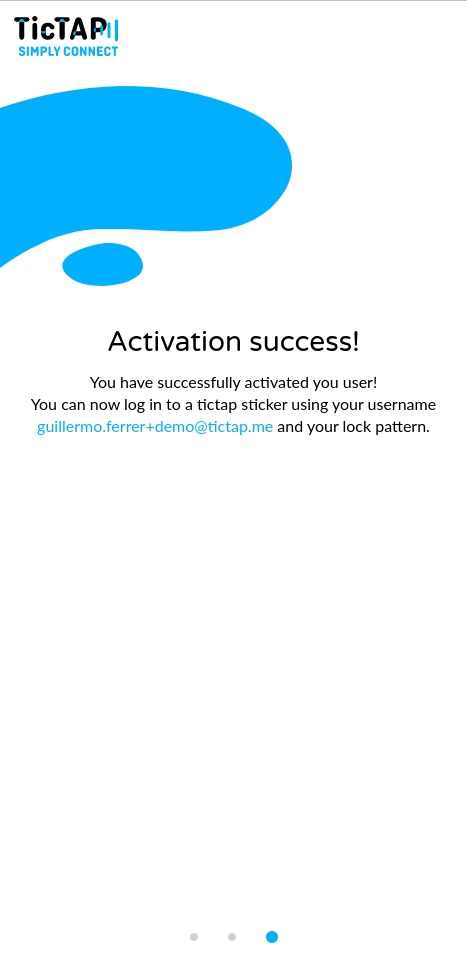
Once you’ve created your lock pattern, the system will confirm that your App User account has been successfully activated. You will see a confirmation message: Activation Success! Your username will be displayed along with the lock pattern you've set. You can now log in to any TicTAP sticker using your username and lock pattern.
Conclusion
After completing these steps, your App User account is fully activated, and you can begin interacting with TicTAP stickers. Use your email address as your username and your lock pattern for secure logins. Welcome to TicTAP!