Tags
Tags
In TicTAP, there are two types of tags: NFC tags and QR tags. NFC tags are linked to an NFC tag, while QR tags can be generated at any time and are immediately available.
A tag in TicTAP may contain information apart from its name and SKU reference, but it is usually used to stick it to an asset. When a tag is stuck to an asset, it functions as a reference to that asset. So, when visiting the tag, what is being done is visiting the asset.
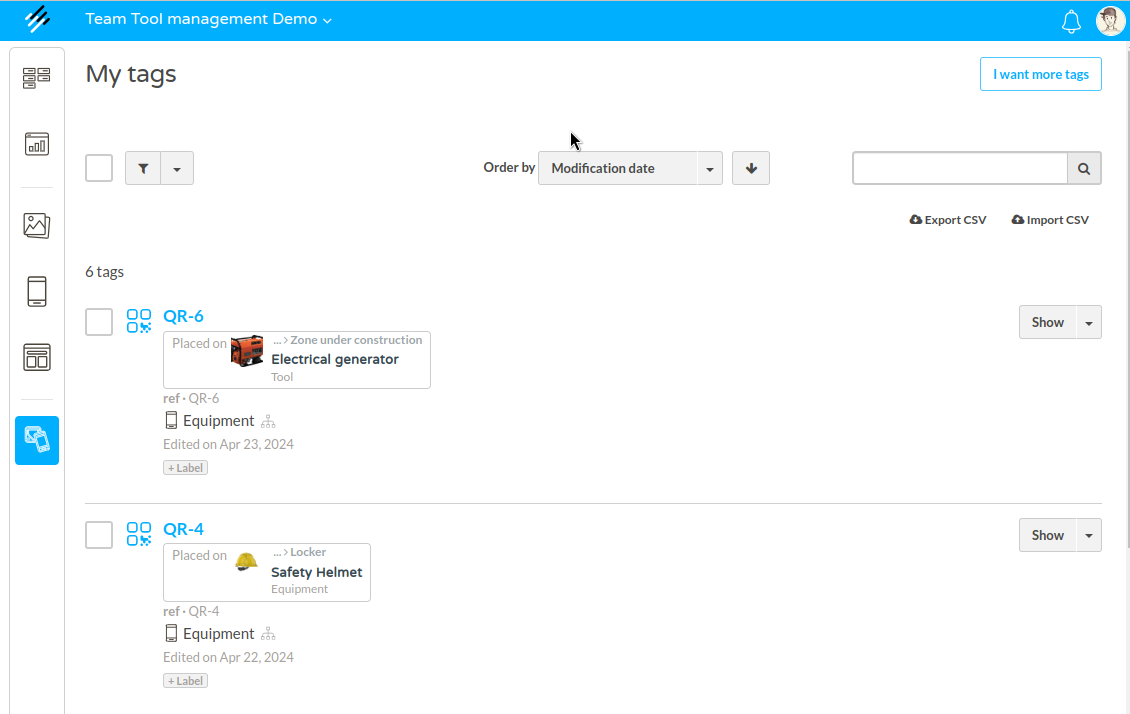
Creating Tags
Tags in TicTAP represent the digital or physical identifiers linked to your assets. Once assigned to an asset, these tags allow you to track and manage that asset’s details.
Steps to Generate
In TicTAP, there are two types of tags you can use to link physical assets with digital content: QR codes and NFC tags. Each tag type serves a similar purpose, but the process for generating and obtaining them is different.
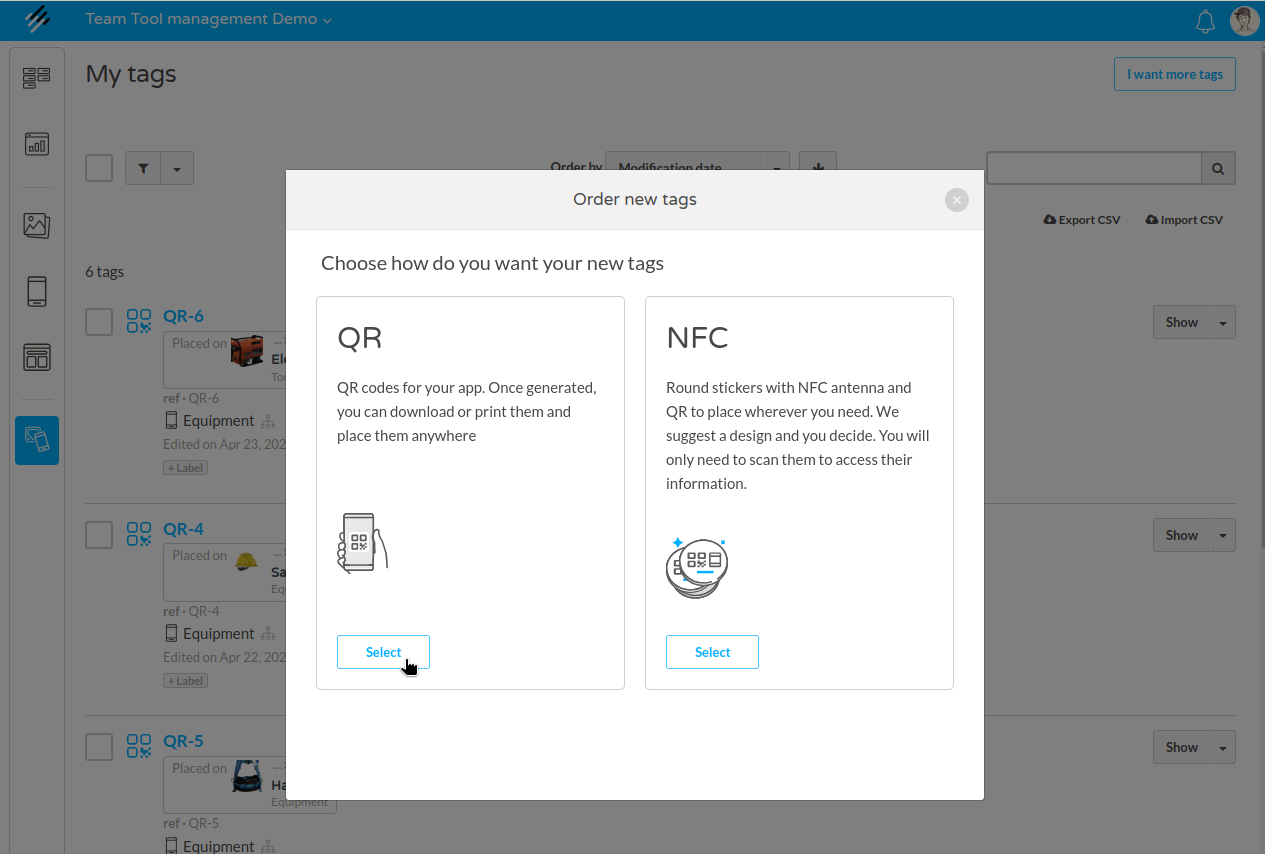
- Click "I want tags" to create or transfer tags for a specific application.
- Choose the type of tag you need (QR or NFC) and specify the quantity.
- Click "Generate" to create the tags. You will receive a notification once the tags are ready.
QR Codes
QR codes can be generated instantly and are digital tags that link users to your web applications. These codes are highly flexible and can be created directly within the TicTAP platform at any time.
Once generated, you can assign the QR code to an asset or an application, allowing users to scan the code with their mobile device and view the relevant information. QR codes are ideal for rapid deployment and can be printed on labels or materials for easy distribution.
NFC tags
NFC tags, on the other hand, require a production process since they are physical tags embedded with Near Field Communication (NFC) technology. These tags need to be requested through our sales team, who will assist you with the design and ordering process.
Visiting a Tag
Once your tags are assigned to assets, you can interact with them via two methods:
- From the tag: Use the "Visit" action and it will immediatly open a new window.
- From the Workspace: View asset details directly in the workspace interface.
- Mobile Interaction: Scan the QR code or tap the NFC tag with a mobile phone. This will open the asset’s information in a browser, displaying content according to the configured application and templates.
Moving Tags to Another Team
It is possible to move tags from one team to another, even if the destination team belongs to a different Enterprise. To do this, select the list of tags you want to move and then apply the "move to..." top action. When moving multiple tags to another team without specifying a destination app, the tags will be transferred to the destination team.
In the event that the destination team belongs to a different Enterprise than the current one, the tags will be reset: all the information from contained in the tag will be removed
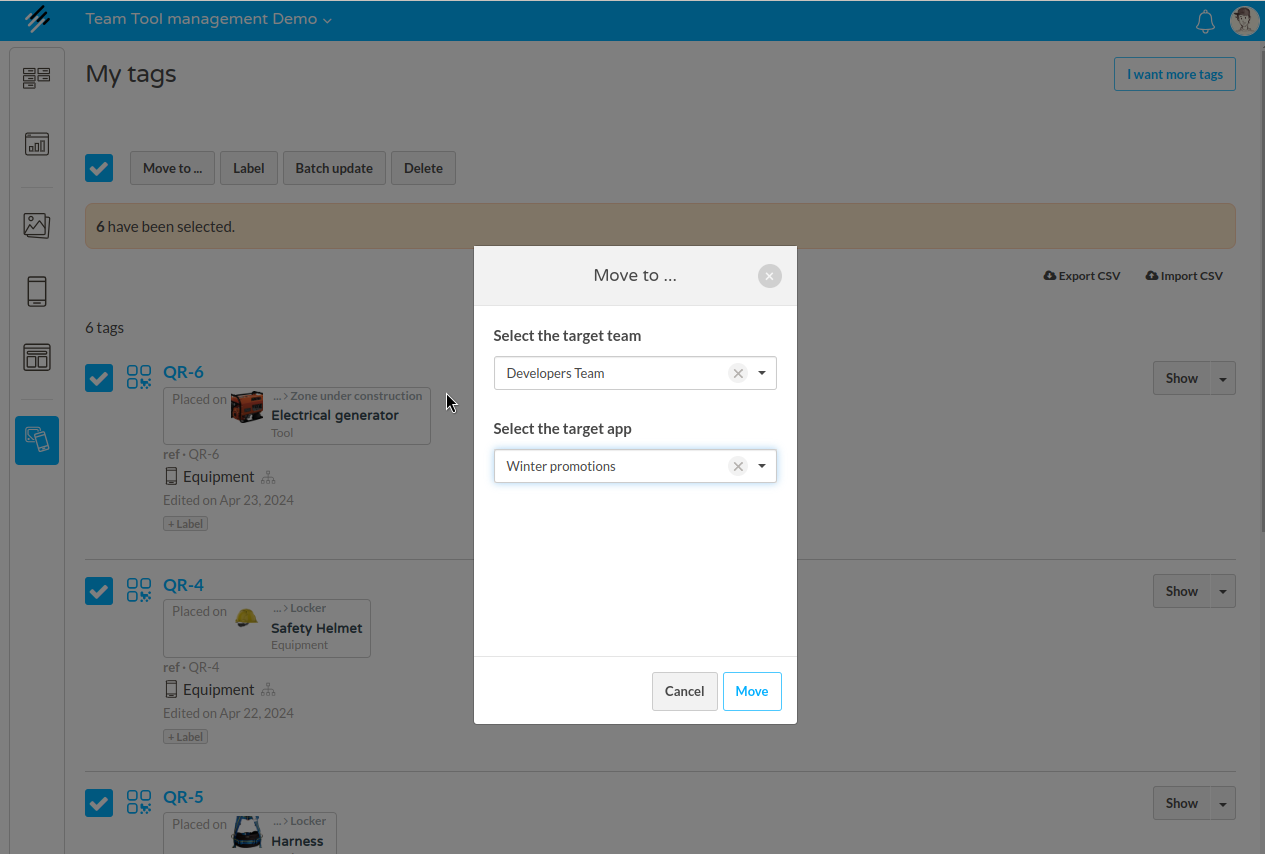
Create / Request tags
- From the Tags section, click on the I want more tags button, which you'll find at the top left corner:
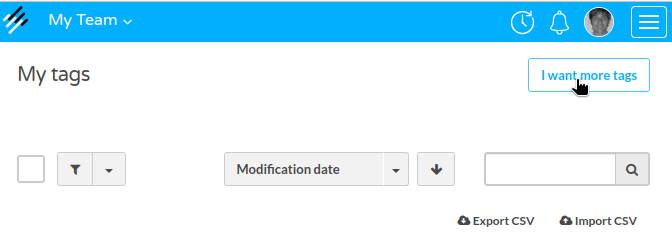
-
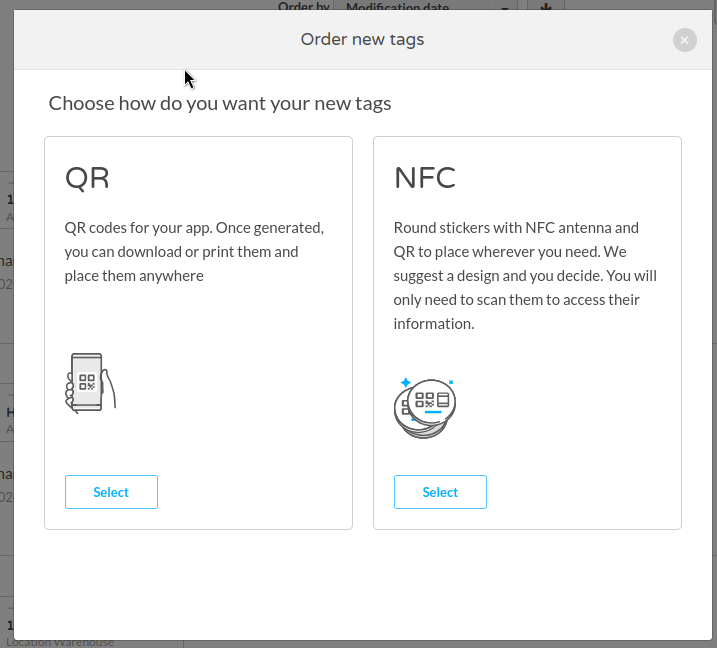
You can choose between requesting more digital tags (QR) or physical tags (NFC).
QR Tags: Digital tags, accessible from mobile devices. These will be generated in just a few seconds.
NFC Tags: Physical tags with NFC. You’ll need to specify the number of tags you want, and they will be shipped to your office as soon as possible.
- Choose the number of tags you want to generate and the brand they will be associated with.
- That’s it! Your tags have been generated or requested. ✨
How to connect a tag to an asset
For the detailed step-by-step flow, see How to connect a tag to an asset.