Stock management
TicTAP Stock Management uses a product catalogue plus store-based inventory. Products are defined once in the catalogue and then stocked in stores, warehouses, vans, or other configured stock locations. Each store keeps its own quantities, minimum and maximum levels, and stock value.
The module has two main areas:
- Backend: catalogue, inventory summary, replenishment, notifications, and transaction review.
- Stock application: store-facing workflow for stock out, replenish, adjust, and transfer operations.
Backend
Administrators use the backend to configure the catalogue and supervise inventory.
Product catalogue
The product catalogue is the source of truth for the products that can be stocked. It is managed from the Stock backend area and is split into Products, Categories, and Manufacturers.
In the Products view, a product can include:
- Name and description.
- Part number.
- Category.
- Manufacturer.
- Supplier name and supplier number.
- Image.
- PDF documentation.
- Unit cost.
Products can be created manually, imported in bulk from CSV or XLSX, exported, edited, deleted, and organized by category and manufacturer. Imports use a predefined template and can create products, create missing categories, and associate supplier information.
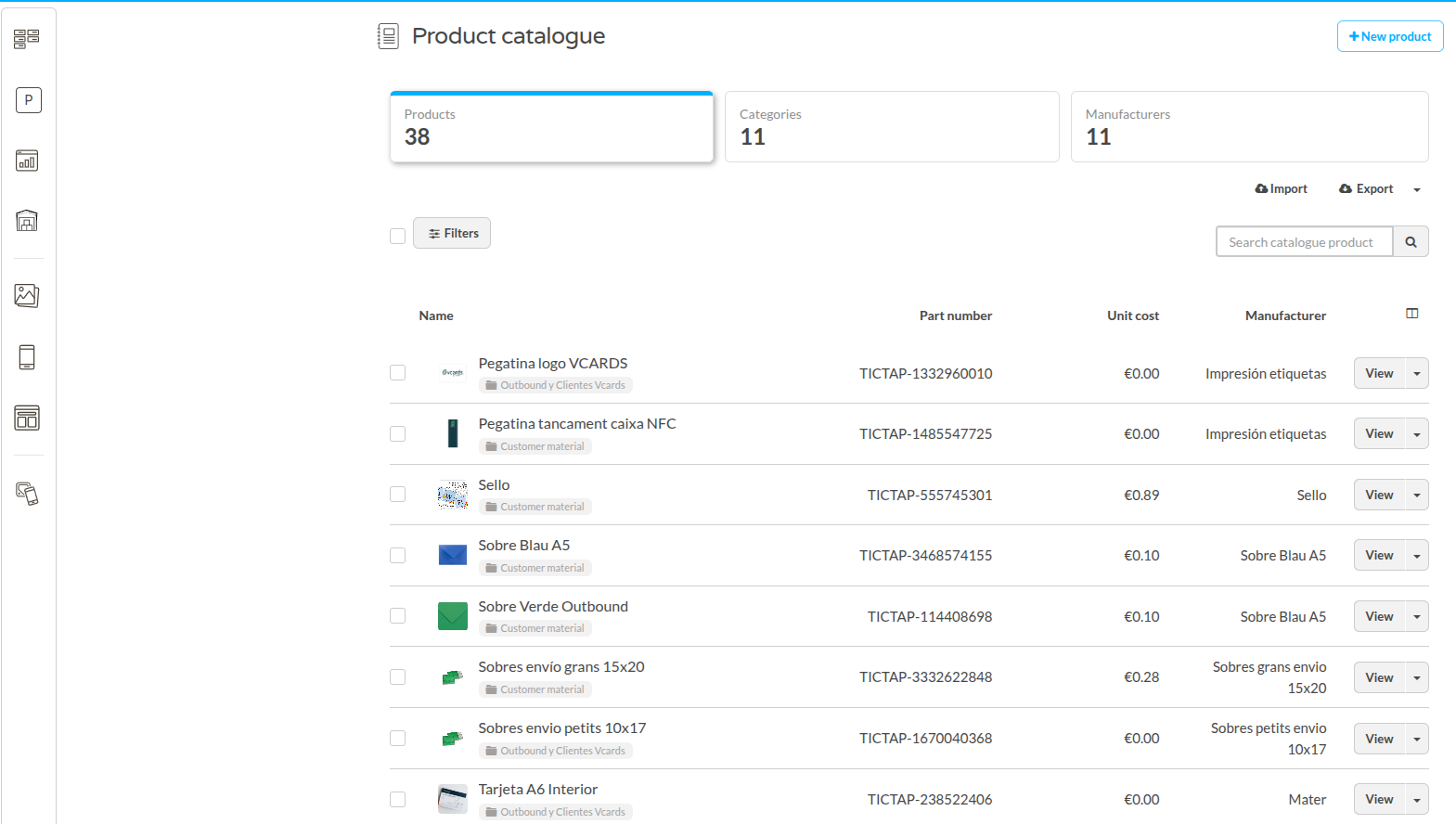
The product form defines catalogue-level data shared by every store that stocks the product, including category, manufacturer, image, unit cost, and QR assignment when needed.
Product name and part number are required. Optional fields include supplier, supplier number, manufacturer, category, product image, PDF files such as manuals or datasheets, unit cost, and description. Unit cost uses the currency configured in the Stock plugin settings.
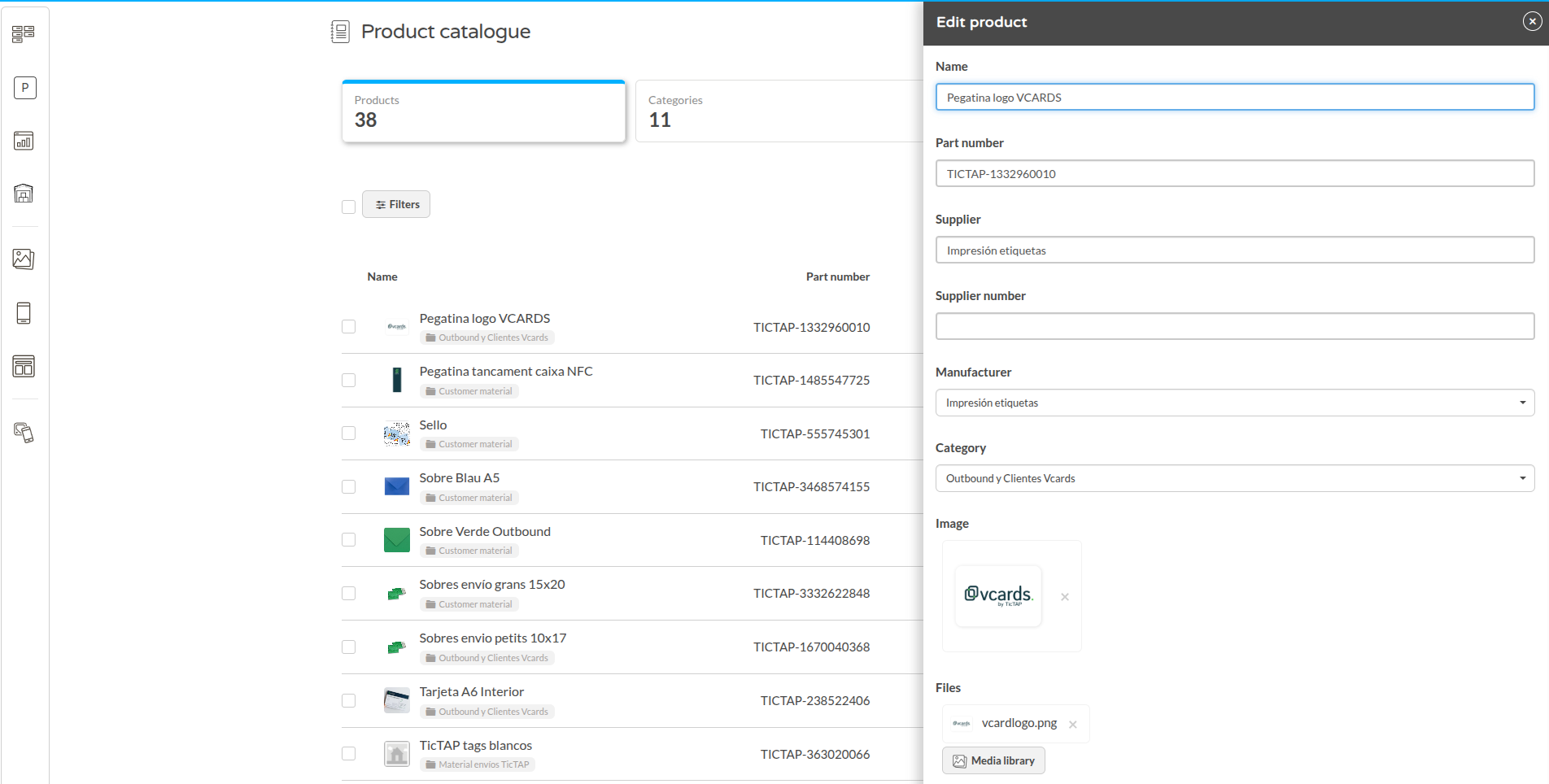
Categories define the catalogue tree used to browse store inventory. When product holdings are shown below a store, they appear grouped under these catalogue categories.
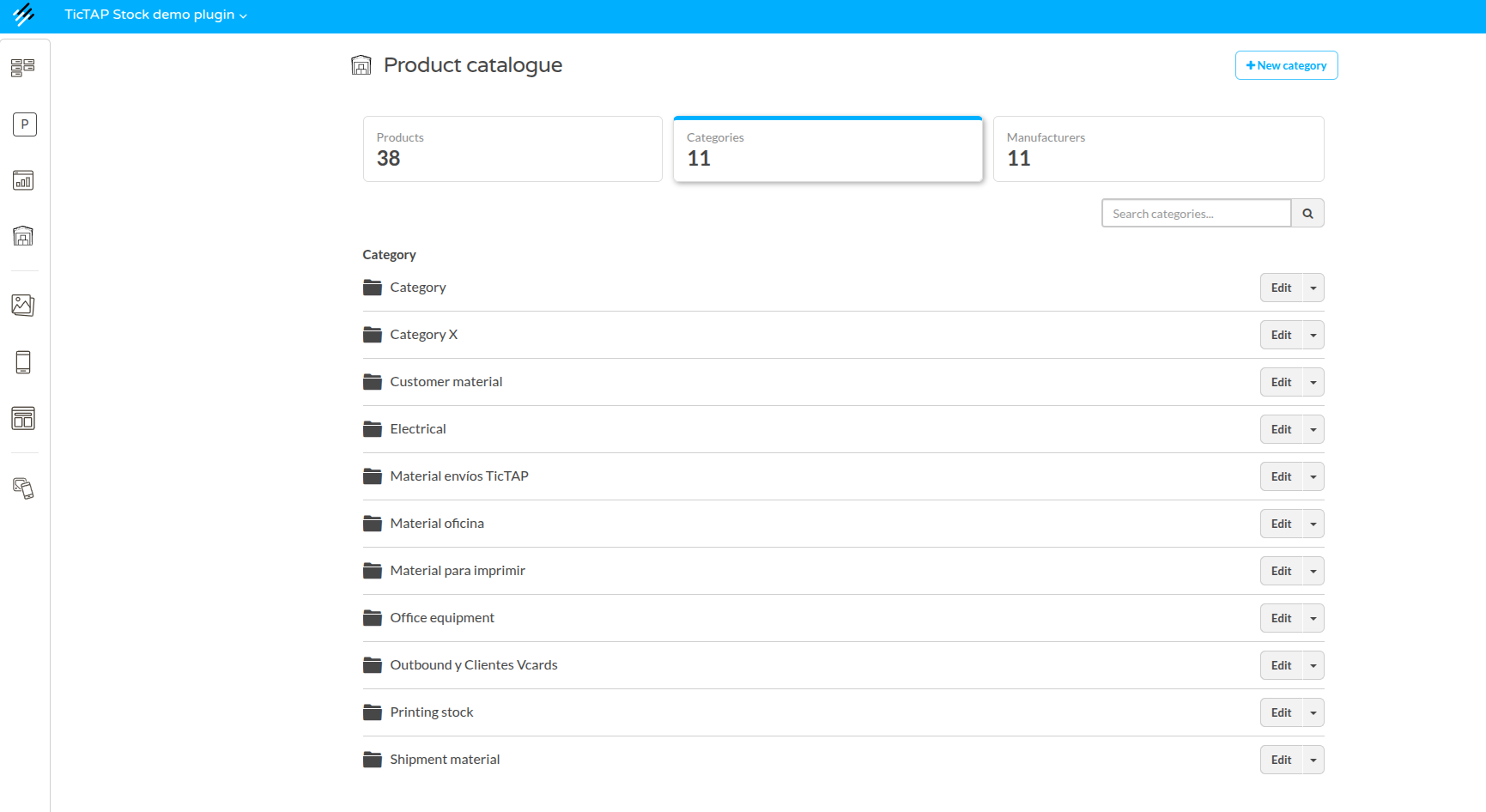
Manufacturers can be created, edited, deleted, and assigned to products. This keeps supplier or brand data consistent across stores and makes filtering and reporting easier.
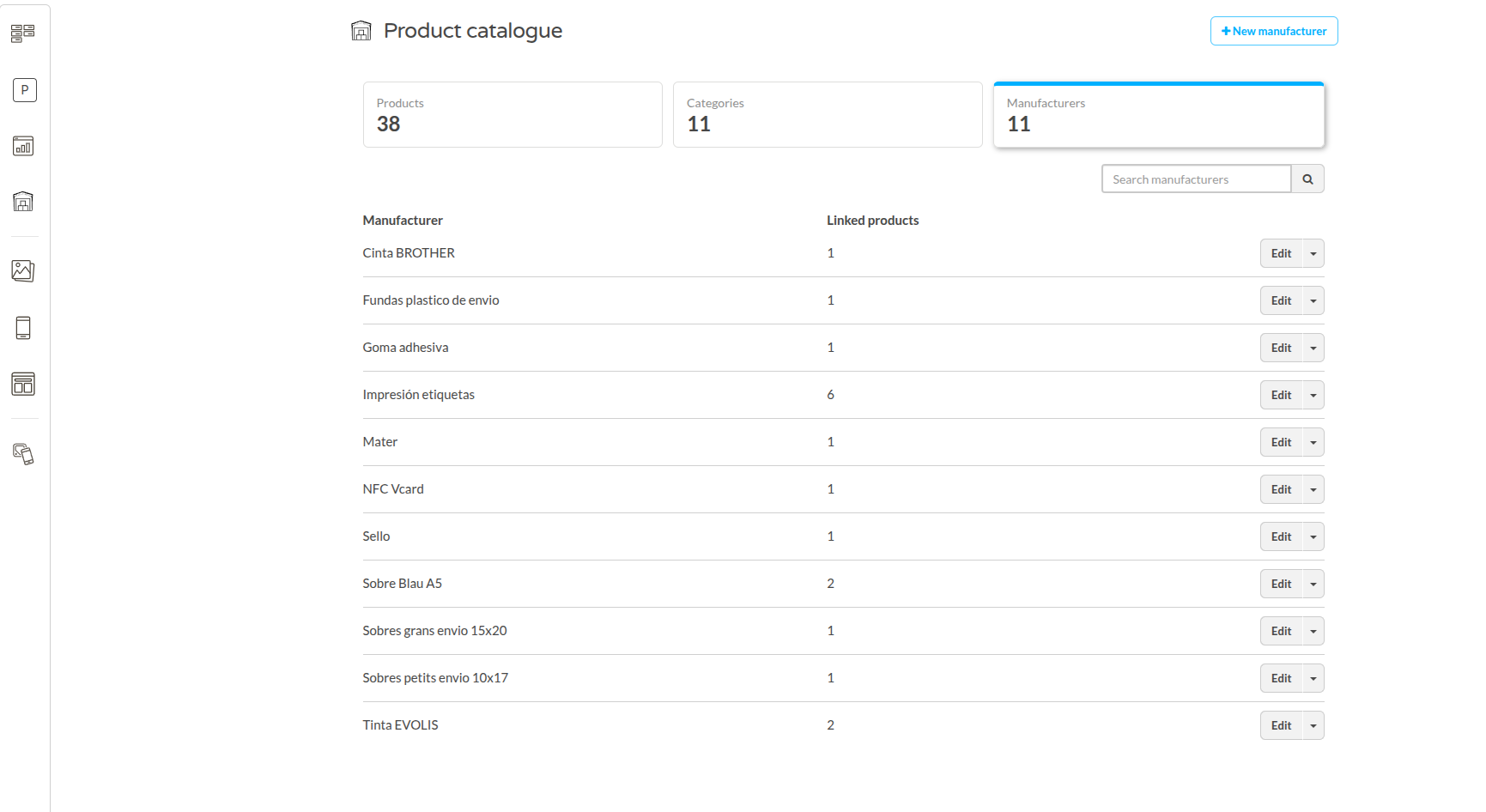
For bulk catalogue setup, use the import flow to upload a CSV or XLSX file, preview the rows, and confirm the valid products.

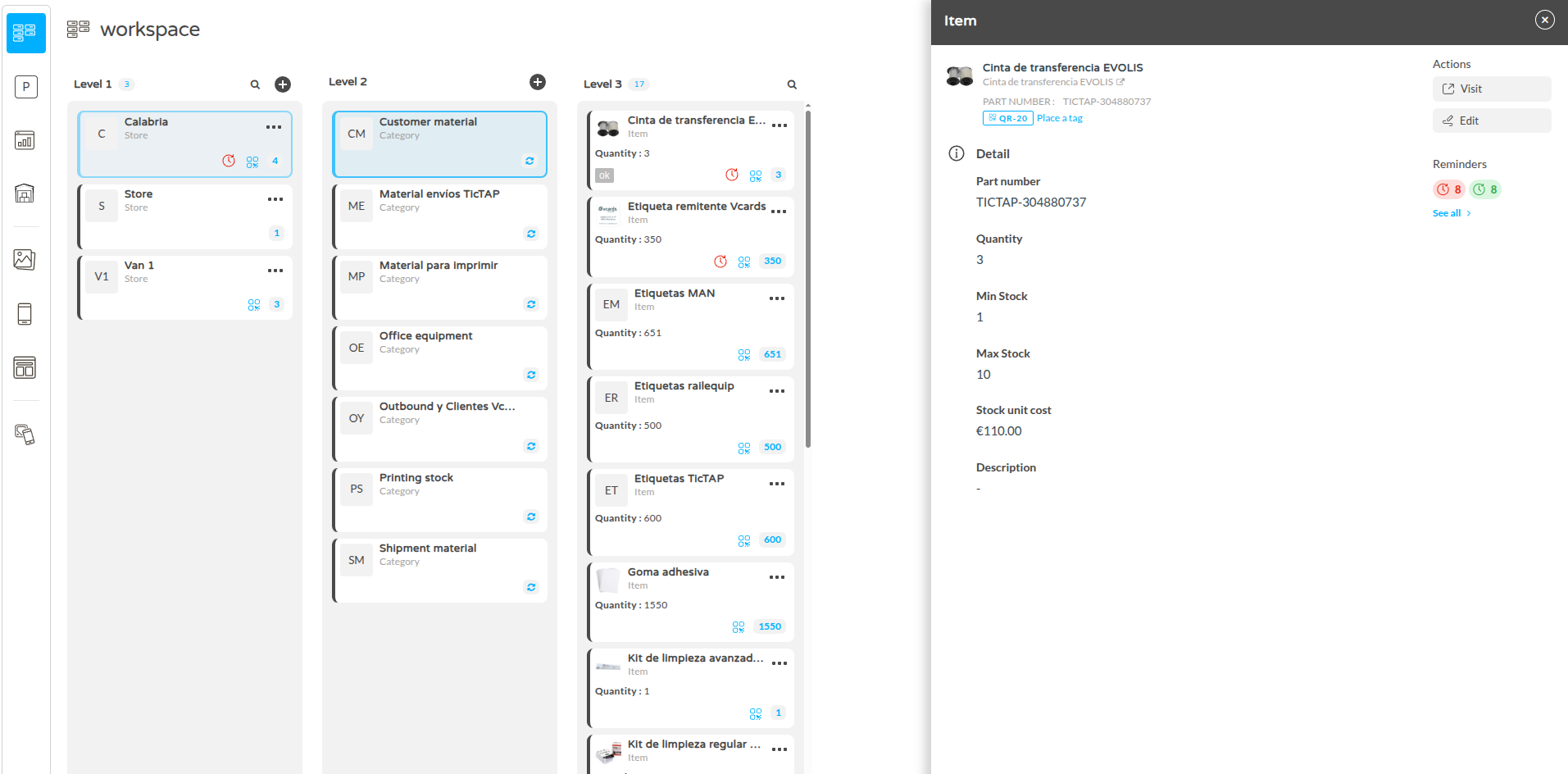
Product holdings in the Workspace
A catalogue product becomes part of a store inventory when you create a product holding under that store in the Workspace. The product holding links the catalogue product to a specific store and stores the values that belong to that store:
- Current quantity.
- Minimum stock.
- Maximum stock.
To create one, open the store in the Workspace, choose the action to create a new item, select an existing catalogue product, and set the initial quantity and thresholds. For larger setup work, you can import product holdings in bulk for the selected store.
A store can represent a warehouse, van, retail store, technician vehicle, production area, or any other physical or logical stock location. Store imports can include part numbers, initial quantities, minimum stock values, and maximum stock values.
After creation, product holdings are shown below the store grouped by their catalogue categories. This means the hierarchy under the store follows the category tree from the product catalogue, while each product keeps its own store-specific stock values.
Inventory summary
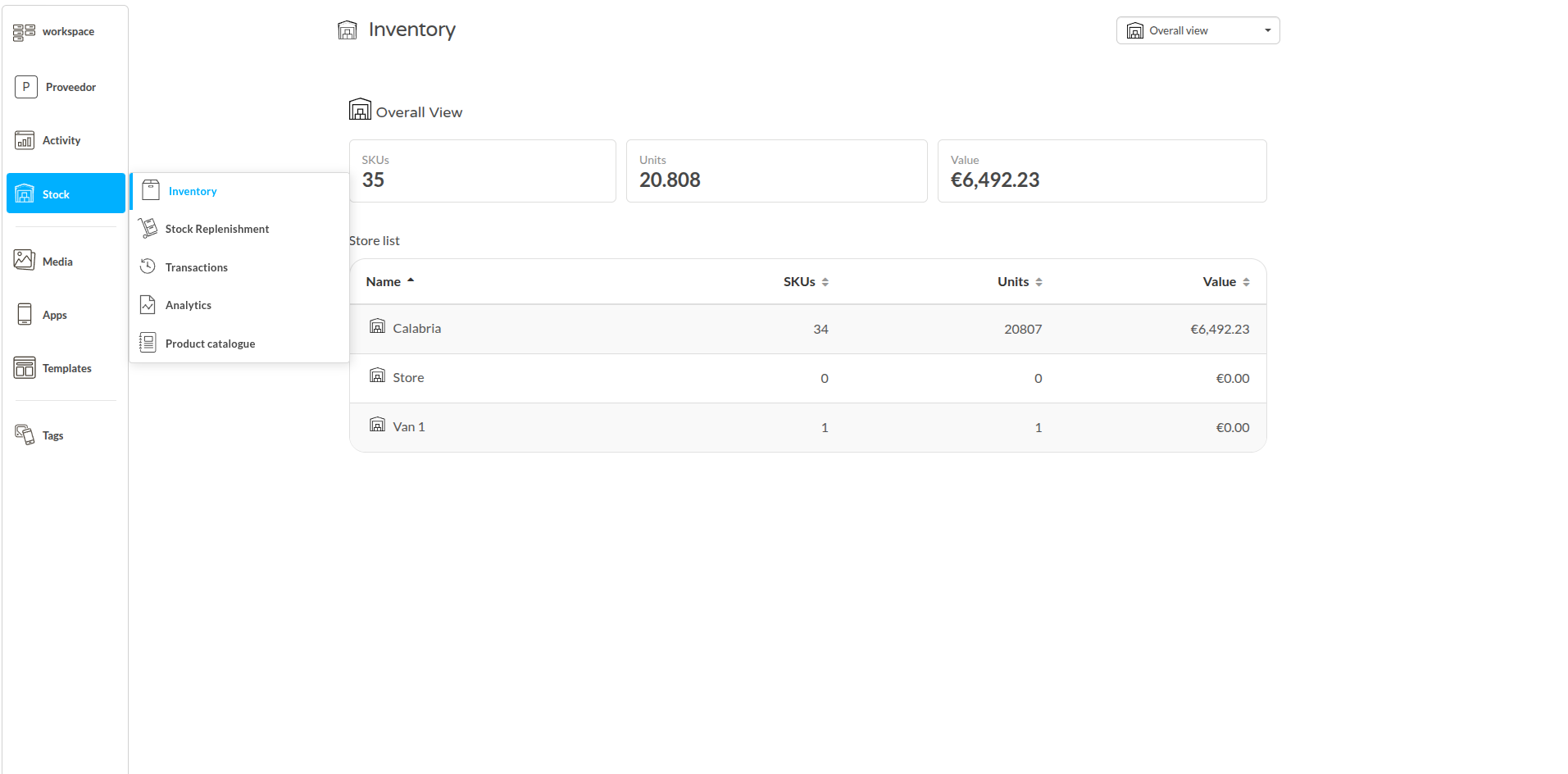
The Inventory Summary shows the stock situation for a selected store.
For each store you can review:
- Total number of items: the number of catalogue products currently present in that store.
- Number of item categories: product categories represented in that store.
- Total number of units: the accumulated quantity of units available in stock.
- Total value in local currency: the economic value of the store stock.
You can browse inventory through catalogue categories. Each product holding can be opened to review current quantity, minimum and maximum levels, unit cost, and product information inherited from the catalogue.
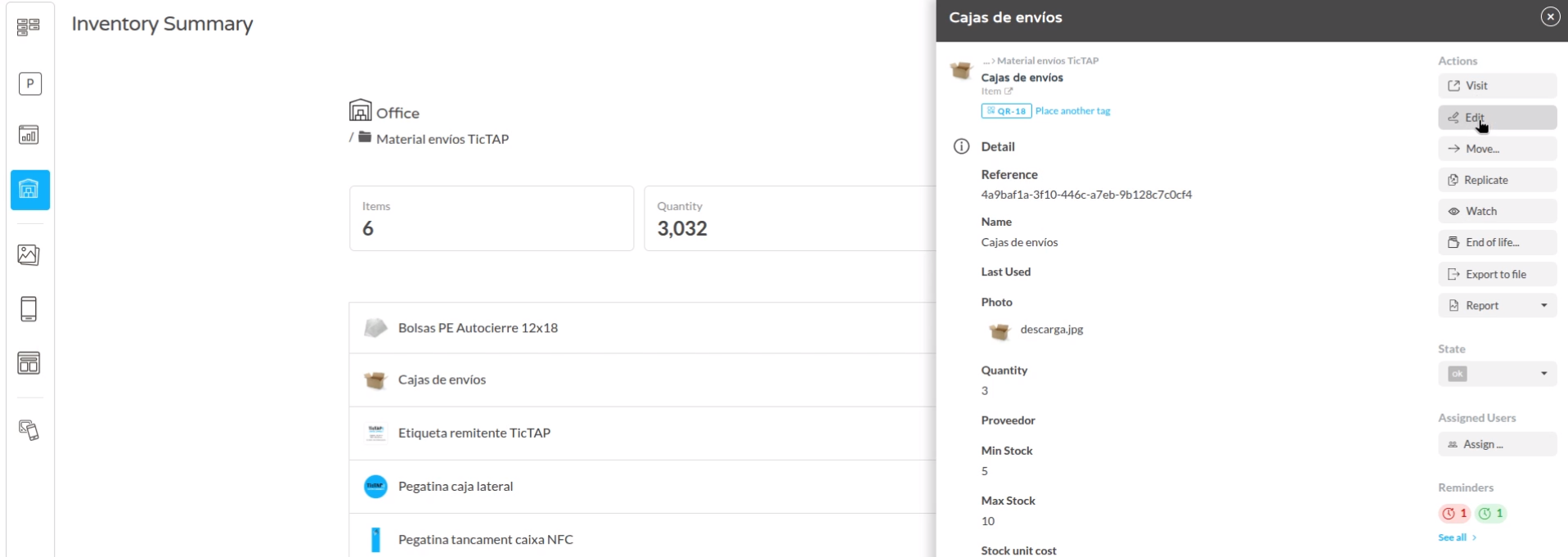
Administrators can also search inventory by product name or part number, open stock details, and use QR or visit actions to access the frontend operational view when needed.
Stock replenishment
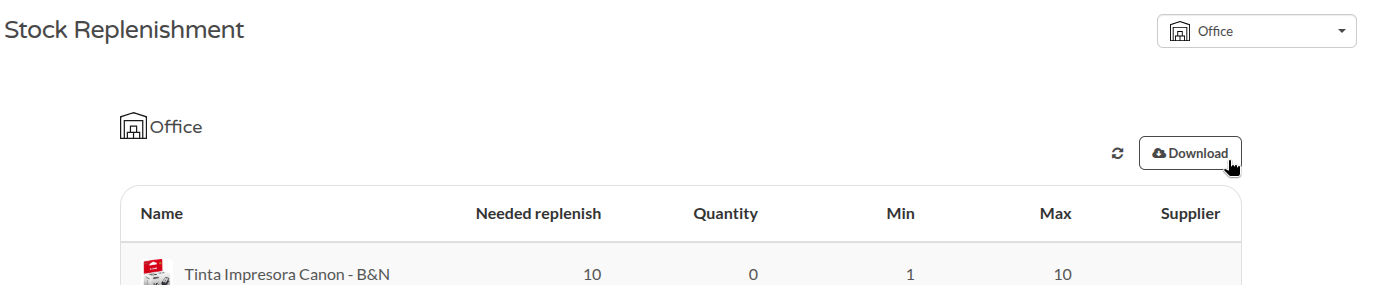
The Stock Replenishment view lists products whose current quantity is below the configured minimum for the selected store.
When a stock operation leaves a product below its configured minimum quantity, TicTAP automatically creates a replenishment reminder for that product in that store. When the product is replenished back to the expected level, the reminder is resolved.
For each product it shows:
- Current quantity: units currently in stock.
- Minimum and maximum stock values configured for this store.
- Suggested replenishment quantity: how many units should be added.
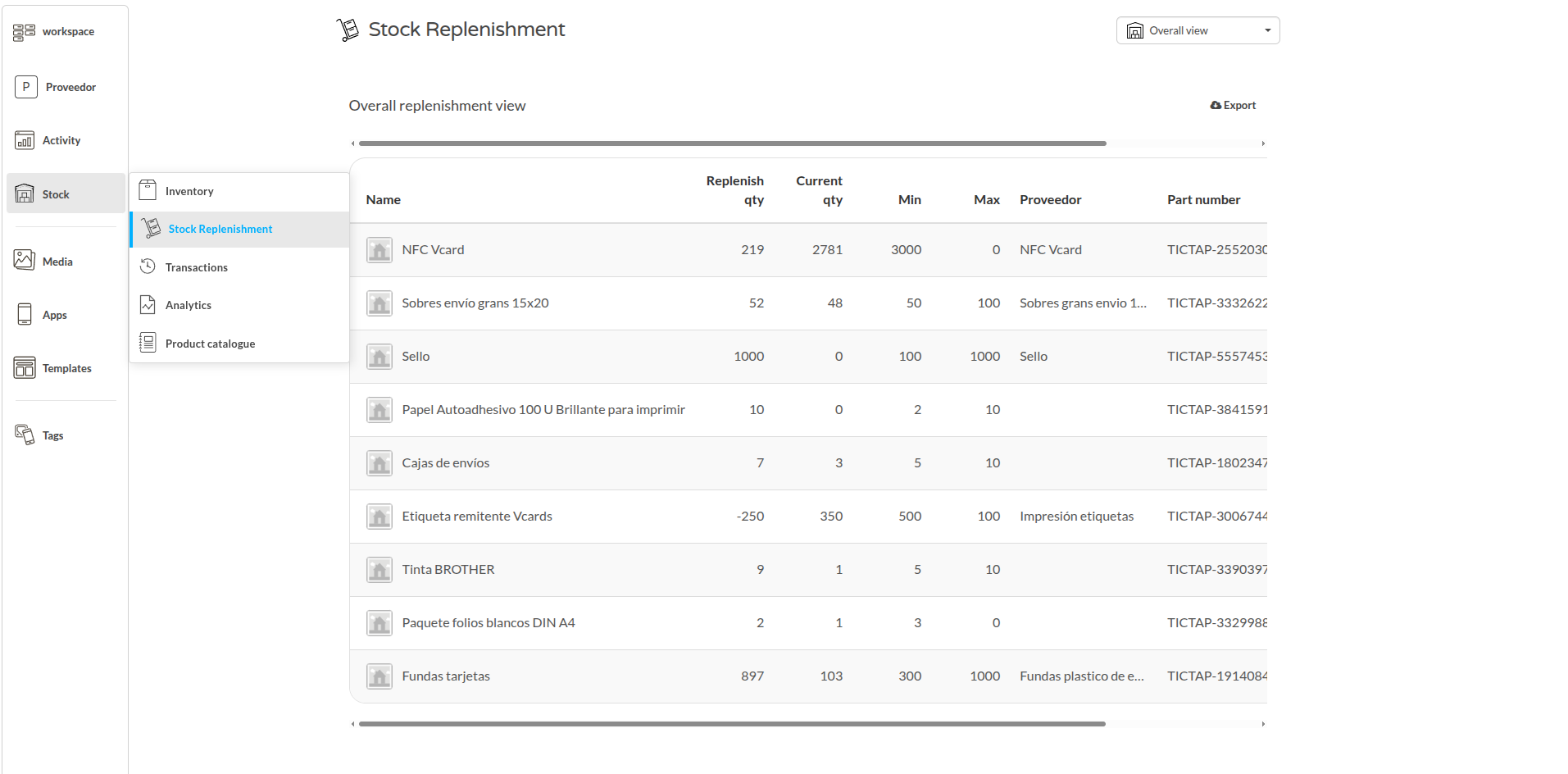
If a maximum exists, the suggestion is the difference between the maximum and the current quantity. If there is no maximum, the system suggests replenishment only up to the minimum.
The replenishment list can be downloaded for offline review, ordering, or reporting.
Stock notifications
Stock notifications let users receive updates about stock events. Subscriptions can be scoped to specific stores and specific stock events. From the Stock Replenishment view, click the bell icon to open notification settings.

Users can be subscribed to:
- Stock Depleted: a product quantity falls below its minimum threshold and a replenishment reminder is created.
- Stock Replenished: a product that was below minimum stock is replenished and the replenishment reminder is resolved.
- Stock Out Transaction: an outgoing stock transaction is created, including products, quantities, cost, order number, and destination when provided.
Notifications can be immediate or grouped in a daily digest, and a custom notification email address can be configured.
Low-stock reminders are created when a product falls below its configured minimum. A fully depleted product is the zero-stock case within the same monitoring workflow.
Stock transactions
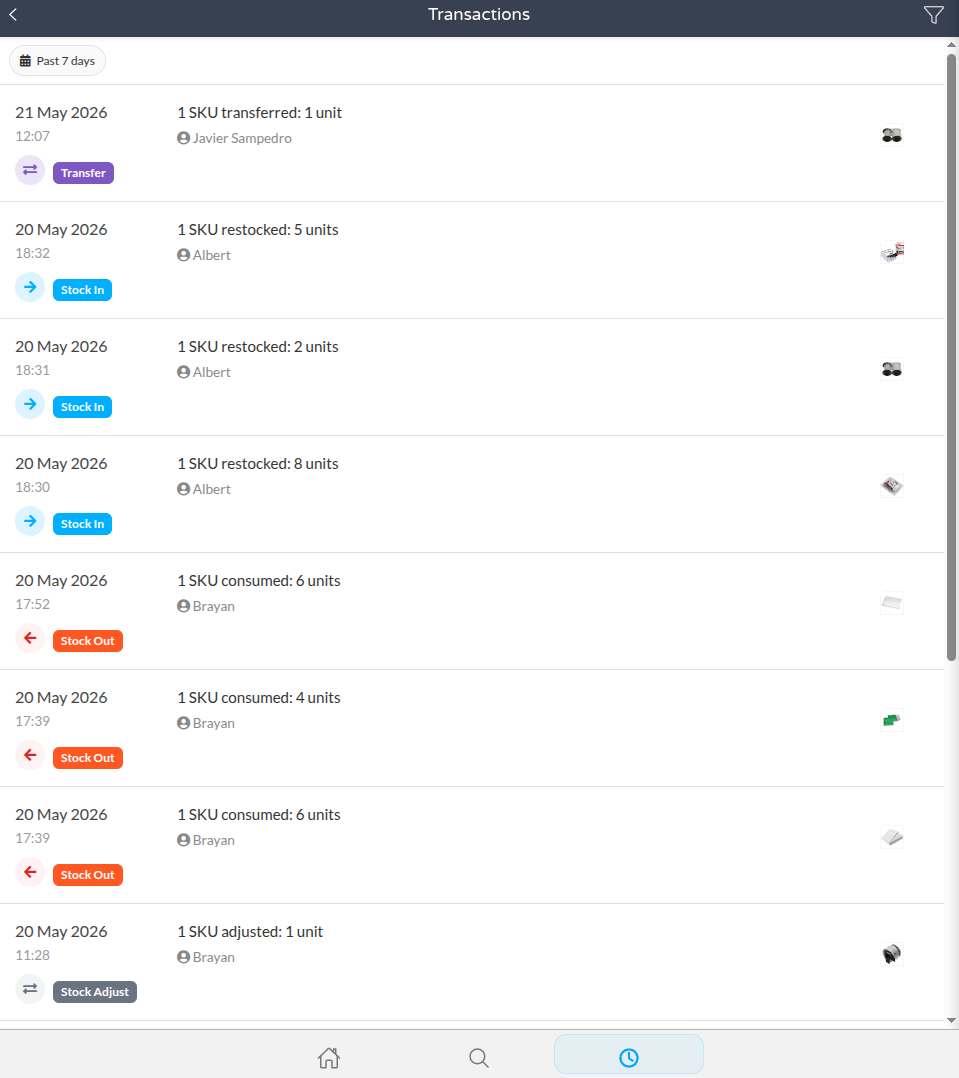
The Stock Transactions list provides an audit trail of all confirmed stock movements: Stock Out, Stock In or Stock Replenish, Stock Adjust, and Stock Transfer.
A Stock Transfer moves products from one store to another. It decreases stock in the source store and increases stock in the destination store in the same transaction, keeping the movement traceable as a single operation.
Each transaction requires a reason, such as consumption, maintenance, theft, damage, or audit correction. Reasons are stored in the history and can be used later in analytics.
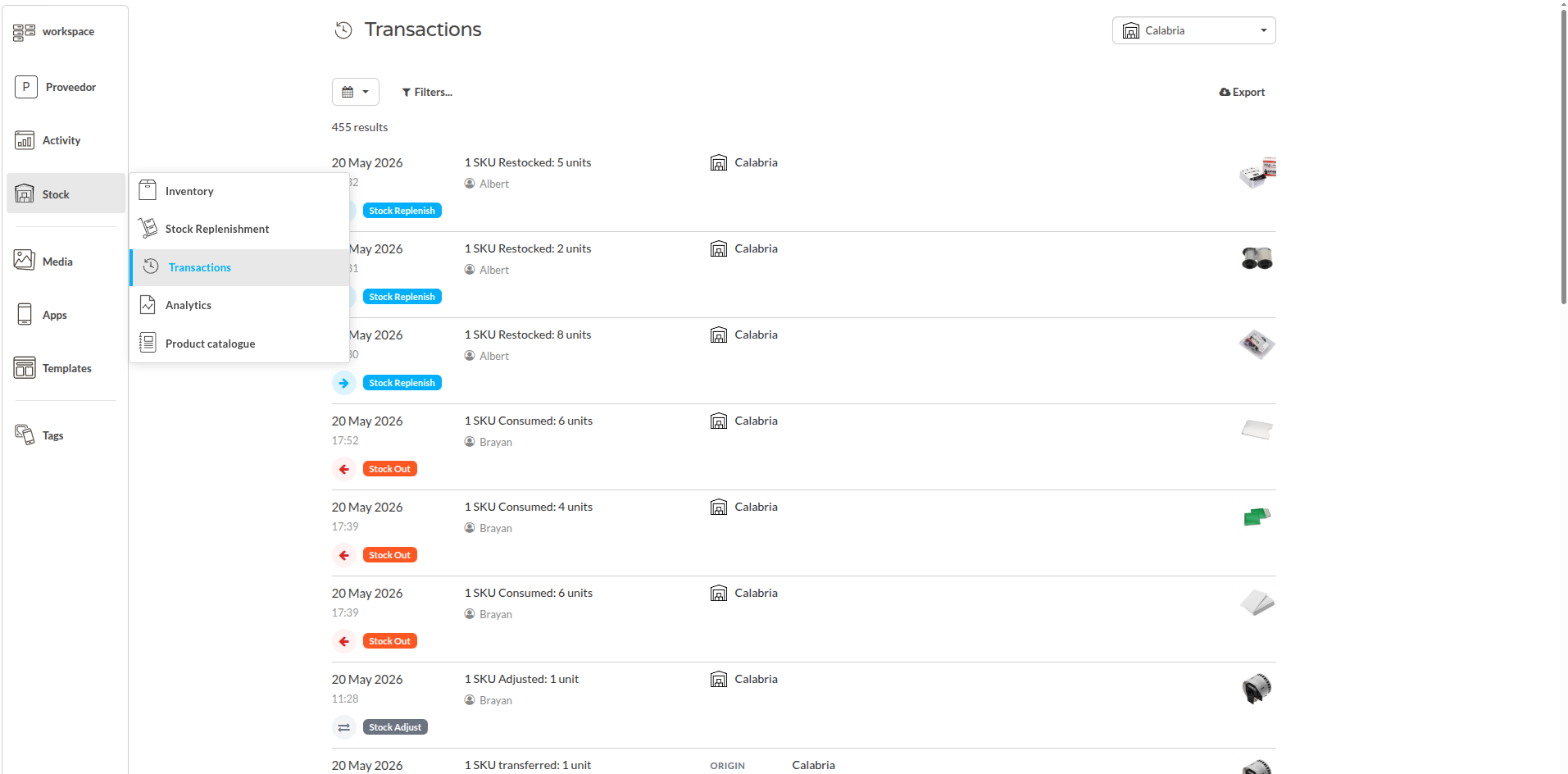
Transactions can be filtered by date range, transaction type, user, product, source store, destination store, and reason.

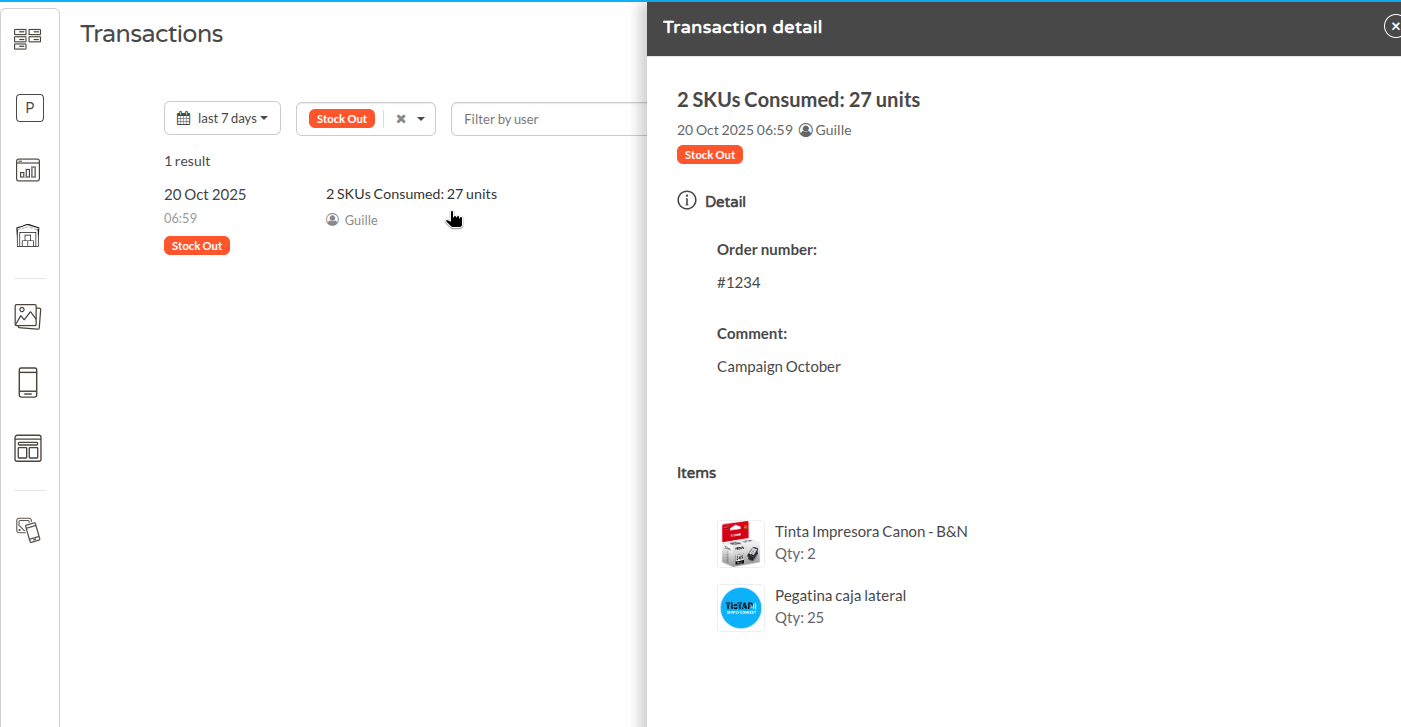
Selecting a transaction opens its details, including products, quantities, order number, notes, user, date, and source/destination stores for transfers.
Analytics and reporting
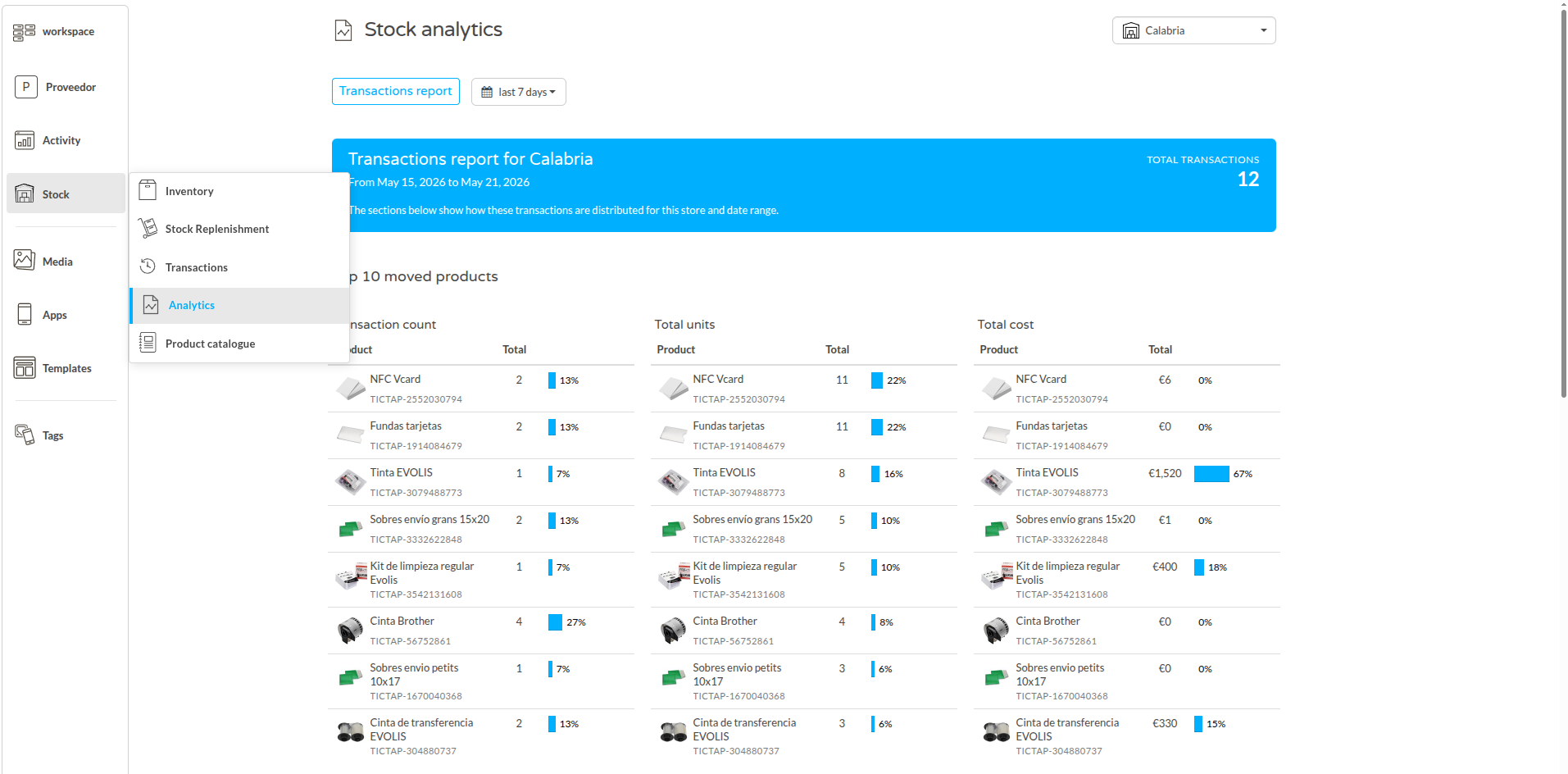
The Transactions Report provides visibility into stock activity by product, user, reason, and store. It helps identify high-movement products, active users, recurring consumption or loss reasons, replenishment needs, and store-level anomalies.
Reports can be filtered by date range, store, destination, transaction type, and reason. Available metrics include the top moved products, quantity moved, associated movement cost, users performing the most transactions, and cost or movement totals by user.
Frontend
The Stock Application is the store-facing tool for daily operations. It works with products from the catalogue and updates the selected store inventory when a transaction is confirmed.
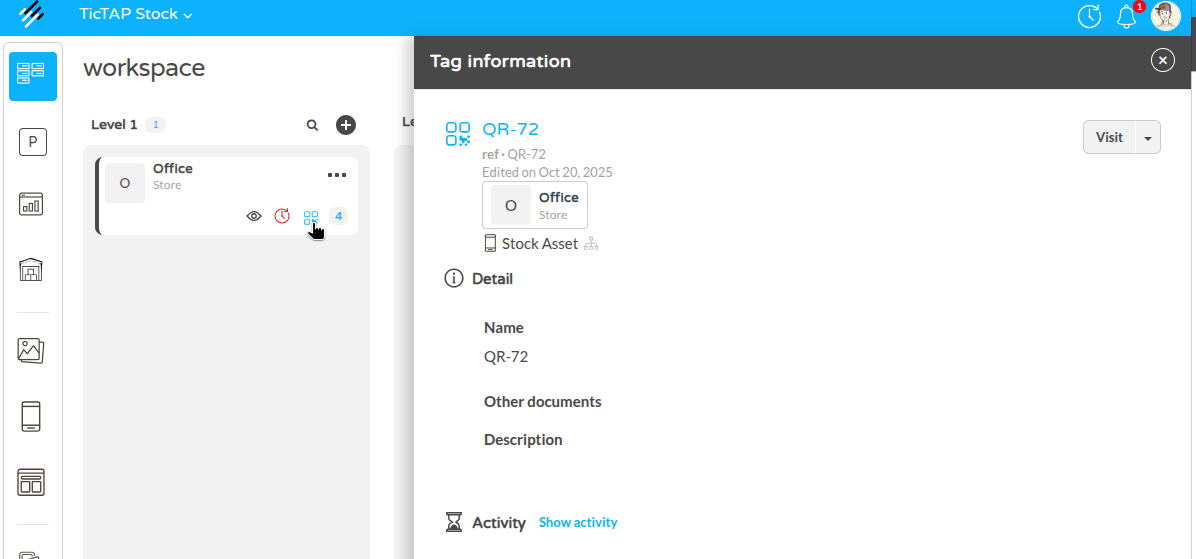
Accessing the Store via QR Code
Users usually access the Stock Application by scanning a store QR code. Once scanned, the user enters that store's stock application.
Main Application Screen
The main screen summarizes:
- How many unique products exist in the store.
- The total quantity of units.
- The combined value of all products currently in stock.
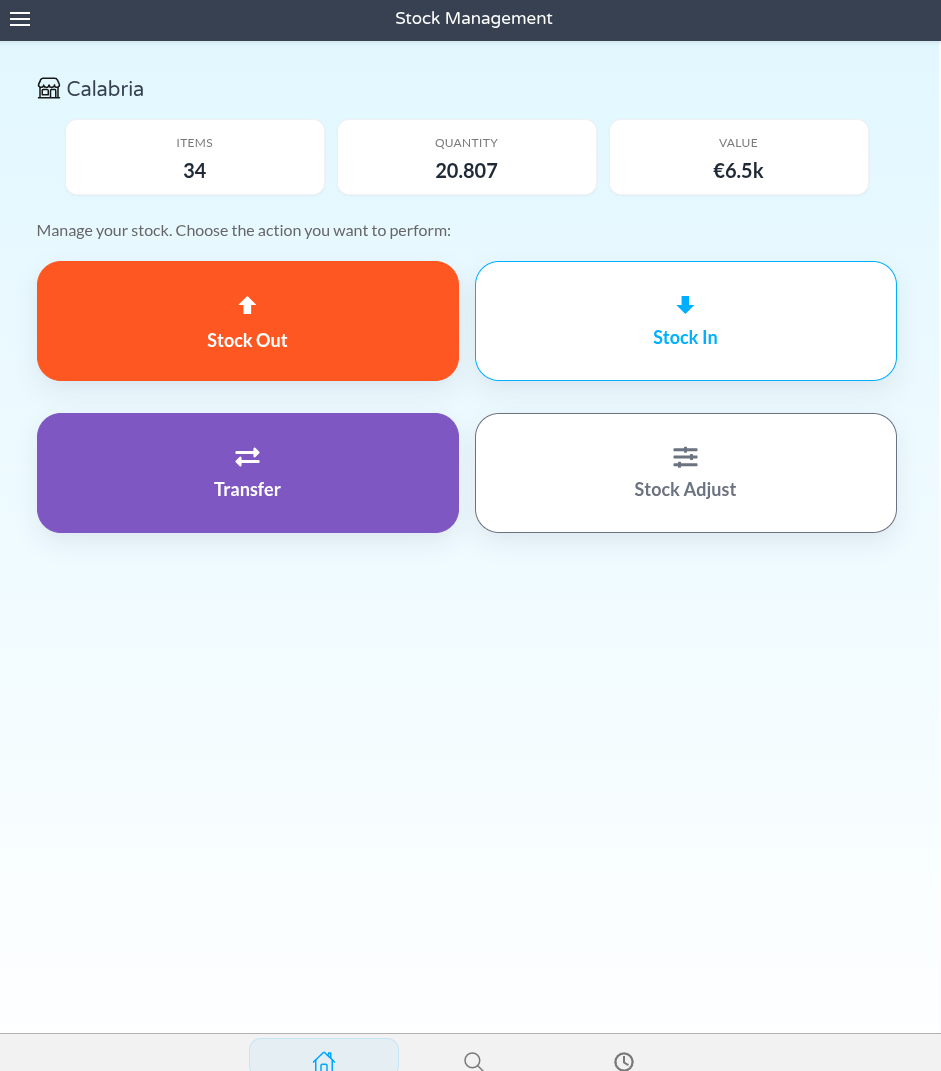
Selecting an Action
Before selecting products, users choose the stock action that matches the real movement:
- Stock out: products leave the current store inventory.
- Stock in: products are added to the current store inventory.
- Transfer: products move from the current store to another store, decreasing the source quantity and increasing the destination quantity in the same transaction.
- Stock adjust: the recorded quantity is corrected to match a physical count by setting the final quantity.
Selecting Products
Products can be selected by:
- Search: type the product name or part number.
- Browse: navigate through the store tree, where product holdings are grouped by their catalogue categories.
- Scan QR: identify a product by its QR code.
- Sync catalog: reload the latest product catalogue from the server.
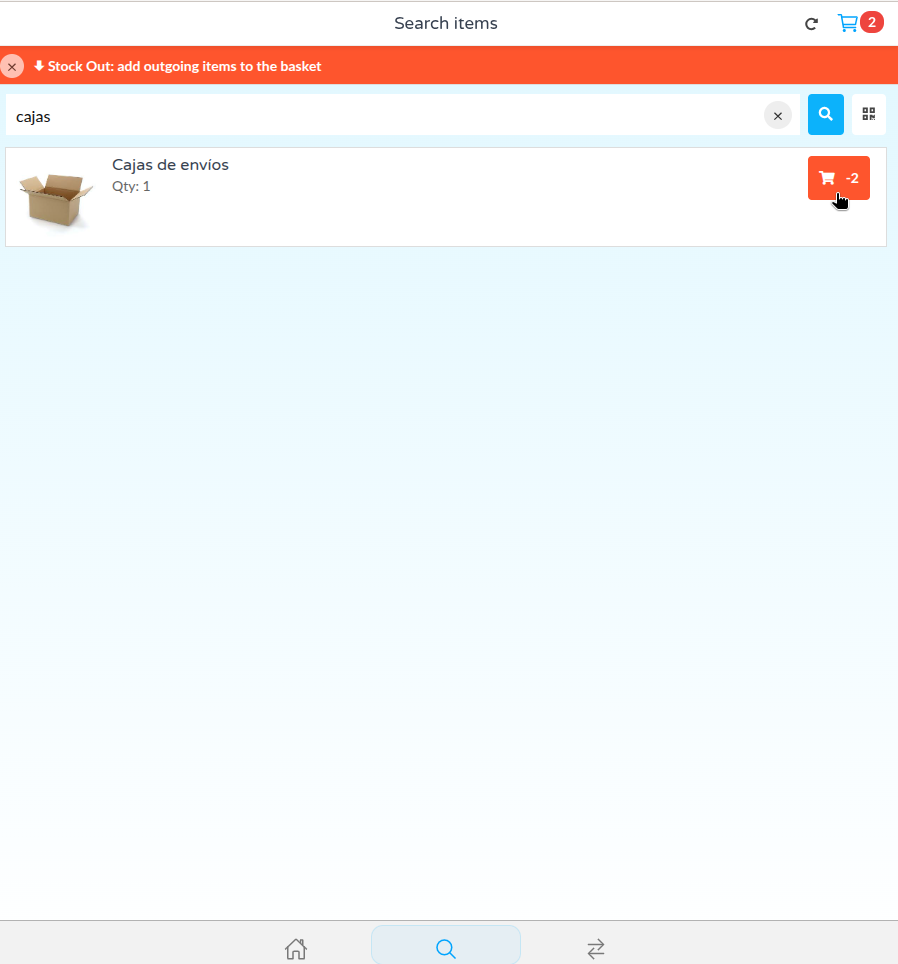
Basket and Finalization
Selected products are added to the basket for the active operation. Quantities can be edited before finalizing.
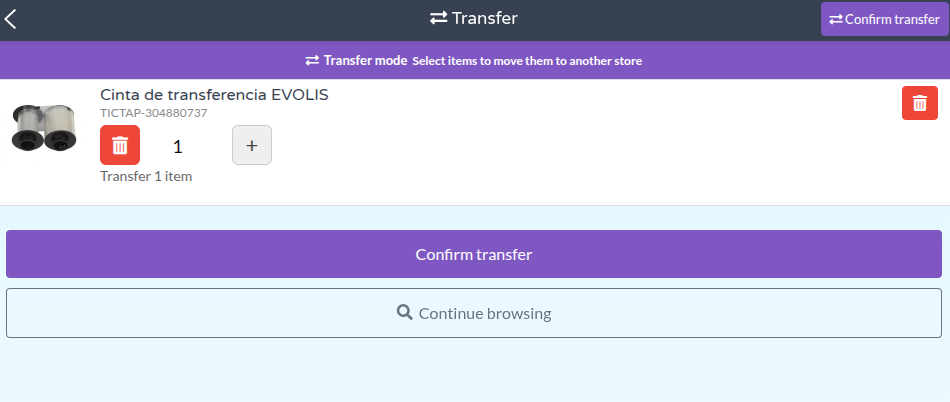
When the basket is ready, the user finalizes the operation and reviews the transaction summary. The user can add a reason, notes, an order number, and a destination store for Stock Transfer operations.
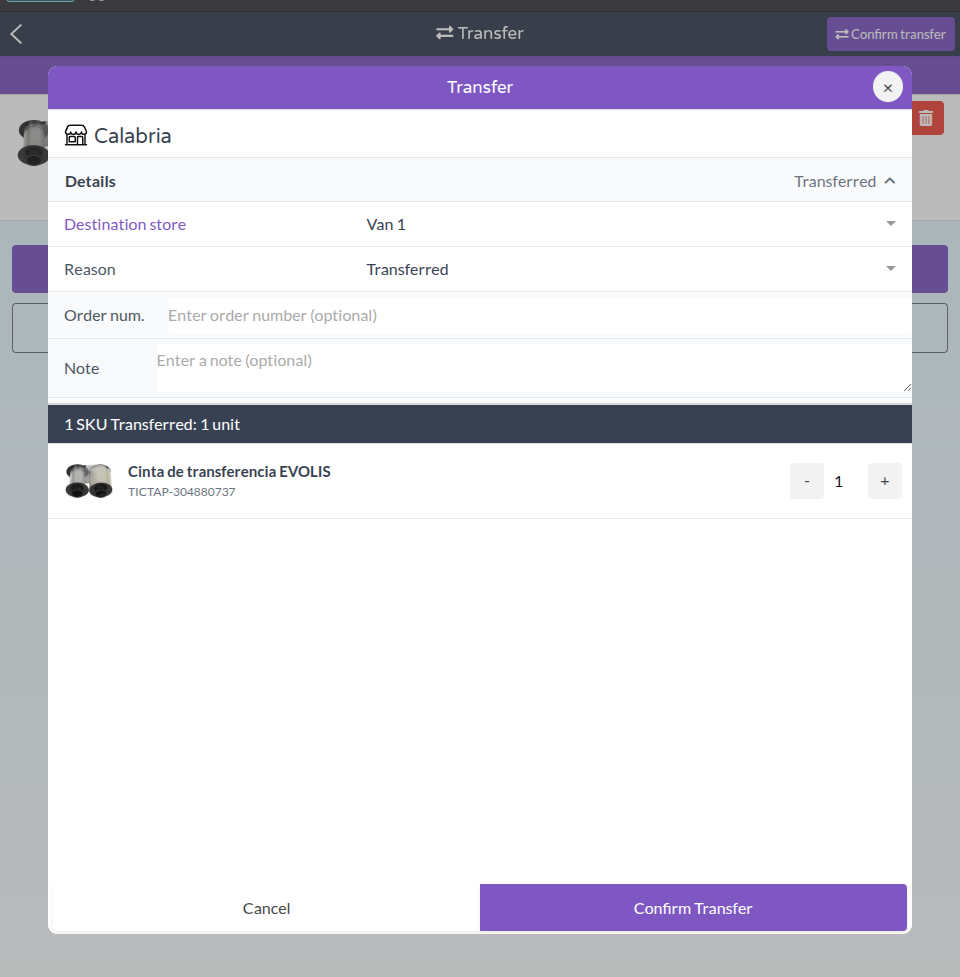
Confirming the operation updates inventory and creates the transaction record. For Stock Transfer, stock is removed from the current store and added to the destination store.
The application validates the operation before confirming it. It prevents removing or transferring more units than are available, requires mandatory transaction information such as reason, requires a destination store for transfers, and can hide or block actions that the current user is not permitted to perform.
Viewing Transactions
After confirmation, the operation appears in the transactions section. Users can review recent transactions and filter them by date, type, user, and product. Transfer transactions show the store-to-store movement context.
For more detail, see Backend stock management and Stock application.