Backend
The backend area is where administrators configure and supervise the current Stock Management module. The workflow starts with the product catalogue and continues with store inventory, replenishment, notifications, and transaction review.
Product catalogue
The product catalogue is the source of truth for the products that can be stocked. It is managed from the Stock backend area and is split into three main views: Products, Categories, and Manufacturers.
Products
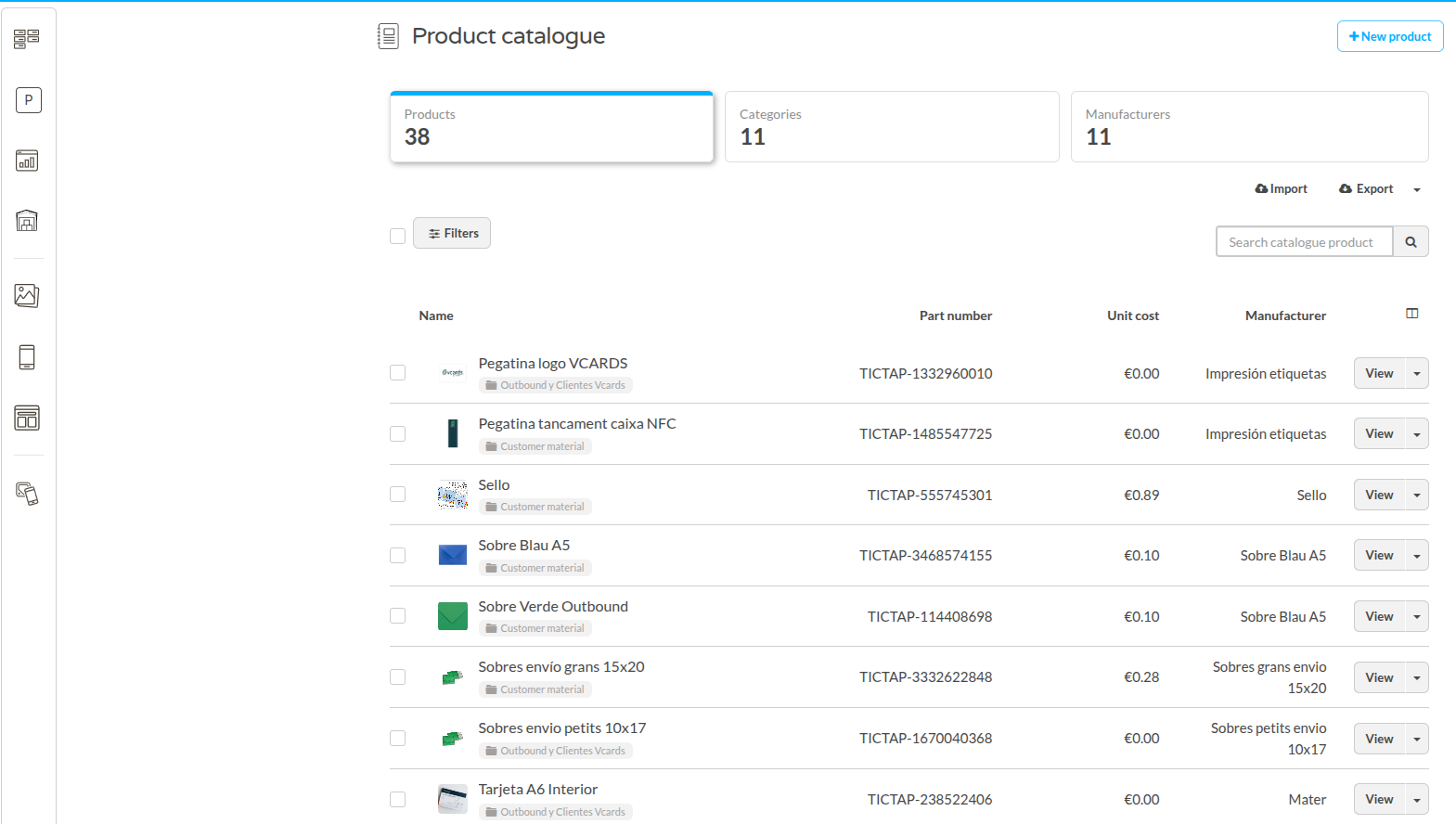
The Products view lists the catalogue products available to the enterprise. A product can include:
- Name and description.
- Part number.
- Category.
- Manufacturer.
- Supplier name and supplier number.
- Image.
- PDF documentation, such as manuals, datasheets, or certificates.
- Unit cost.
From this view you can create, edit, delete, filter, import, and export catalogue products. Products created here are not store inventory yet; they become available to stores when a product holding is created under a store in the Workspace.
Creating or Editing Products
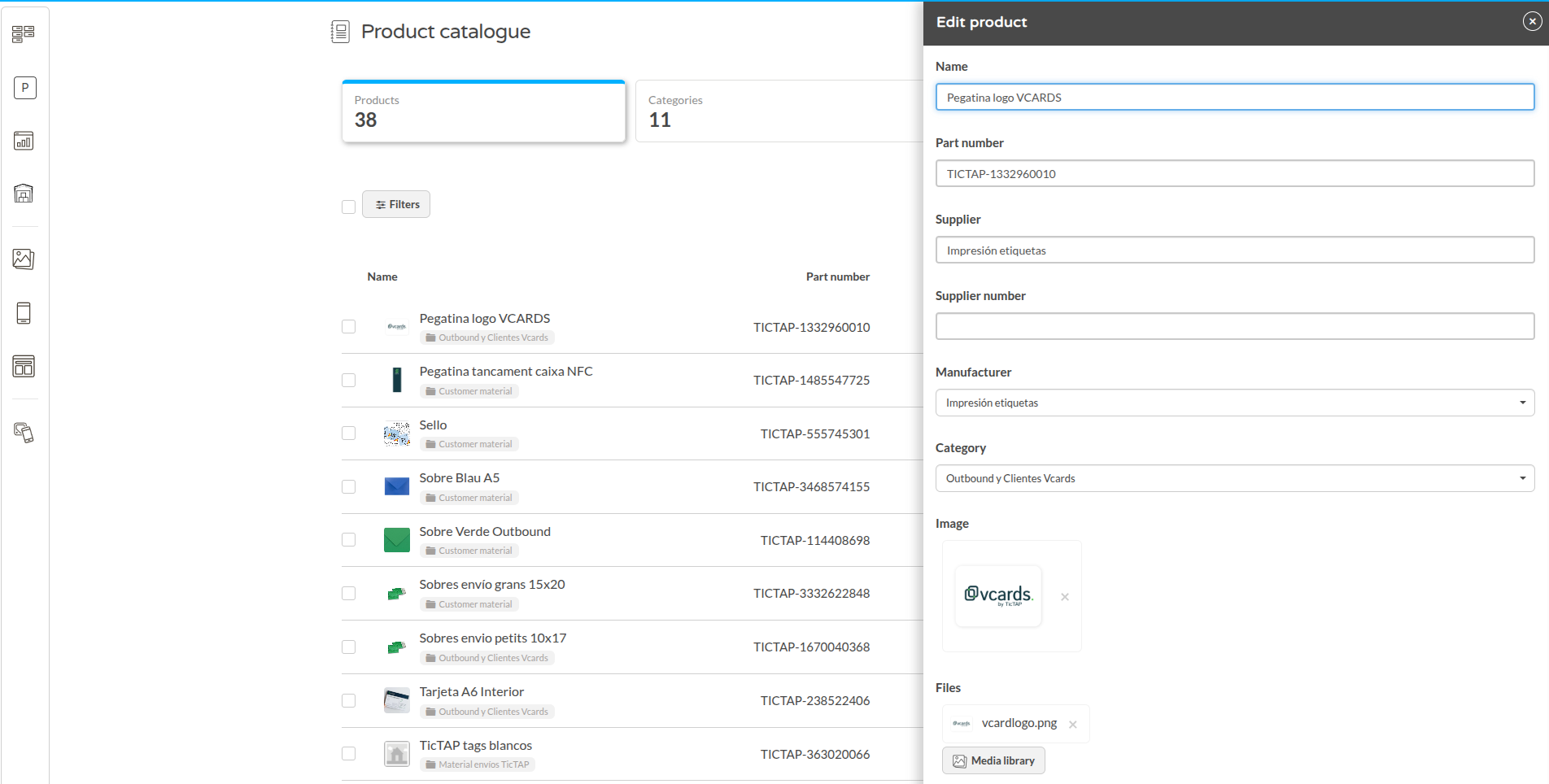
When creating or editing a product, use the form to define its catalogue-level data. Product name and part number are required. Optional information includes description, supplier, supplier number, manufacturer, category, product image, PDF documentation, unit cost, and QR assignment when needed.
The unit cost uses the currency configured in the Stock plugin settings, for example EUR or USD. These catalogue values are shared by every store that stocks this product.
Importing and Exporting Products
Catalogue products can be imported in bulk from a CSV or XLSX file. The import uses a predefined template that defines the supported fields. During import, TicTAP can create products, create missing catalogue categories, and associate supplier information such as supplier name and supplier number.
The import flow previews valid rows and validation errors before confirming the import. The catalogue can also be exported directly from the Product Catalog view when you need to review, process, or reuse the product list in another environment or team.

Categories
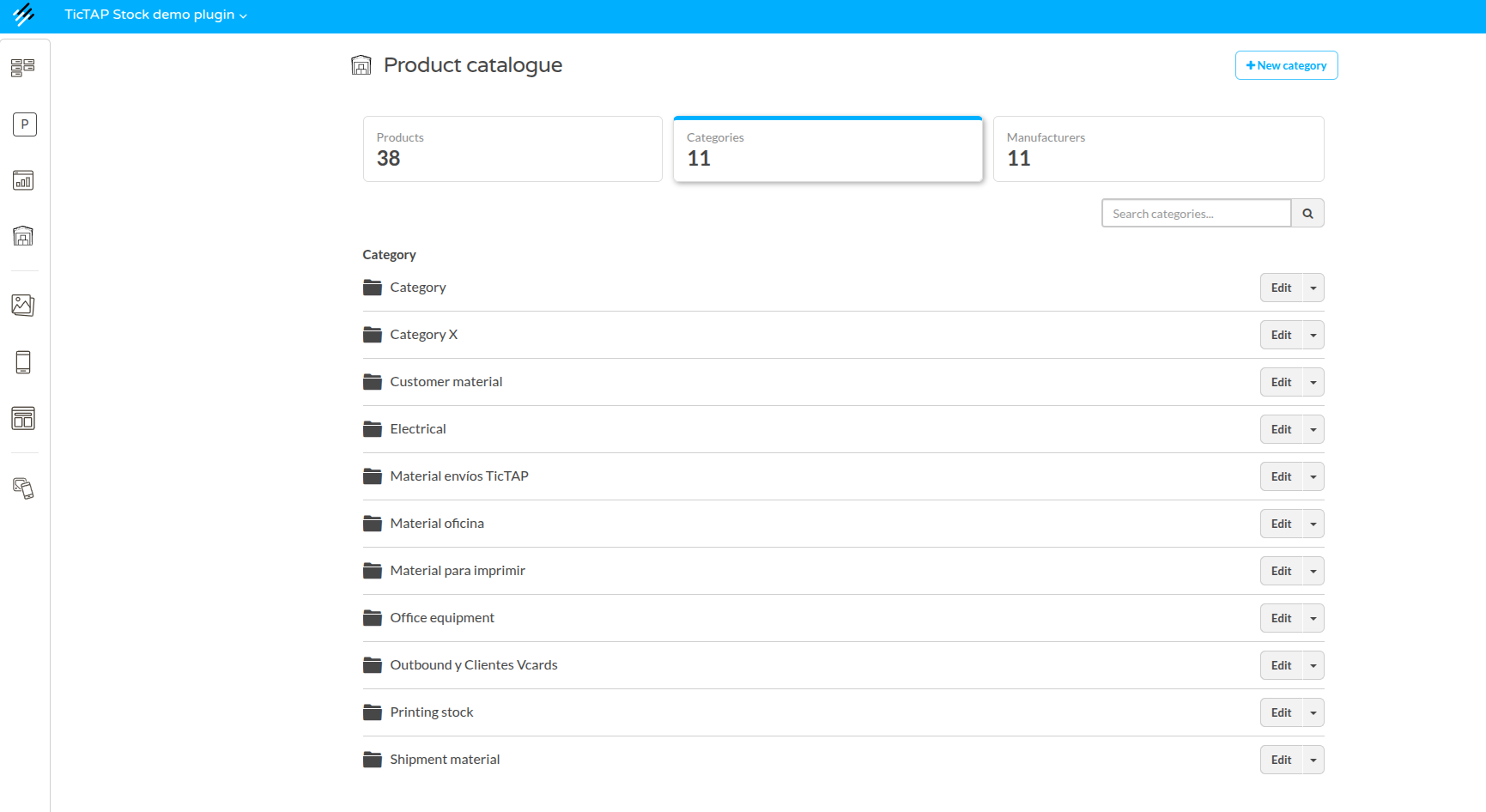
Categories organize the catalogue and define how products are grouped when browsing inventory. Categories can be created as root categories or subcategories, edited, deleted, and searched.
When product holdings are shown below a store, they are grouped using this catalogue category tree. This makes the store inventory easier to browse without duplicating category setup per store.
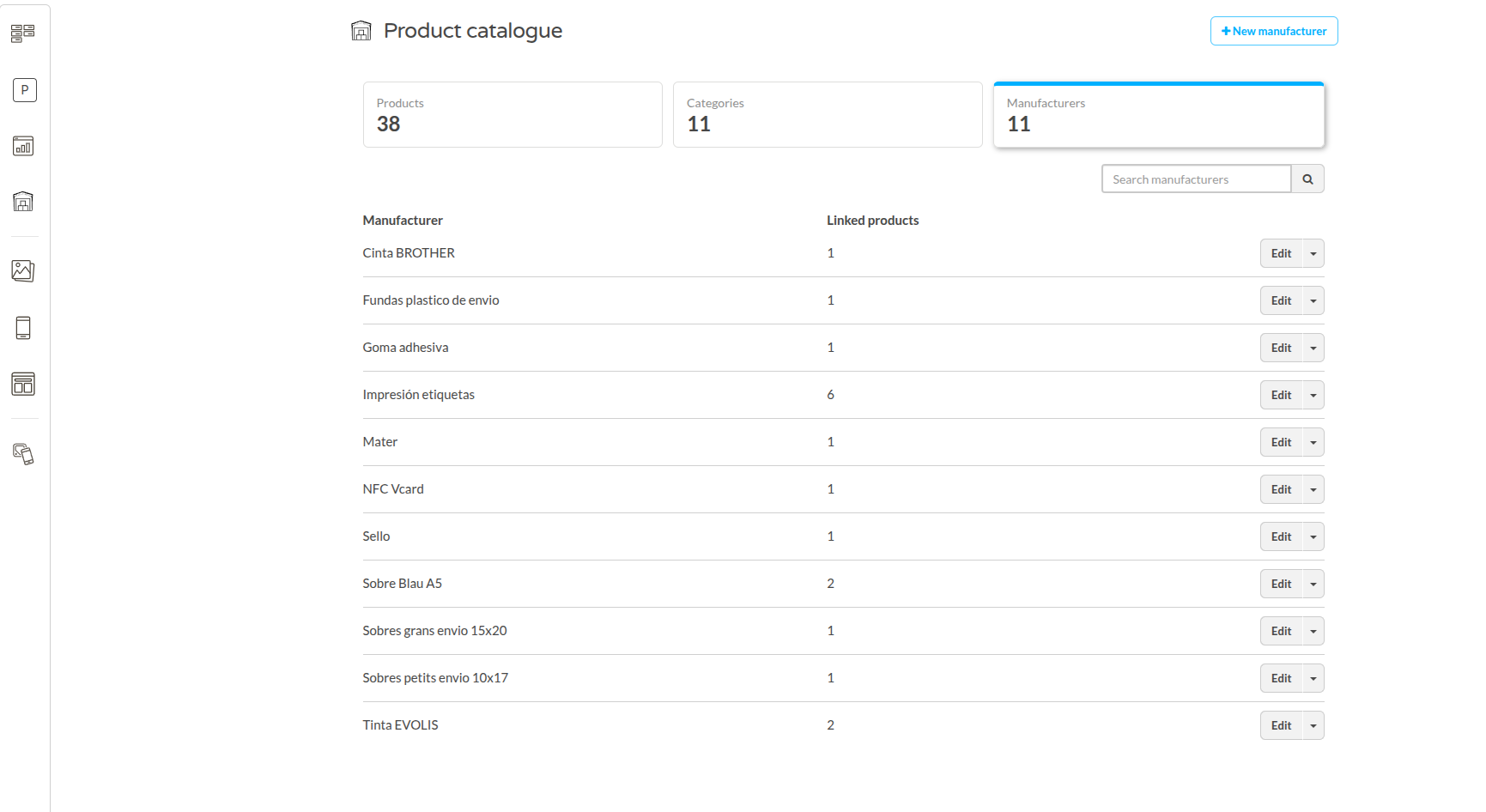
Manufacturers
Manufacturers are managed from the catalogue area and can be assigned to products. This helps identify suppliers or brands, improves filtering and reporting, and keeps product data consistent across all stores.
Stores and store inventory
A store represents any physical or logical location where stock is stored, such as a warehouse, van, retail store, technician vehicle, production area, or service point.
Stores are managed from the Inventory and Workspace areas. When creating or preparing a store, administrators define which catalogue products are stocked there by creating product holdings. A store setup can also be imported in bulk with:
- Product part numbers.
- Initial quantities.
- Minimum stock values.
- Maximum stock values.
These values define the stock buffer used by replenishment and reminders.
Product holdings in the Workspace
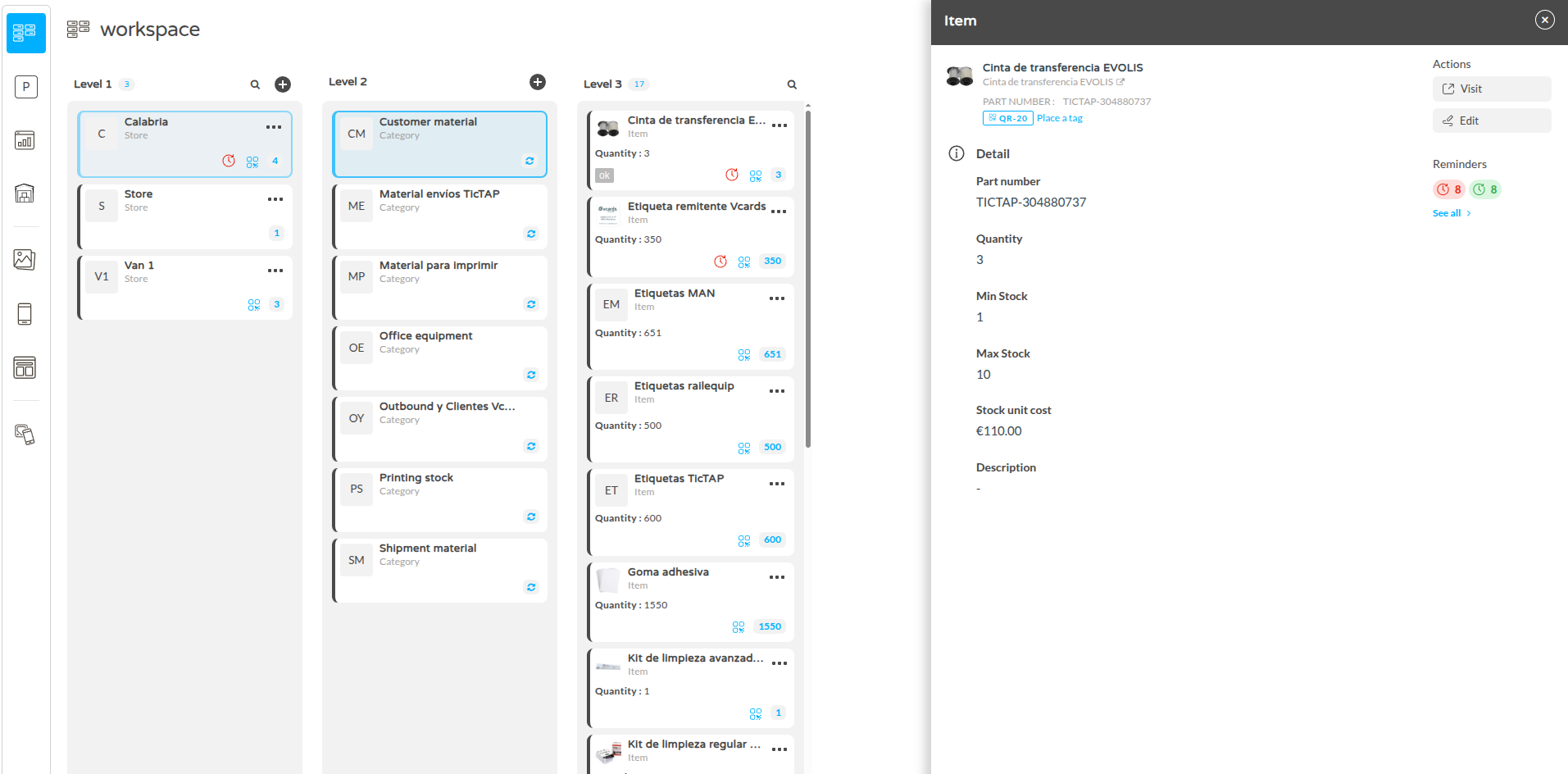
A catalogue product becomes part of a store inventory when you create a product holding under that store in the Workspace. The product holding links the catalogue product to a specific store and stores the values that belong to that store:
- Current quantity.
- Minimum stock.
- Maximum stock.
To create one, open the store in the Workspace, choose the action to create a new item, select an existing catalogue product, and set the initial quantity and thresholds. For larger setup work, you can import product holdings in bulk for the selected store.
After creation, product holdings are shown below the store grouped by their catalogue categories. This means the hierarchy under the store follows the category tree from the product catalogue, while each product keeps its own store-specific stock values.
Inventory summary
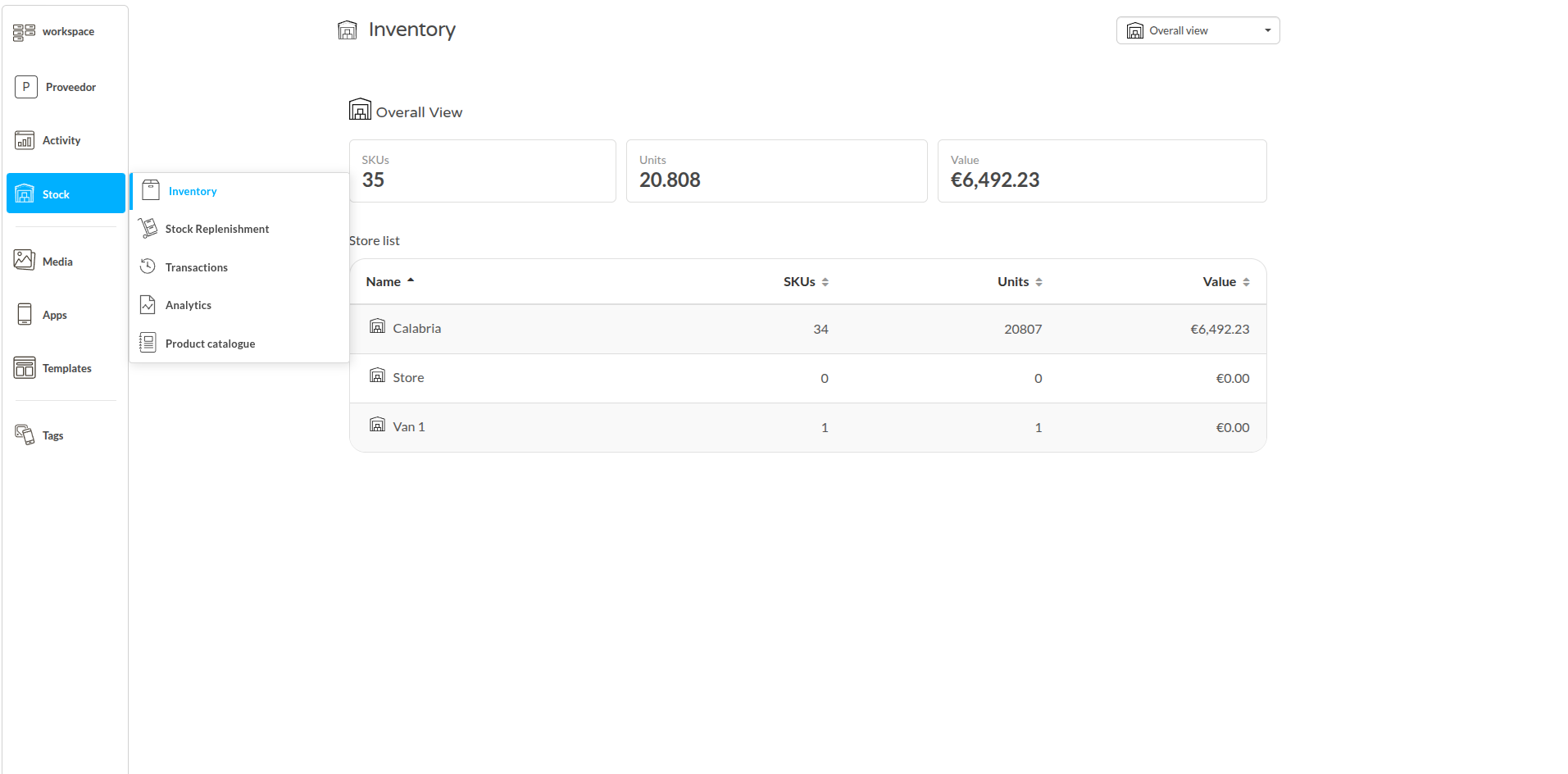
The Inventory Summary shows the stock situation for each storage point, such as a store, warehouse, van, or any other location configured as a store.
Selecting the Store
From the Inventory Summary view, select the store where you want to review stock. The selected store determines which quantities, thresholds, and values are shown.
Overview of the Summary
The summary shows the following key metrics for the selected store:
- Total number of items: The number of catalogue products currently present in that store.
- Number of item categories: Product categories represented in that store.
- Total number of units: The accumulated quantity of units available in stock.
- Total value in local currency: The economic value of the stock at the selected store.
Browsing Through Catalogue Categories
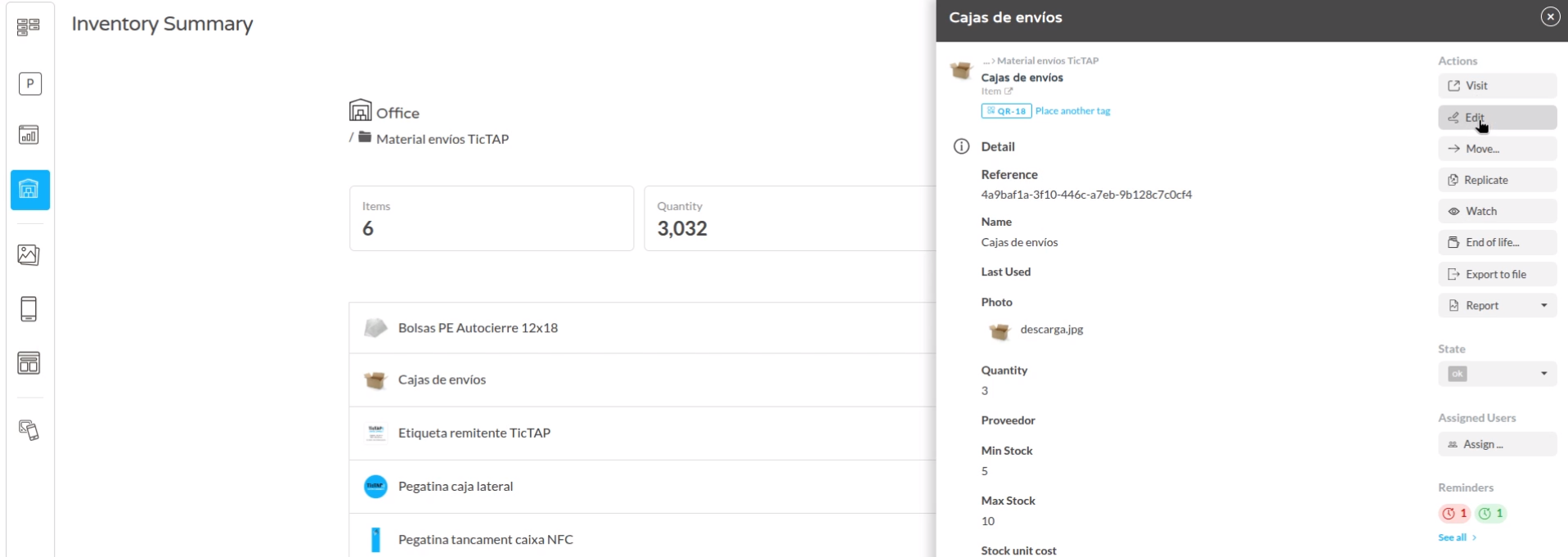
You can browse the store inventory through the catalogue categories. Each category groups the product holdings that belong to products in that category and shows how many products it contains and the value those products represent in the configured currency.
Item Details and Editing
For each product holding in a store, you can:
- Open the item detail view.
- Check the current quantity.
- Check the configured minimum and maximum stock levels.
- View or edit the unit cost.
- Review product information inherited from the catalogue.
This gives administrators a fast way to correct inventory values, review thresholds, and keep store stock aligned with the product catalogue.
Stock search and frontend access
Inventory search helps administrators find stocked products without browsing the full store tree. Products can be searched by name or part number, opened to review stock details, and accessed through QR codes when product QR assignment is configured.
From inventory and store views, users can also open the frontend operational application for the selected store or stock item. This is useful when an administrator needs to jump from backend review to the operational workflow used by store teams.
Stock replenishment
The Stock Replenishment view helps keep each store at the expected stock level. It lists the products whose current quantity is below the configured minimum for the selected store.
When a stock operation leaves a product below its configured minimum quantity, TicTAP automatically creates a replenishment reminder for that product in that store. This reminder makes the low-stock situation visible without requiring a user to manually create a task.
What information is displayed?
The replenishment list shows, for each product:
- Current quantity: units currently in stock.
- Minimum and maximum stock values configured for this store.
- Suggested replenishment quantity: how many units should be added.
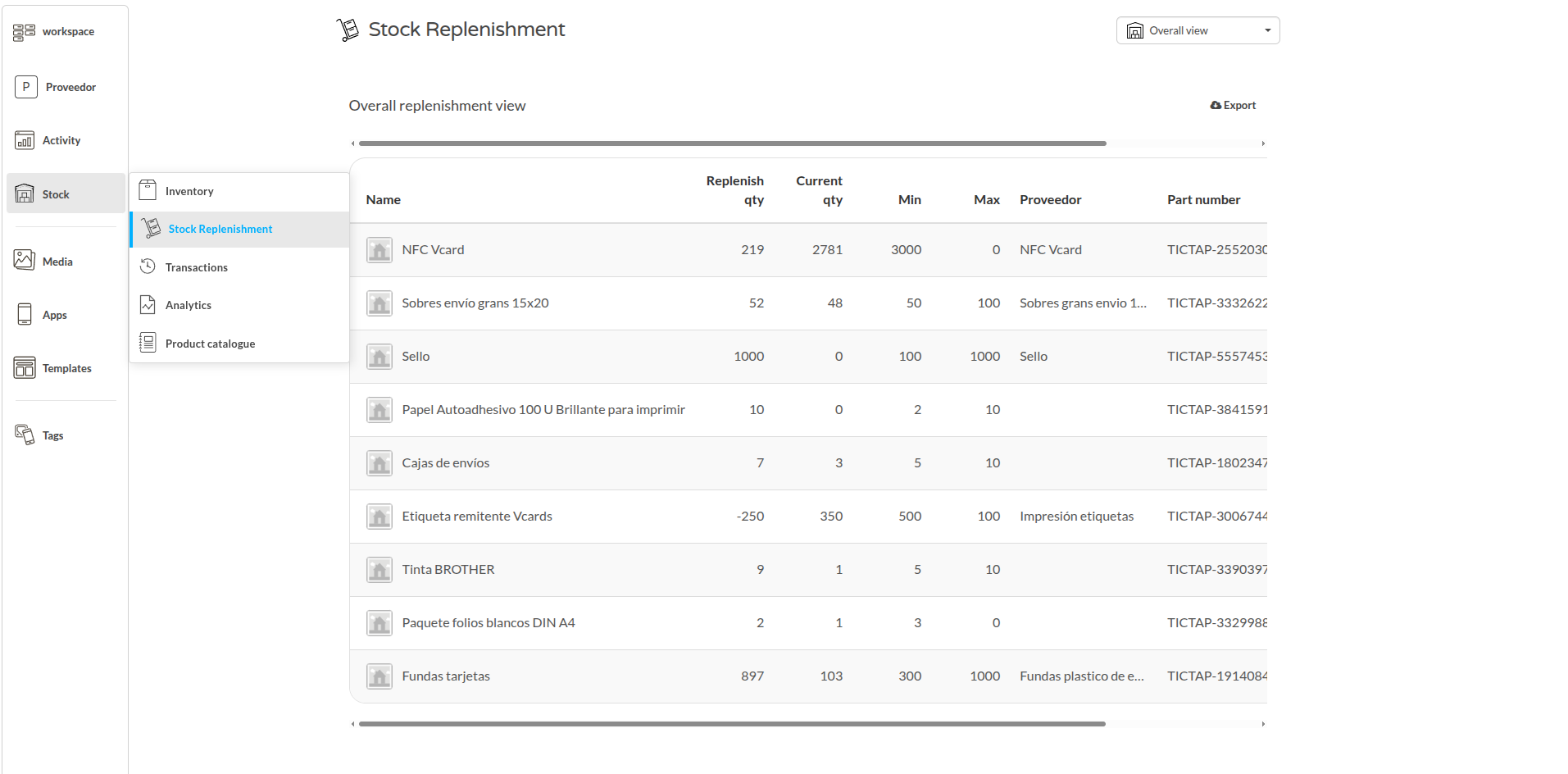
Main Stock Replenishment View showing products with their current, minimum, maximum, and suggested quantities.
You can download the replenishment list for offline review, ordering, or reporting.
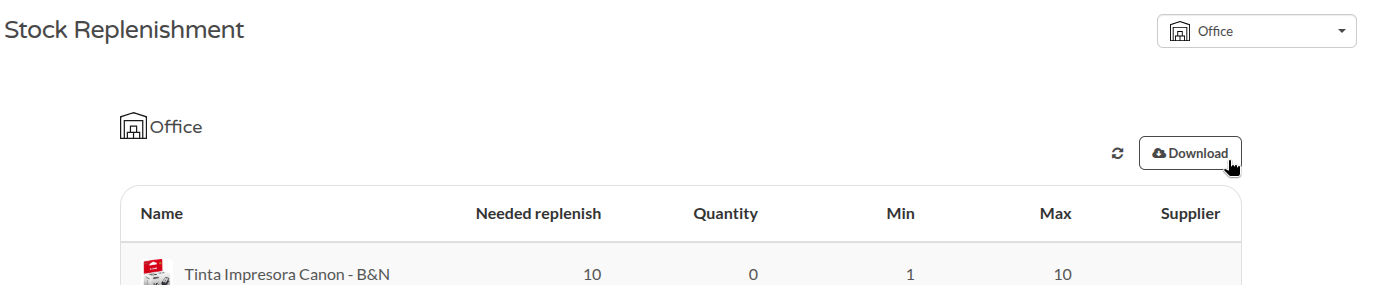
How are replenishment suggestions generated?
- The system tracks the quantity of each product per store.
- If the current quantity falls below the configured minimum, the product appears in the replenishment list and a replenishment reminder is created automatically.
- If a maximum exists, the suggested quantity is the difference between the maximum and the current quantity.
- If there is no maximum, the system suggests replenishment only up to the minimum.
Example with maximum set:
If you have an item called "sobres" (envelopes) with a current quantity of 32 and a maximum of 100, the suggestion is to replenish 68 units (100 - 32).

Example without maximum:
If the product has no maximum set, like the "folios blancos DIN A4" (white DIN A4 sheets), the system only suggests the amount needed to reach the configured minimum.

The list updates automatically as stock operations change product quantities. When the product is replenished back to the expected level, the reminder is resolved so the team can focus only on products that still need attention.
Related Information
- For an overview of your current stock situation, visit the Inventory Summary page.
- Use the Stock Application to perform the actual replenish operation from the store workflow.
Stock notifications
Stock notifications let users receive updates about stock events for the stores and products they need to follow. Subscriptions can be scoped to specific stores and specific stock events. They complement replenishment reminders: the reminder is the pending action in TicTAP, while the notification alerts subscribed users that the stock status changed.
Accessing Stock Notification Settings
To access the stock notification settings, click the bell icon located at the top part of the Stock Replenishment view.

Notification Preferences Panel
After clicking the bell icon, a panel appears with the stock notification options. From there, you can subscribe users to specific stock events.
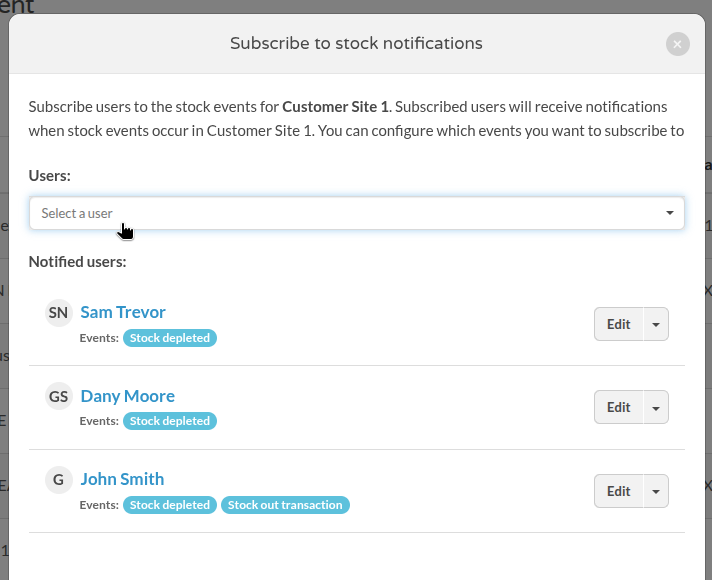
Subscribing Users to Stock Notifications
Search for the user you want to subscribe. Enter the user's name or email, then edit the user's notification preferences by clicking the Edit button next to their entry.
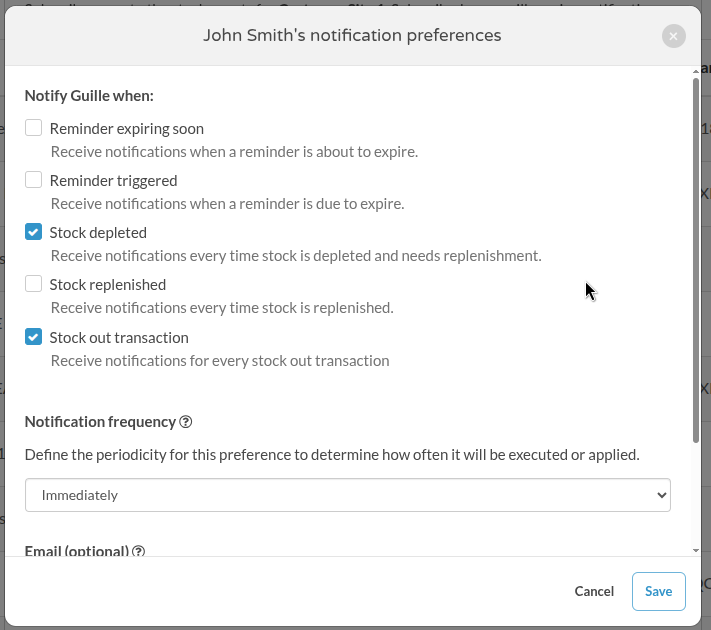
Choosing Notification Events
While editing a user's notification preferences, you can select which events the user should receive:
- Stock Depleted: notifies when a product's quantity falls below its configured minimum threshold and a replenishment reminder is created.
- Stock Replenished: notifies when a product that was below minimum stock is replenished and the replenishment reminder is resolved.
- Stock Out Transaction: notifies when an outgoing stock transaction occurs, including transaction details such as products, quantities, cost, order number, and destination when provided.
Low-stock reminders are created when the product falls below its configured minimum. A fully depleted product is the zero-stock case within the same stock monitoring workflow.
Notification Delivery Methods and Email Customization
Within the stock notification preferences screen, you can also configure:
- Notification Frequency:
- Immediate (default): receives a notification as soon as the event occurs.
- Daily Digest: receives a single summary email with all events from the day.
- Notification Email Address: set a custom email address for notifications, regardless of the user's profile email.
For more information on user management, see Managing Users.
Stock transactions
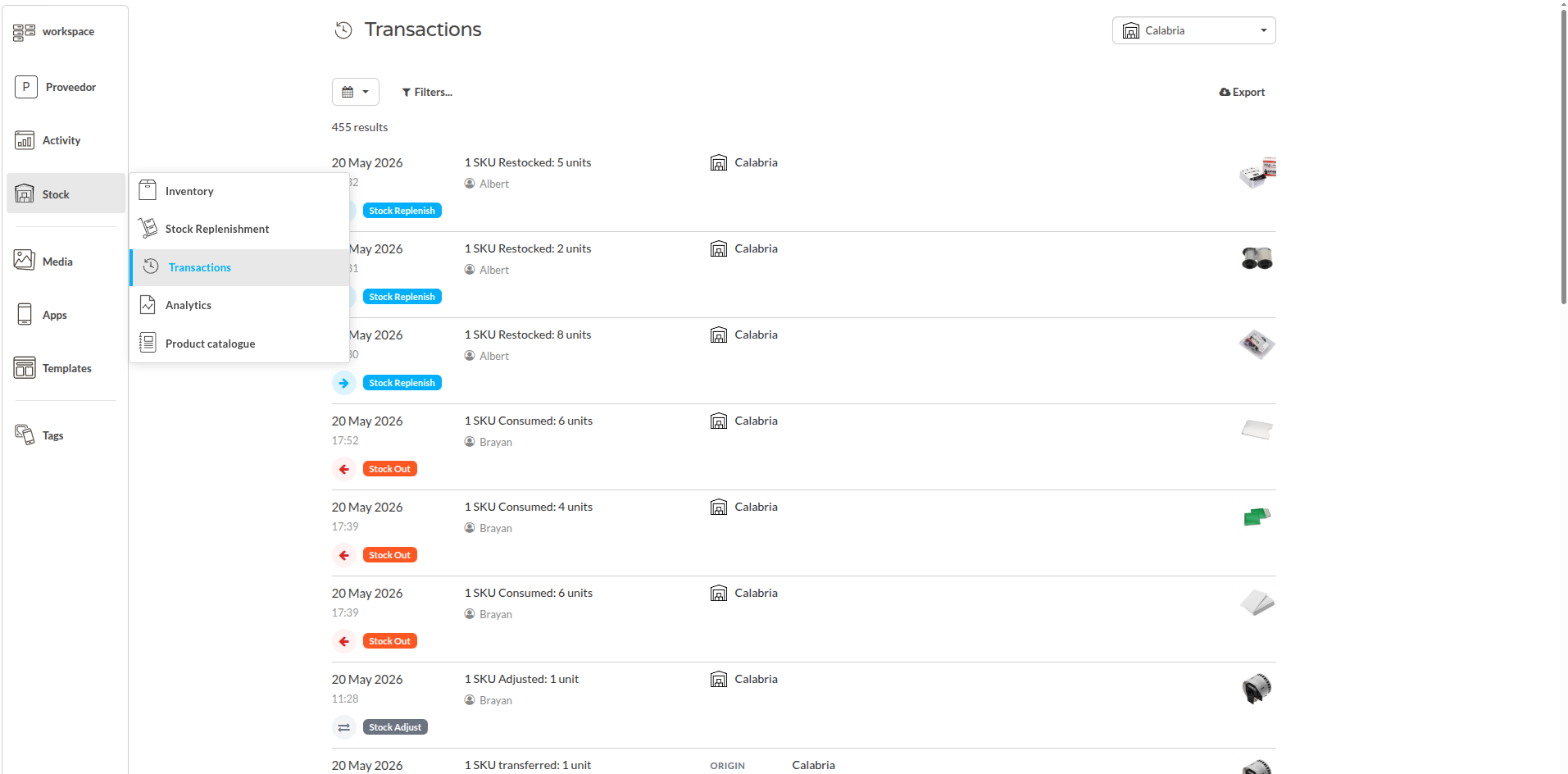
The Stock Transactions list provides an audit trail of all confirmed stock movements. This includes Stock Out, Stock In or Stock Replenish, Stock Adjust, and Stock Transfer transactions. Each transaction can affect one or more products.
A Stock Transfer moves products from one store to another. It decreases stock in the source store and increases stock in the destination store in the same transaction, keeping the movement traceable as a single operation.
Each transaction requires a reason. Typical reasons include consumption, maintenance, theft, damage, or audit correction. The selected reason is stored in the transaction history and can later be used in reporting and analytics.
Filtering Options
The transaction list can be filtered to locate specific movements:
- Date range: View transactions within a selected period.
- Transaction type: Filter for Stock In, Stock Out, Stock Transfer, or Adjust transactions.
- User: See transactions performed by a specific user.
- Product: Review the complete movement history of a product.
- Store or destination: Review movements for a source store or transfer destination.
- Reason: Analyze why stock moved.

Transaction Details
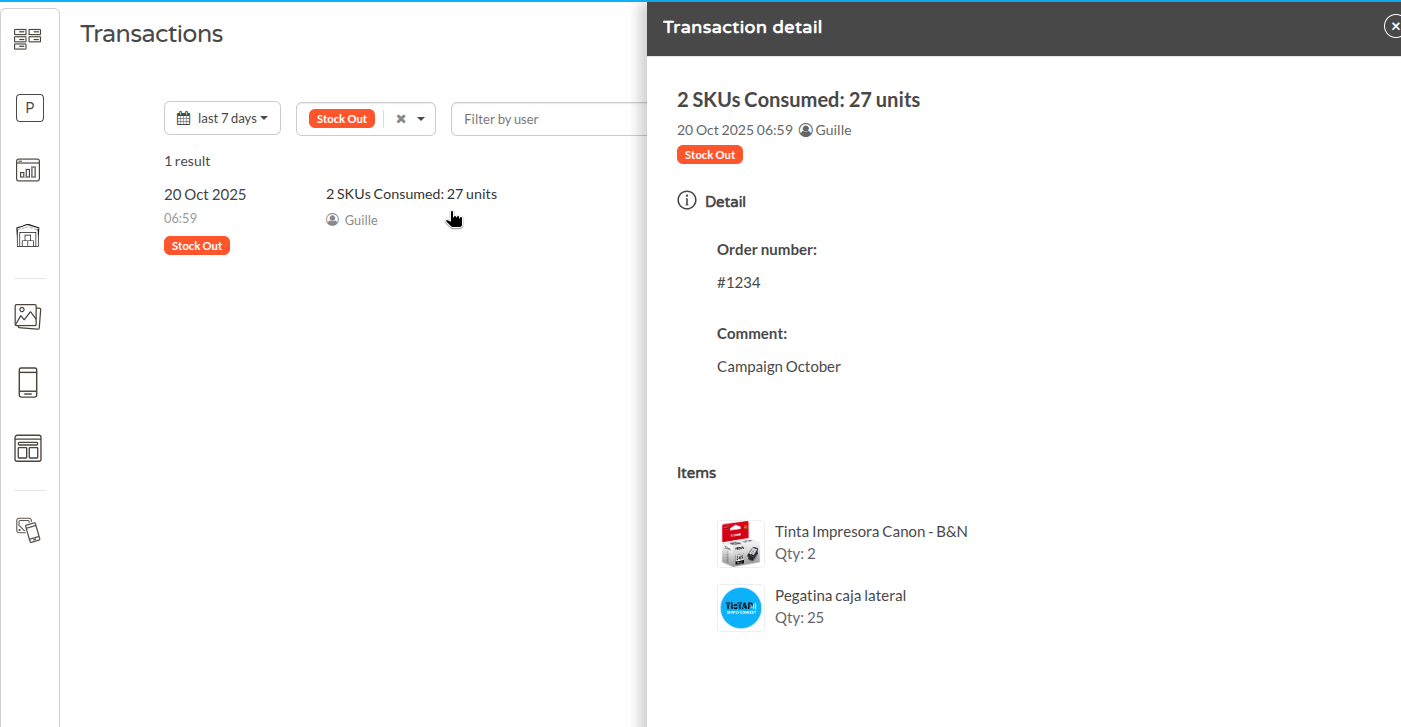
Selecting a transaction opens its details. Depending on the operation, you can review:
- Products and quantities included in the transaction.
- Source and destination store for Stock Transfer transactions.
- Order number, if specified.
- Comment or note explaining the reason for the transaction.
- User and date of the movement.
This detailed view helps you understand the context and justification behind each stock movement.
Analytics and reporting
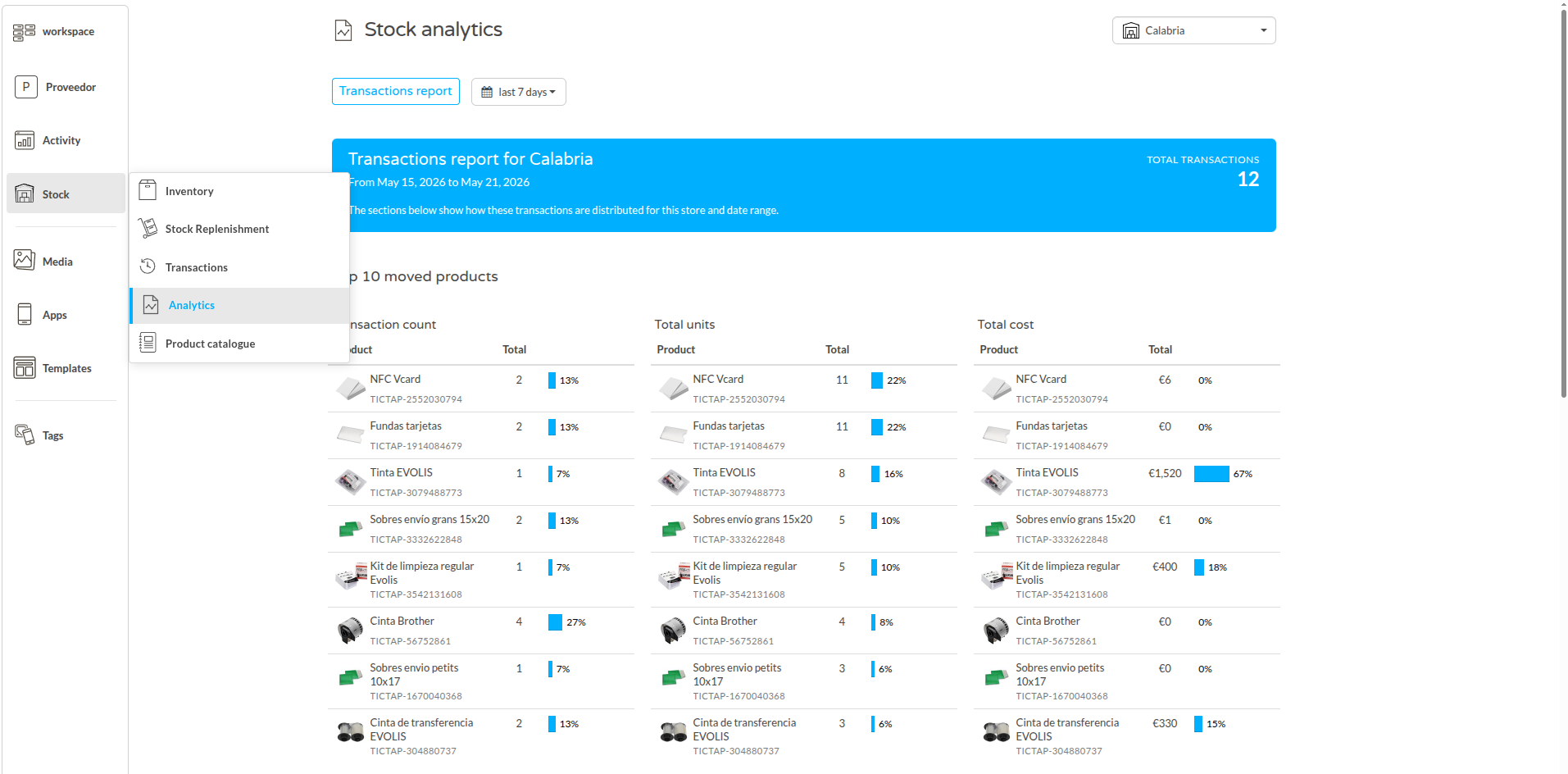
The stock analytics report provides operational visibility over stock activity. It helps identify high-movement products, active users, recurring reasons, and store-level behaviour.
The report can be filtered by:
- Date range.
- Store.
- Destination store.
- Transaction type.
- Reason.
Available analysis includes:
- Most active products: the products with the highest movement, the quantity moved, and the associated movement cost.
- Most active users: the users performing the highest number of transactions, the number of units moved, and the associated cost.
- Reason analysis: aggregated reasons such as consumption, theft, damage, internal use, or audit correction.
- Store-level analysis: consumption trends, replenishment requirements, high-movement locations, and inventory anomalies by store.