Applications and templates
The content creation workflow in TicTAP is where you build and configure web applications. These apps allow you to manage and assign content to tags, determining the information that will be displayed when a tag is scanned. Below are the steps to get started.
Creating an Application
A TicTAP Application serves as the framework for your web-app. It allows you to define which tags are assigned to specific content and manage what information each tag will display.
Steps to Create an Application:
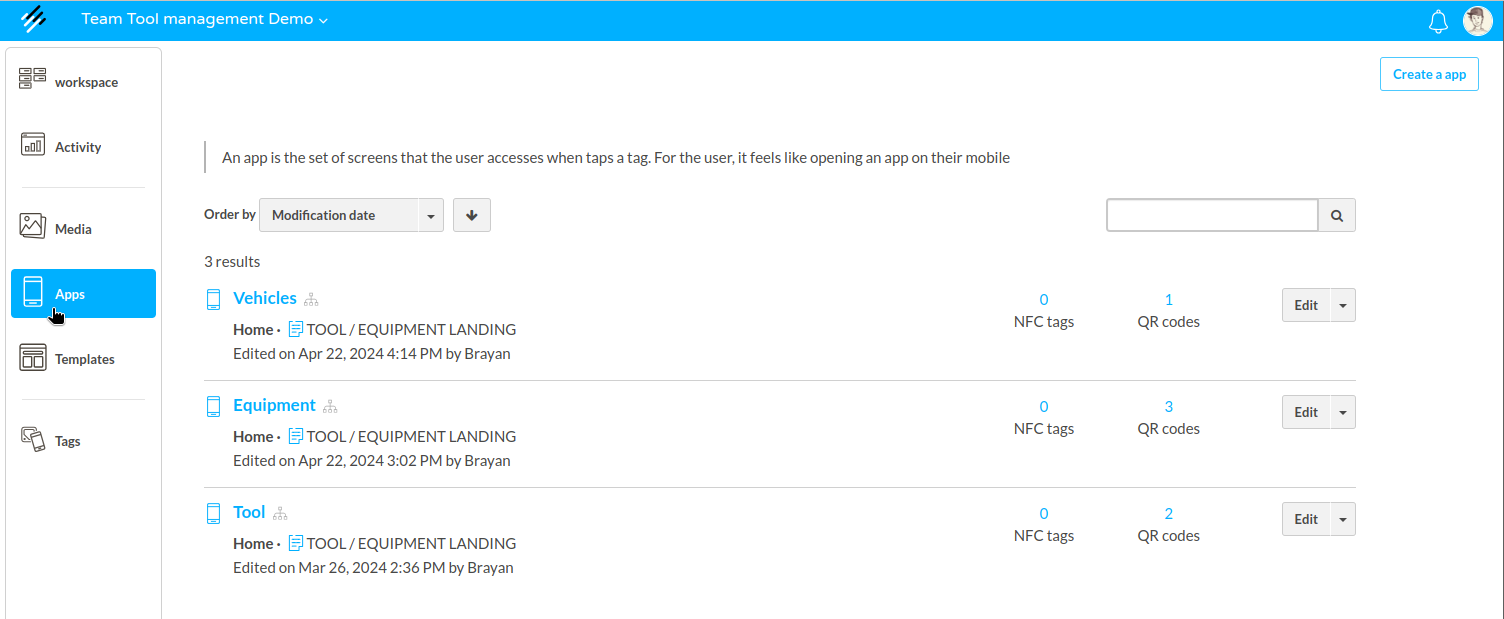
- Navigate to the left-side menu and select Apps.
- Click on the "Create an App" button at the top right.
- Name your application (e.g., "Vehicles") and click "Create".
- You can now configure your application and add relevant information. You can either complete these fields now or come back to them later.
- Once ready, click "Next" to proceed to the tag assignment section.
Creating Your First Template
Once your application is set up, it's time to design your first template. Templates define the layout and content that users will see when they interact with your tags.
Create or reuse a template for your app:
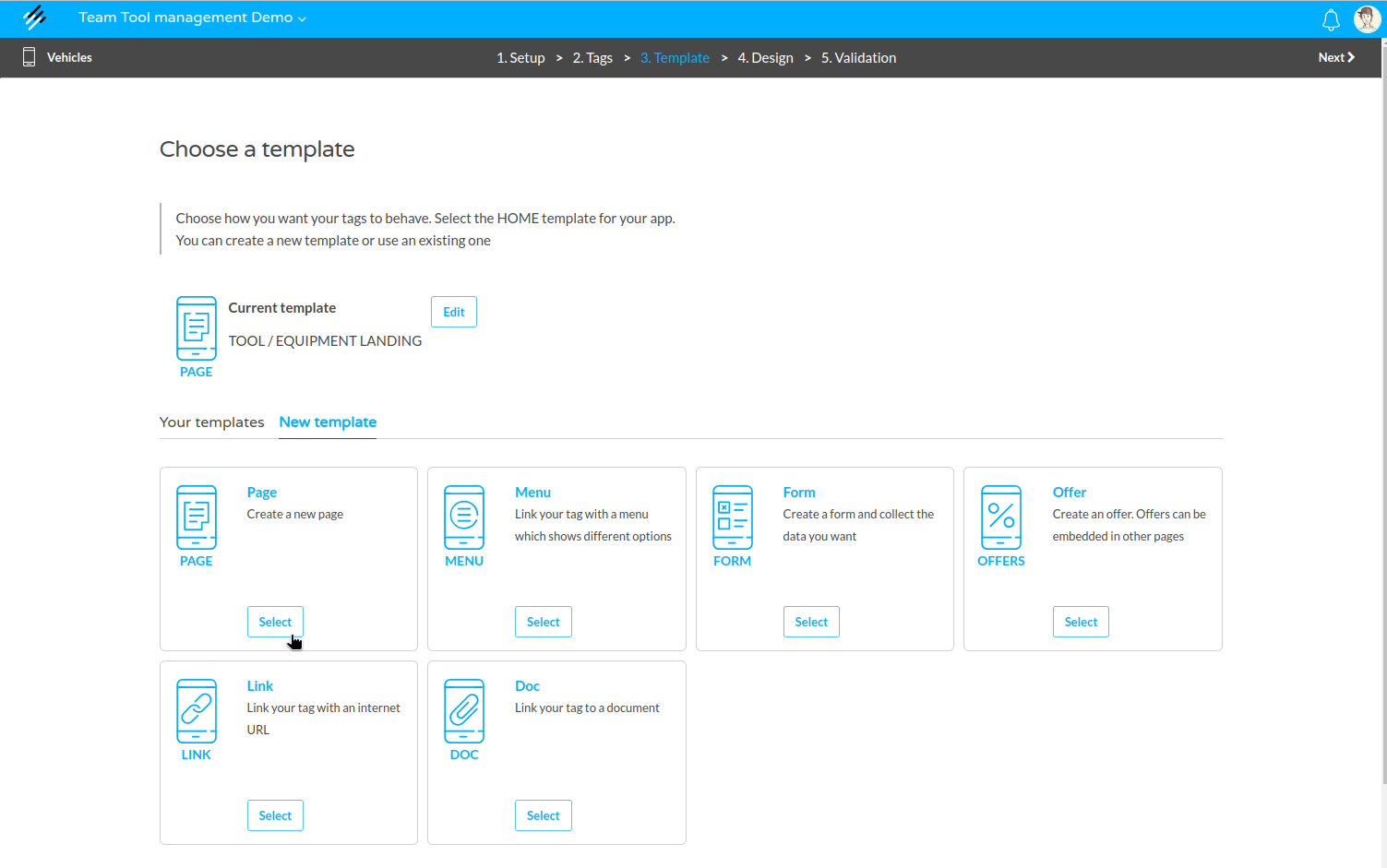
- If you have a pre-existing template, you can assign it directly. Otherwise, click "New Template" to create one.
- Choose from various template options. We recommend starting with a Page template, which you can design as a landing page.
- Name your template and begin designing using the provided options. You can add images, buttons, maps, and more.
- Link the template to other templates (e.g., forms, offers) to create a comprehensive user experience.
Creating a Menu for Your Application
You can enhance navigation within your app by creating a menu. Menus allow users to move between different templates.
Steps to Create a Menu:
- Go to the "Templates" section on the platform homepage.
- Create a new menu template.
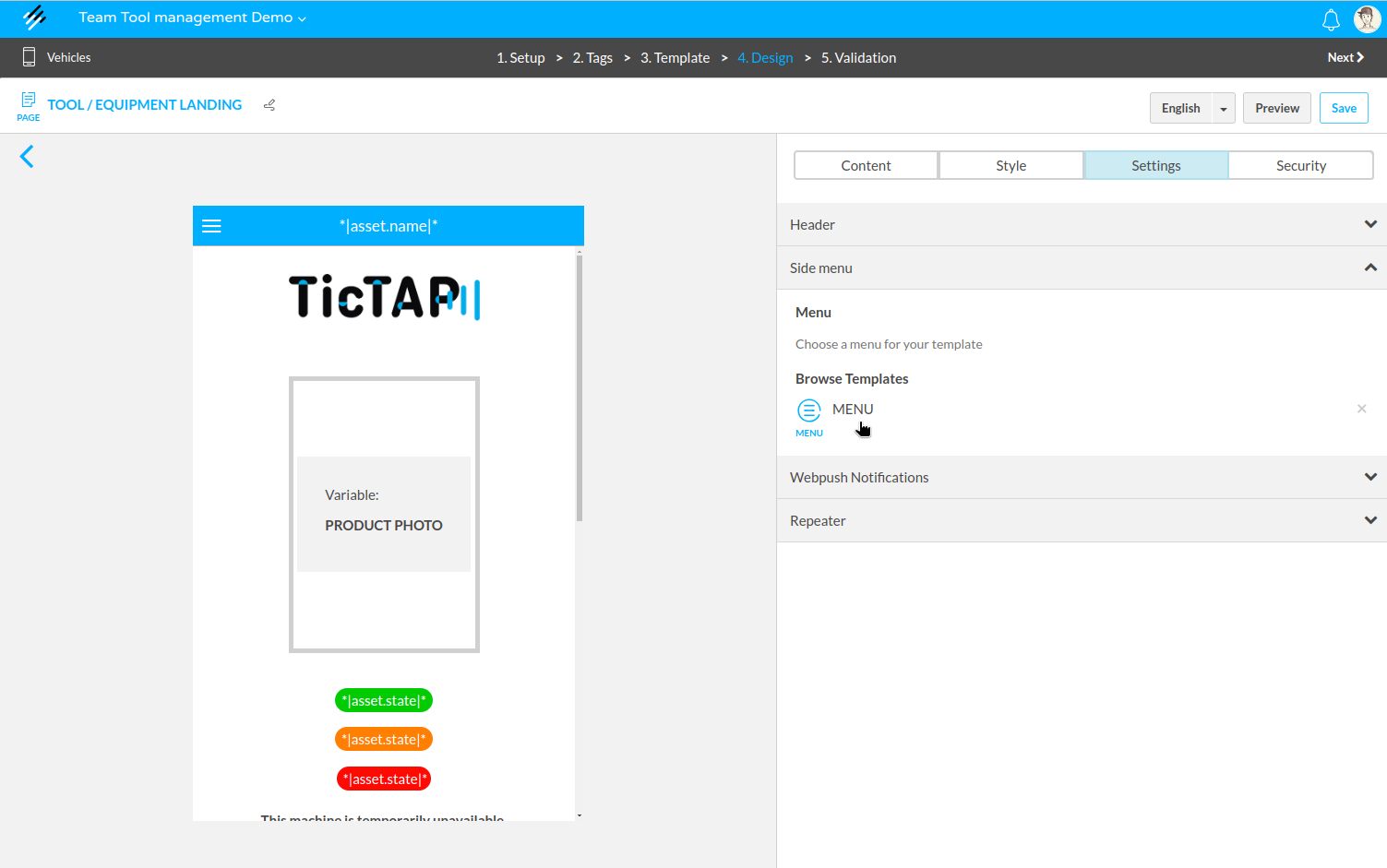
- Return to your app and assign the menu to your landing page.
For more details on creating a menu, refer to this guide: How to create a menu.
Once you have set up your application and templates, you’re ready to move on to the next stage of TicTAP: managing your assets. Continue to the Asset Management guide to learn more.