Applications
Manage applications
In TicTAP, an Application is a way to link an Asset Type with a sitemap. Applications are built using templates that define how information is displayed when a tag is scanned. Each application starts with a Home template, which serves as the main entry point for users. This home template can link to additional templates, creating a comprehensive sitemap for the application. When a tag assigned to an asset is scanned, TicTAP finds the corresponding application based on the asset type and displays the configured templates.
This guide will walk you through managing applications, covering the creation process, editing, organization, and maintenance.
1. Creating an Application
When creating a new application in TicTAP, a wizard is used to guide you through the setup. Below are the key steps involved:
Step-by-Step Wizard Process:
1.1. Setup
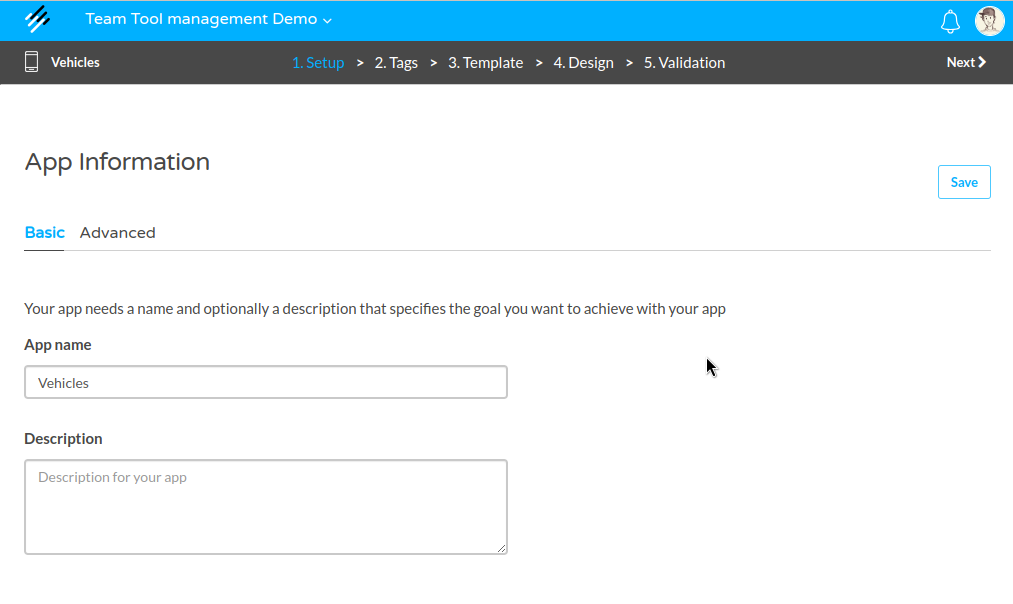
Basic Settings:
- App Name: Choose a descriptive name for the application that reflects its purpose (e.g., "Warehouse Management").
- App Description: Provide a brief description of the application.
Advanced Settings:
- Tracking Options: Configure tracking settings to monitor how users interact with your application and assets.
- Offline Usage: Enable offline usage options if users need access to application content without an internet connection.
1.2. Tags
Tags are crucial for linking your application to physical or digital assets. During this step, you can:
- Create or transfer tags: You can either generate new tags or transfer existing ones to this application. These tags will be linked to the app and used to display information when scanned.
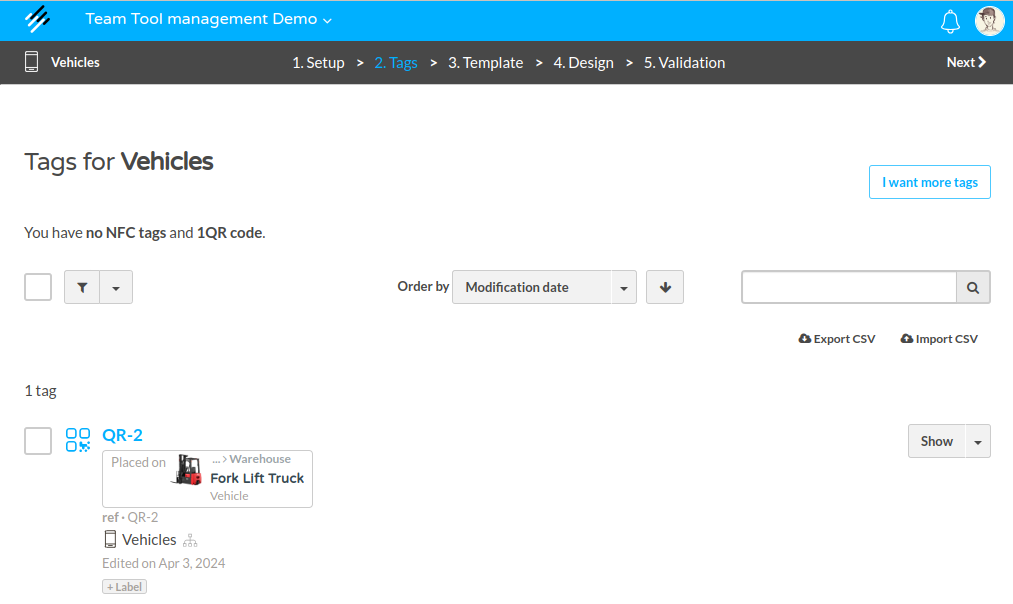
Note: Even if a tag is not assigned to an asset, it can still be moved to an application, allowing interaction with the app without a connected asset.
1.3. Template
The Home Template is the core of your application. It acts as the main page users see when interacting with the application through a scanned tag.
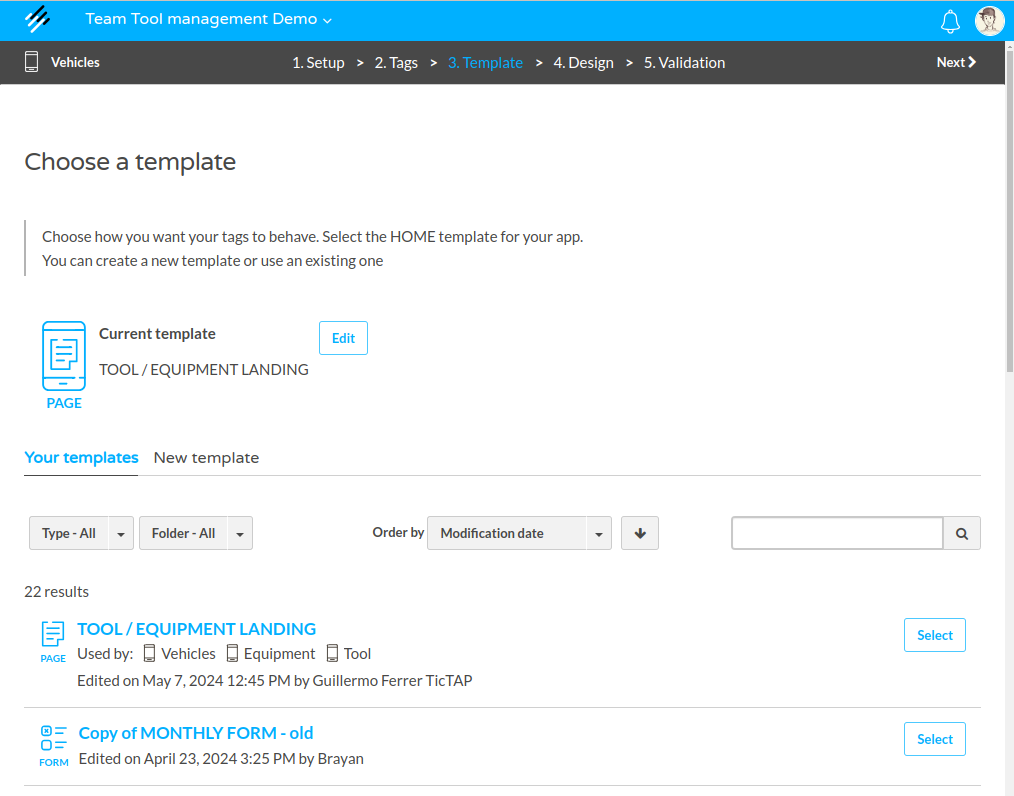
- Home Template: Choose the starting point for your application. This template is mandatory and will link to other templates in the app. It acts as the homepage of your application, guiding users to other sections.
- Navigation: From this home template, you can link to additional templates such as forms, offers, or other asset details, allowing you to build out a complete sitemap.
1.4. Design
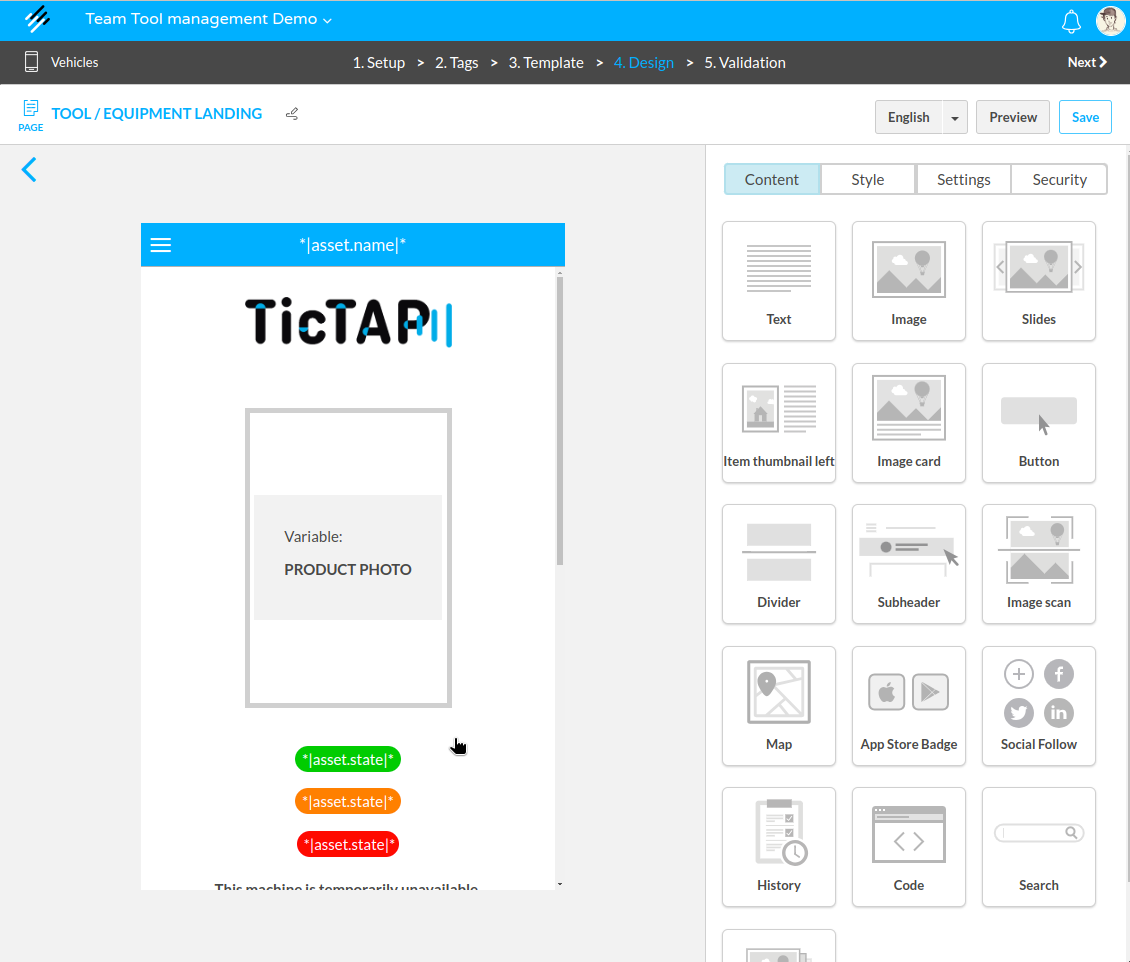
After selecting your home template, the Design section allows you to customize the template using a drag-and-drop block editor.
- Block Editor: The editor provides a set of content blocks (text, buttons, images, maps, etc.) that can be arranged to create your custom layout.
- Advanced Blocks: You can also add more complex blocks, such as custom HTML code or dynamic data blocks that pull information from asset fields.
For a deeper dive into creating templates, refer to the Templates guide.
2. Managing Tags and Applications
Tags play an essential role in how users interact with applications. By assigning a tag to an asset, users can view the information associated with that asset when they scan the tag.
However, tags don’t always need to be linked to assets to work within an application.
2.1. Moving Tags Between Applications
You can move tags between applications even if they aren’t linked to an asset. This is particularly useful when you want to test or interact with an application without needing to assign tags to assets.
- Move tags: You can freely move a tag from one application to another, adjusting its associated content as needed.
- Testing tags: If you’re building a new application or making updates, moving a tag into the application allows you to interact with the app before assigning it to a live asset.
For a deeper dive into managing tags, refer to the Tags guide.
2.2. Visiting a Tag
When a tag is scanned using a mobile phone or NFC device, the user is directed to the application’s home template, and based on the asset type, the relevant application is found.
Conclusion
Managing applications in TicTAP involves linking assets to dynamic templates, creating a sitemap for users to navigate through. With a powerful combination of tags, templates, and flexible settings, you can ensure that your applications are both user-friendly and effective in delivering the information your users need.
For more in-depth instructions, visit the related Content Creation guide or the Asset management guide.