Export data
How to export data from the platform
Manually export CSV file
It is possible to export many lists in CSV format. In TicTAP it is possible to export the following lists:
- Entities : This list contains all the entities of a certain type. For example, all the
bieentities. - Form submissions: This list contains all the form submissions sent by the users in a date period.
- Tags: This list contains all the tags , which can be NFC tags or QR codes.
Export entities
To export entities of a given definition, you can do it from the list of entities. In the top right corner of the list, there is a button to export the list in CSV format.
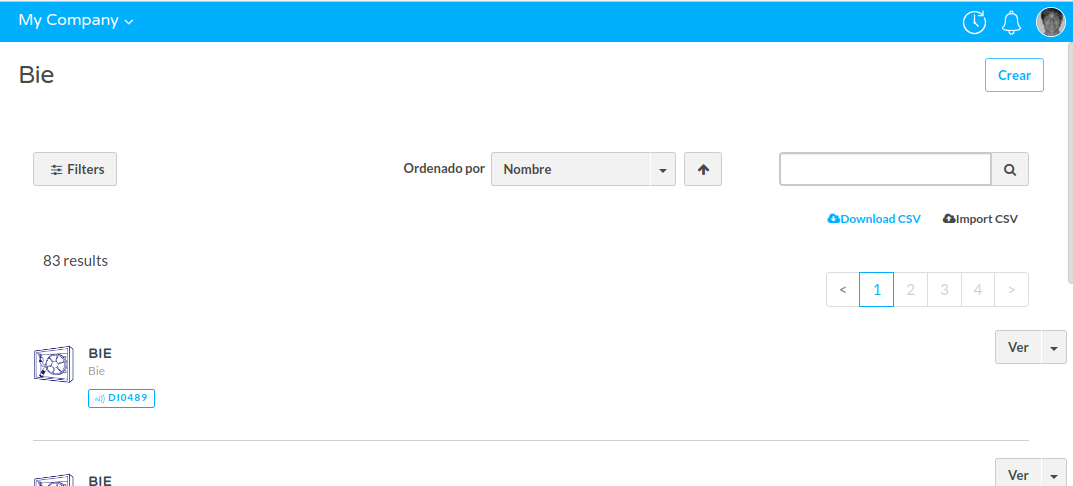
When you click on the button, the browser will download a CSV file with the entities of the list and all their fields. These are the columns you will find in the CSV file:
referencecolumn will indicate the reference of the entity. The reference is a unique identifier that is used to reference the entity from external systems.namecolumn will indicate the name of the entity. If the entity has no name, the column will be empty.Localized fieldswill be exported in different columns, one for each language. For example, if the entity has a field calledjob positionand it is localized, the CSV file will have a column calledjob position enand another column calledjob position es( for english and spanish respectively ).tag codescolumn will indicate the NFC tags or QR codes that is associated with the entity. If the entity has no NFC tag or QR code associated, the column will be empty.tag skuscolumn will indicate the NFC tags or QR skus code that is associated with the entity. If the entity has no NFC tag or QR code associated, the column will be empty.parentcolumn will indicate the parent entity of the entity. If the entity has no parent, the column will be empty.parent referencecolumn will indicate the parent reference of the entity. If the entity has no parent, the column will be empty.EOLcolumn means "End of life" and it is a date that indicates when the entity was archived. If the entity is not archived, the column will be empty.createdcolumn indicates when the entity was created.updatedcolumn indicates when the entity was updated.
This is an example of a CSV file with the entities of the definition bie:

Export form submissions
You can export the form submissions from the Analytics/Forms page, by clicking the Download data link. Filtered data
will be downloaded in CSV format
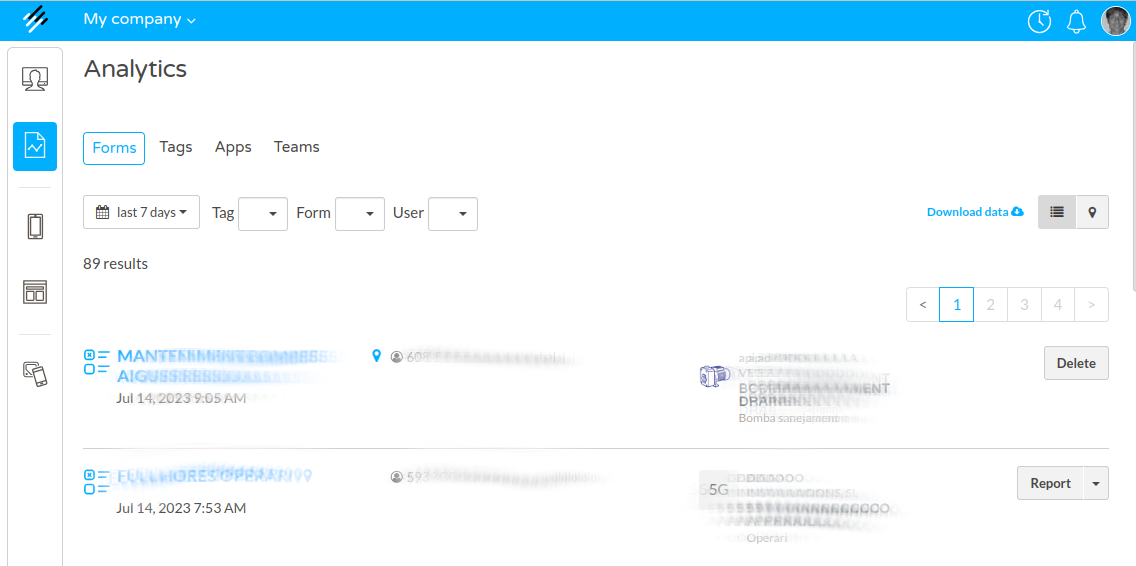
The CSV file format for submissions includes every block label used in the templates and the filled values for each
submission. Every row in the CSV file will include:
__form: the form name__date: the submission date__frontUser: the user name, when the form was submitted by a front user. If the form was submitted by an anonymous user, the value will be empty.__tagName: the tag SKU or code, when the form was submitted by scanning a tag
Export tags
You can also export a list of tags from the tags view. In the top right corner of the list, there is a button to export CSV.
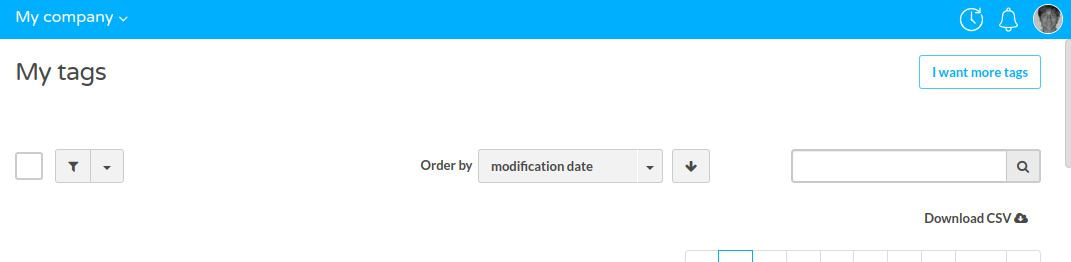
When you click on the button, the browser will download a CSV file with the tags of the list and all their fields. The CSV file will have the following columns:
namecolumn will indicate the name of the tag.skucolumn will indicate the sku of the tag.urlcolumn will indicate the url of the tag.descriptioncolumn will indicate the description of the tag.registration datecolumn will indicate the date when the tag was registered.registered bycolumn will indicate the user who registered the tag.labelscolumn will indicate the labels of the tag.
Webhooks
Webhooks allow informing third-party applications every time something happens in tictap. For example, every time a form is submitted, every time a reminder expires, every time an asset reaches end of life, every time an asset transitions from one state to another, etc.
Webhooks provide flexibility in cases where it is desired that an action occurs upon certain events occurring in tic tap.
Export PDF
Export PDF from a form submission
When a form as configured reports, it is possible to export the form submission as a PDF file. To do so, you need to
- Go to the form submission list
- Press the button "Report" in the form submission you want to export
It can also be done from the detail view of the form submission, by pressing the button "Report" in the top right corner of the page.
When you click on the button, the browser will download a PDF file with the form submission data.
Entity reports
From the Workspace view , when there are configured reports for an entity, it is possible to export the entity report as a PDF.
In order to do so, you need to:
- Go to the entity detail view
- Press the button "Report" in the top right corner of the page
- Configure the date range for the report: this will allow including all the form submissions that were sent to a specific entity in a date range.
- Press the button "Generate report"
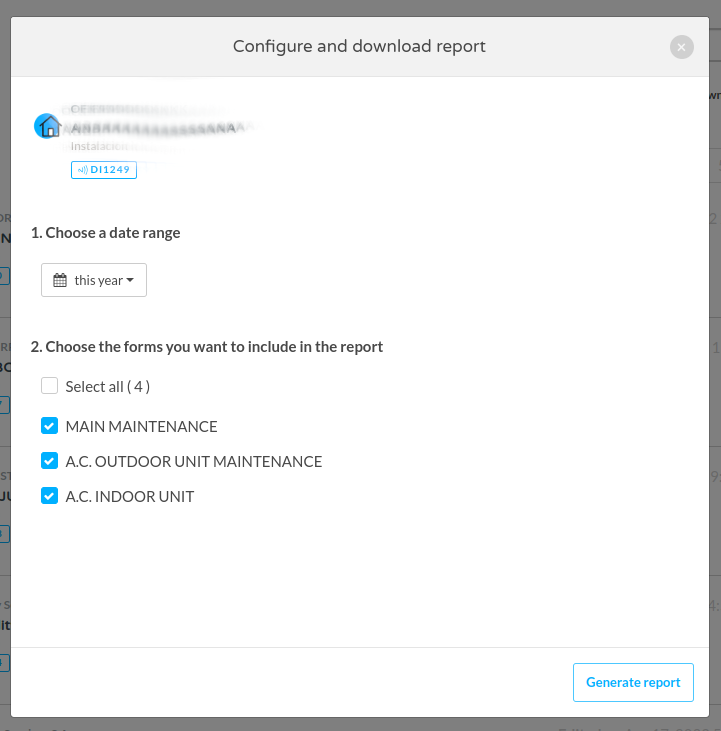
When you click on the button, the browser will download a newly generated PDF file with the entity report.