Members
Learn how to manage members
Inviting members to a Team
Inviting New Members to a Team
In TicTAP, you can easily invite new members to join your team. Once invited, the user will receive an email with an invitation to join, allowing them to access your workspace, manage assets, and collaborate on your team’s projects. Below are the steps for inviting a new member.
Steps to Invite a New Member
-
Go to the Users Tab:
- Navigate to the Users section in your workspace by selecting the Users tab at the top of the screen.
-
Click on "Add Member":
- In the Members section, click the blue Add member button to open the invitation form.
-
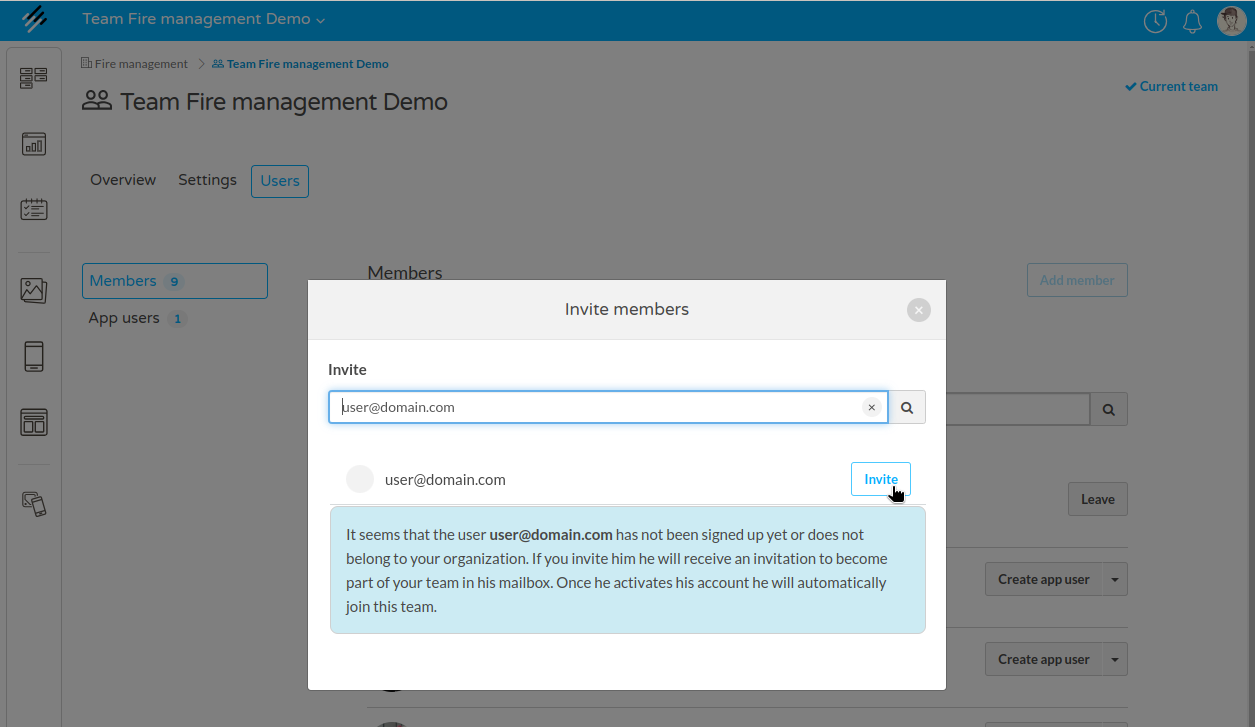
Enter the Email Address:
- In the popup window, type the email address of the person you want to invite. You can invite any user by entering their email address in the text field (e.g., [email protected]).
-
Review the Invitation Status:
- Once you enter the email, TicTAP checks whether the user is already part of the organization or not. If the user is not registered, a message will appear, indicating that the user will receive an invitation email. The message states:
- "It seems that the user [email protected] has not been signed up yet or does not belong to your organization. If you invite him he will receive an invitation to become part of your team in his mailbox. Once he activates his account he will automatically join this team."
- Once you enter the email, TicTAP checks whether the user is already part of the organization or not. If the user is not registered, a message will appear, indicating that the user will receive an invitation email. The message states:
-
Choose the Role:
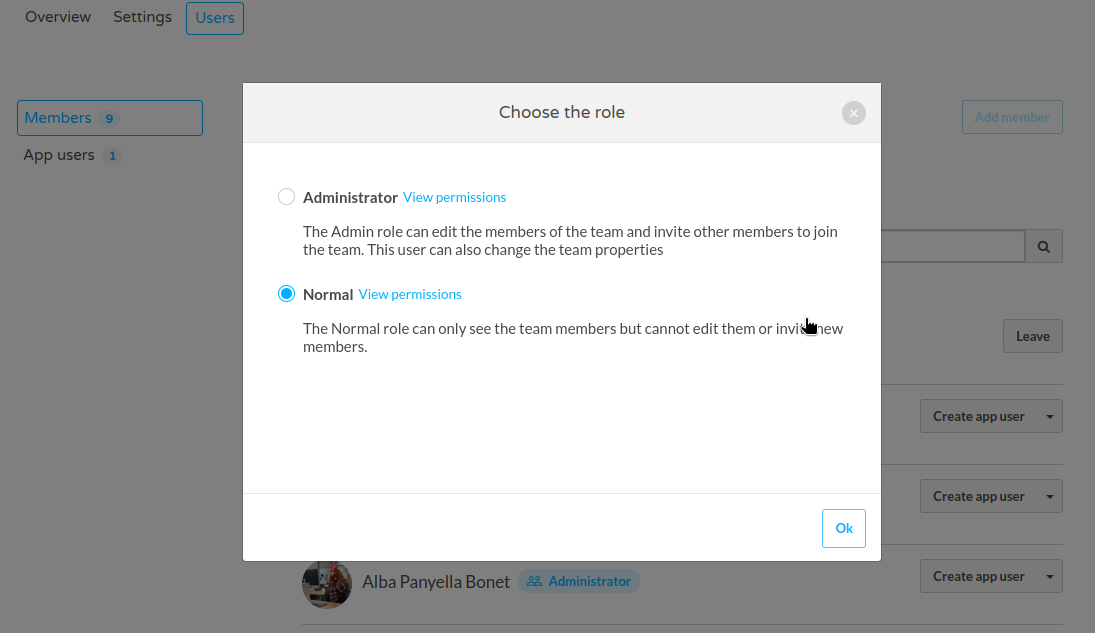
- After entering the email address, a new window will appear asking you to assign a role to the new member.
- You can select one of the following roles:
- Administrator: Administrators can manage team members, invite new members, and change team properties.
- Normal: Normal users can only see the team members but cannot edit them or invite new members.
- You can also view the specific permissions associated with each role by clicking on View permissions.
- Send the Invitation:
- After selecting the appropriate role, click Invite to send the invitation.
What Happens Next?
- The invited user will receive an email with an invitation link. By clicking the link, they can create a TicTAP account (if they don’t have one) and join your team.
- Once the user activates their account, they will automatically become a member of your team, gaining access to the workspace and its resources.
Invitation Management
- You can monitor who has accepted or declined their invitations in the Members section of the team.
- If an invitee needs a new invitation or if the email is entered incorrectly, you can resend the invitation by removing the incorrect one and inviting the user again.
By following these steps, you can ensure that new members are seamlessly added to your team, helping them quickly get involved in your TicTAP workspace.
Managing members
Managing Members in TicTAP
The Members section in TicTAP allows you to manage the users who have administrative access to the platform. These members are responsible for managing assets, apps, templates, and other critical components of the TicTAP workspace.
Accessing the Members Section
- Go to the Users Tab:
- Click on the Users tab in the main navigation, as shown in the screenshot.
- In this section, you’ll see two categories: Members and App Users. By default, the Members tab is selected.
Member List Overview
In the Members section, you can view a list of all the current members in your team. Each member is displayed with their profile picture, name, and role. The roles define the access level for each member:
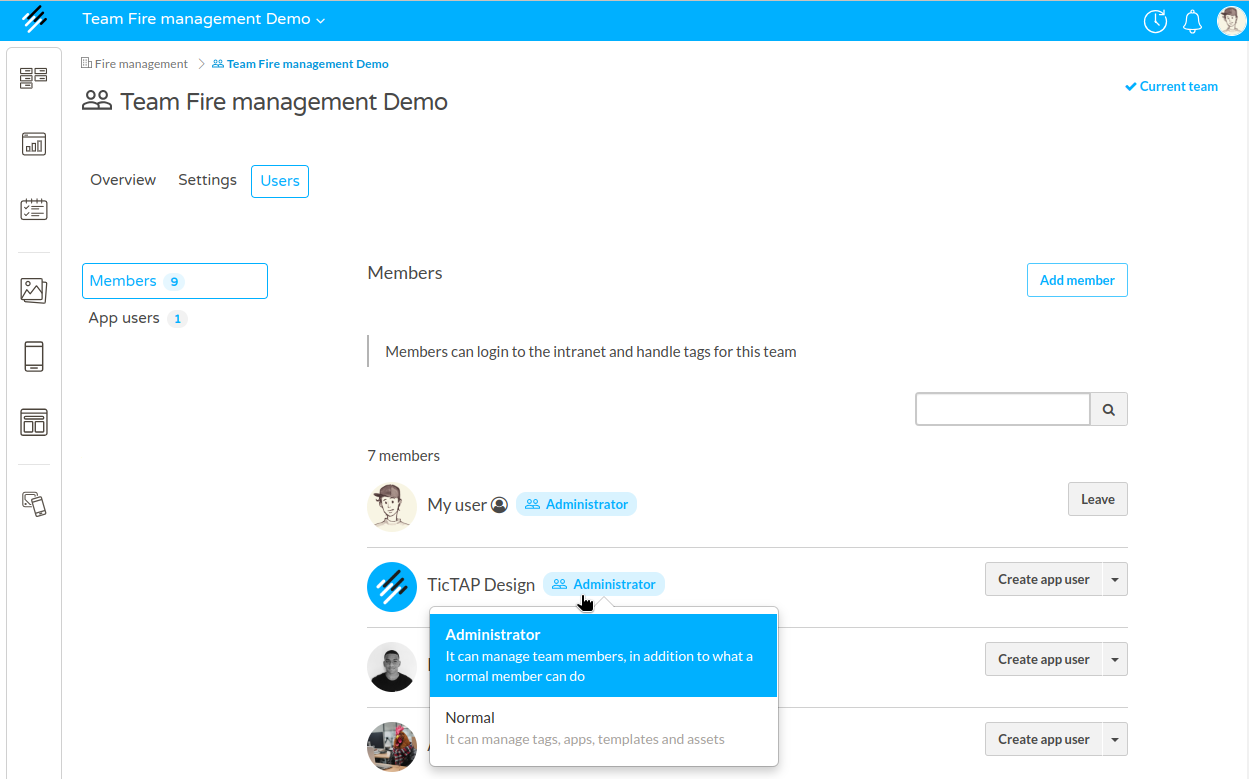
- Administrator: This role grants full control, including managing team members in addition to creating and managing apps, assets, and templates.
- Normal: This role allows the user to manage tags, apps, templates, and assets, but they cannot manage team members.
Member Actions:
- Add Member: Clicking the Add member button allows you to invite a new member to the team. You’ll be prompted to assign a role upon adding a member.
- Change Role: To change a member’s role, click on their current role (e.g., Administrator or Normal) and choose a new role from the dropdown menu.
- Leave Team: If you’re a member and wish to leave the team, you can click the Leave button. Note that leaving a team will revoke your access to its assets and configurations.
Adding App Users from the Members List
In addition to managing roles, you can also create app users directly from the Members section:
- Click the Create app user dropdown next to a member’s name to invite them as an App User. This gives them access to interact with QR codes and mobile applications without full administrative access.
Searching for Members
If your team has many members, you can use the Search function to quickly locate a specific member. Enter the name or part of the member’s name in the search field, and the list will filter accordingly.
By using the Members section effectively, you can manage who has access to your TicTAP platform and control their level of authority within the team. Make sure to assign roles carefully based on the user’s responsibilities to maintain a secure and organized workspace.