Introduction to users
In TicTAP, user management is divided into two main types of users: Members and App Users. Each type plays a specific role within the platform, depending on their access level and functionality.
Members
Members are users with full administrative access. They can manage assets, design apps, templates, and tags, and handle submissions and agendas through the Workspace. Members are involved in the entire lifecycle of managing the TicTAP platform. Typically, they handle two key phases:
- Content Creation: In the initial setup, members create and configure apps, templates, and tags.
- Asset Interaction: Once content is set up, members manage assets and asset locations, interacting with the platform to monitor, update, and track the assets as needed.
For more information on configuring members, visit the Member Guide.
App Users
App Users are those who interact with the platform by scanning QR codes or NFC tags. App users typically include engineers or workers who need to access information about assets quickly via their mobile phones. They:
- Scan QR Codes: App users scan QR codes to access the asset’s information.
- Interact with Pages: They navigate through the application’s pages and forms, filling out relevant data and submitting forms as needed.
- Role-based Access: App users can have restricted access to specific pages based on the roles assigned to them. The platform allows for defining a role hierarchy, which controls what information an app user can see and interact with.
For more information on configuring App users, visit the Member Guide.
Accessing User Settings
To access the User Settings in TicTAP, follow these steps:
-
Navigate to the Team Management Menu:
- At the top-left corner of the interface, click on the team name (e.g., Team Fire Management Demo).
-
Select the "Users" Option:
- From the dropdown menu, select the Users option. This will take you to the User Management section where you can manage both members and app users.
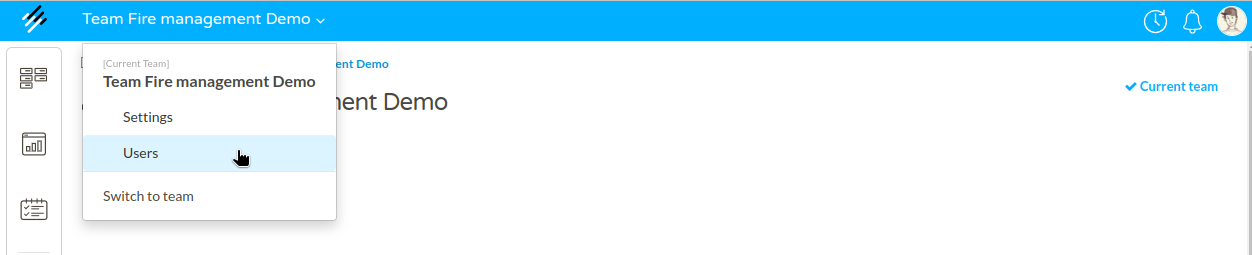
By following these steps, you’ll be able to invite, remove, or edit users within your team.