Asset guide
In TicTAP, assets are tied to detailed information and actions that allow for efficient management, tracking, and organization. This guide walks through the various actions you can perform on an asset, along with additional features like planning, reminders, and activity logs.
Asset Details Overview
When you click on an asset in the Workspace, the Asset Details panel opens on the right-hand side. This panel contains critical information and available actions. Key elements include:
- Name: The asset’s name (e.g., CO2 Fire Extinguisher 5Kg or Harness).
- Serial: The unique serial number or identifier for the asset.
- Product Photo: An image of the asset (if available).
- Documentation: Downloadable files related to the asset, such as:
- Instruction manuals
- User manuals
- Certifications and warranties
- Training materials
These fields help you quickly understand the asset’s purpose and current status, with easy access to the necessary documentation.
Actions You Can Perform on an Asset
Each asset has several available actions that can be performed to update, manage, or interact with the asset. These actions are displayed on the right-hand side of the asset details panel.
1. Edit
Click the Edit button to modify the asset’s details. In this mode, you can:
- Change the asset’s name.
- Update the product photo.
- Edit documentation (e.g., manuals, certifications).
- Adjust the serial number or other custom fields.
2. Move
 The Move option allows you to relocate the asset within the workspace hierarchy. For example, if an asset is moved from one zone or building to another, you can update its location in real-time by selecting the appropriate level and location.
3. Replicate
 Use the Replicate button to create a copy of the asset. The replicated asset will inherit all of the original asset’s information, allowing you to easily create multiple instances with similar details.
4. Watch (Following an Asset)
 By selecting Watch, you can subscribe to notifications about any changes or key actions related to the asset. Once you are watching (following) an asset, you will receive updates for important events, both on the platform and (optionally) via email, depending on your notification settings.
What You Get Notified About:
- Reminders: You’ll receive a notification when a reminder is about to expire or has expired for the asset.
- Form Submissions: Any time a form related to the asset is submitted, you’ll be notified.
- Other Key Actions: Changes to the asset’s state, documentation updates, or any major actions performed on the asset will trigger a notification.
This ensures that you stay informed about the status and updates to critical assets, without having to manually check them. Notifications will appear directly in the platform, and, if enabled, an email alert will also be sent to notify you of the event.
5. End of Life
 Click End of life to mark the asset as no longer in use. Once an asset reaches the end of its lifecycle, it can be archived for reference, but it will no longer be part of the active asset pool.
6. Export CSV
 You can export all the data related to the asset into a CSV file. This is helpful for external reporting, auditing, or sharing asset information with stakeholders.
7. PDF Report
 The PDF Report option allows you to generate a detailed PDF document summarizing all asset-related information, including details, documentation, and activity logs. This is useful for creating formal reports for maintenance, audits, or compliance purposes.
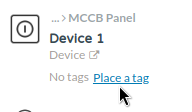
8. Place a tag / Place another tag
You can assign on or more tags to the asset by selecting Place a tag / Place another tag. This enables you to link multiple QR or NFC tags to the same asset, providing flexibility in how users interact with it.
9. Planning and reminders
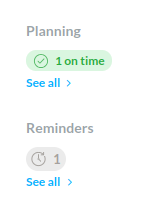
TicTAP allows you to assign Plannings and Reminders to assets, making it easier to manage routine tasks, maintenance schedules, and inspections. You can learn more about this feature in the Planning and Reminders.
Activity Log
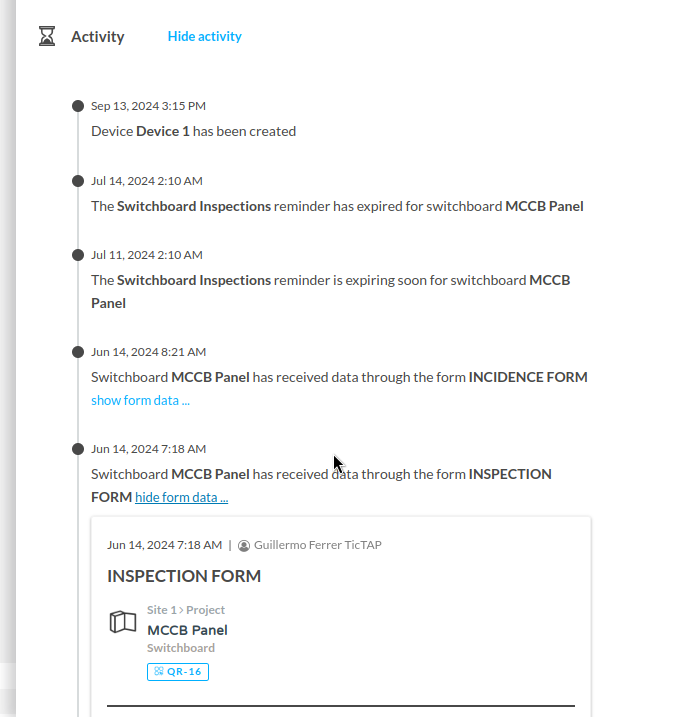
The Activity section at the bottom of the asset details panel provides a complete history of all actions taken on the asset. Click Show activity to view the full log, which includes:
- Changes made to the asset details.
- Status updates (e.g., from Ready to use to Out of service).
- Notifications of asset movements or document uploads.
Monitoring the activity log helps track the lifecycle of the asset, ensuring transparency and accountability for all interactions.
Asset State Management
In the asset details panel, you can manage the State of the asset from the dropdown menu, which typically includes options such as:
- Ready to use: The asset is operational and available.
- Operating: The asset is currently in use.
- Out of service: The asset is not functional due to maintenance or failure.
Keeping the asset’s state updated ensures that the rest of the team can easily determine its current condition, and it allows for better workflow management across the workspace.
Conclusion
Managing assets in TicTAP offers a comprehensive suite of tools for editing, tracking, planning, and documenting your assets. Whether it's moving an asset between locations, generating reports, or monitoring its lifecycle through activity logs, the asset management system ensures efficient and transparent control of your resources. By taking advantage of the actions, states, and reminders, you can maintain organized and well-managed asset data throughout your organization.