Induction system and work certificate management
This document describes the process to manage the induction system for contractors. It explains how to use the contractor visit QR, insurance management, creation, authorization, and completion of work certificates.
1. Upload and management of contracts
All contractors' contracts who will work at the plant are uploaded to the system. Access and management are done through the Contractor Visit QR available at the plant.
2. Using the contractor visit QR
- The QR is scanned by an authorized person in the plant.
- The user can:
- Create a new contractor if it is a new person.
- Search for an existing contractor in the company list.
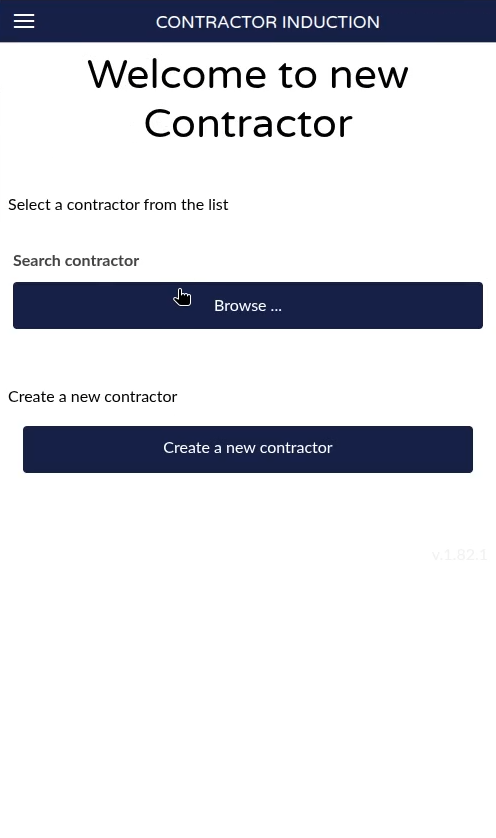
Screen showing the Contractor Visit QR at the plant.
3. Checking the contractor's insurance status
- When selecting a contractor, you can see their insurance status.
- For example, contractor Contractor 2 may appear as Not insured if their policy has expired, with the expiration date visible (e.g., June 16).
- Access is only allowed if the contractor is insured.
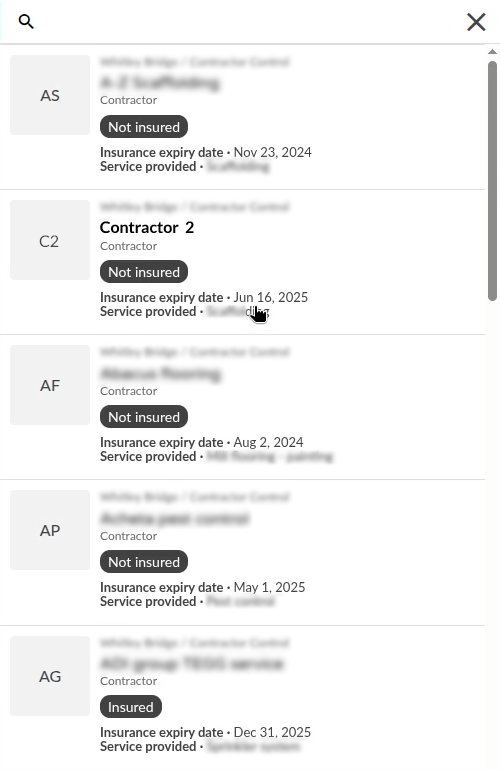
View of the contractor's insurance status.
- To update the insurance expiration date, manually change the date in the Workspace and refresh the screen so that the status changes to insured.
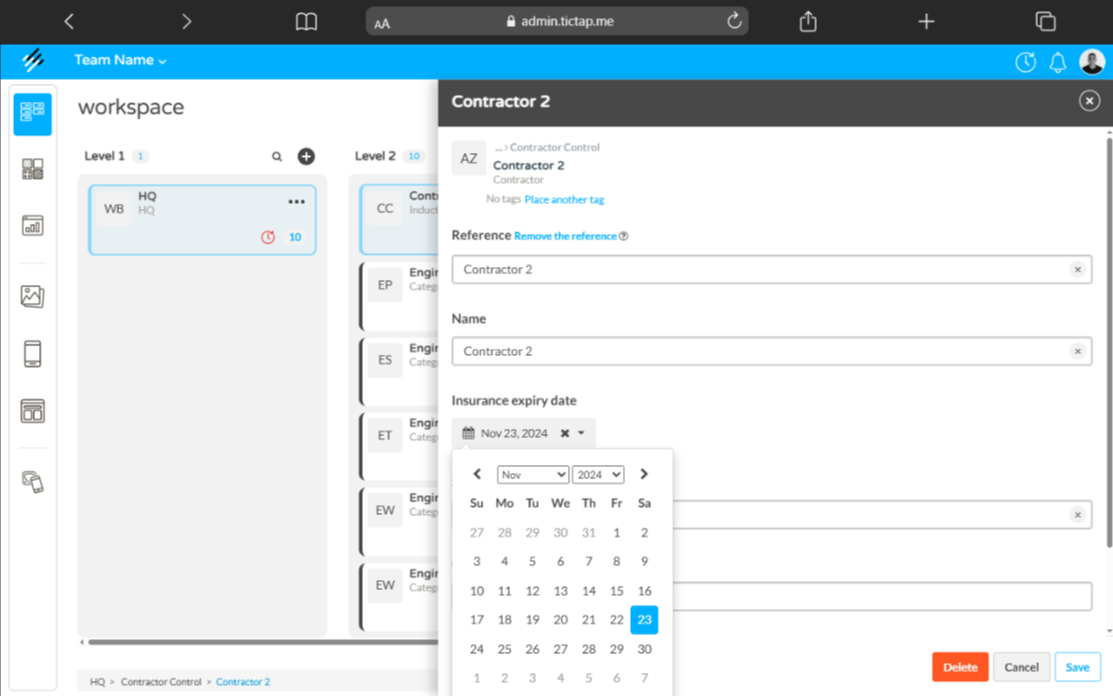
View of the update to the expiration date.
4. Contractor identification and creation of work certificates
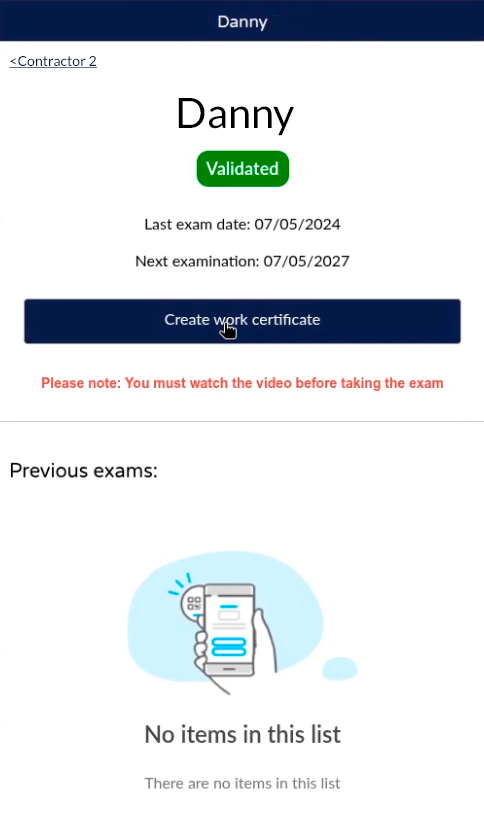
- You can search for a contractor by name (for example, "Danny").
- Verify that the contractor is validated and insured.
- Create a work certificate for the contractor:
- Fill out a form with data such as:
- Names of the people coming to work.
- Reason for the visit (e.g., changing bulbs).
- Duration of the visit (from today until tomorrow).
- The contractor signs and accepts the obligations by submitting the certificate.
- Fill out a form with data such as:
Form to enter data and sign the work certificate.
5. Authorization of the work certificate
- The certificate signed by the contractor must be authorized by a user with privileges (role:
work approval certificates). - The authorized person reviews the certificate and signs to validate its approval.
- Only with this authorization can the contractor enter to work.
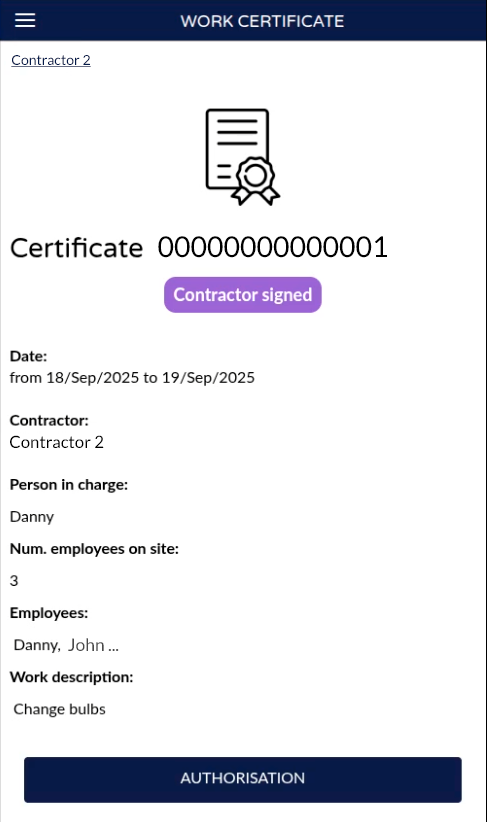
Interface for the user with permissions to authorize the certificate signed by the contractor.
6. Completing and concluding the work
- The contractor must scan the QR again to complete the certificate when they have finished their work.
- The certificate can be:
- Completed by the contractor.
- Concluded by a responsible person if the contractor does not notify the completion.
- This closes the certificate and registers the completion date and corresponding signature.
7. Viewing and exporting certificates
- From the workspace you can review the history of each contractor's certificates.
- Each certificate shows:
- Contractor's signature.
- Start and authorization dates.
- Completion date and who finalized it.
- The certificate can be downloaded as a PDF or the complete information exported as Excel.
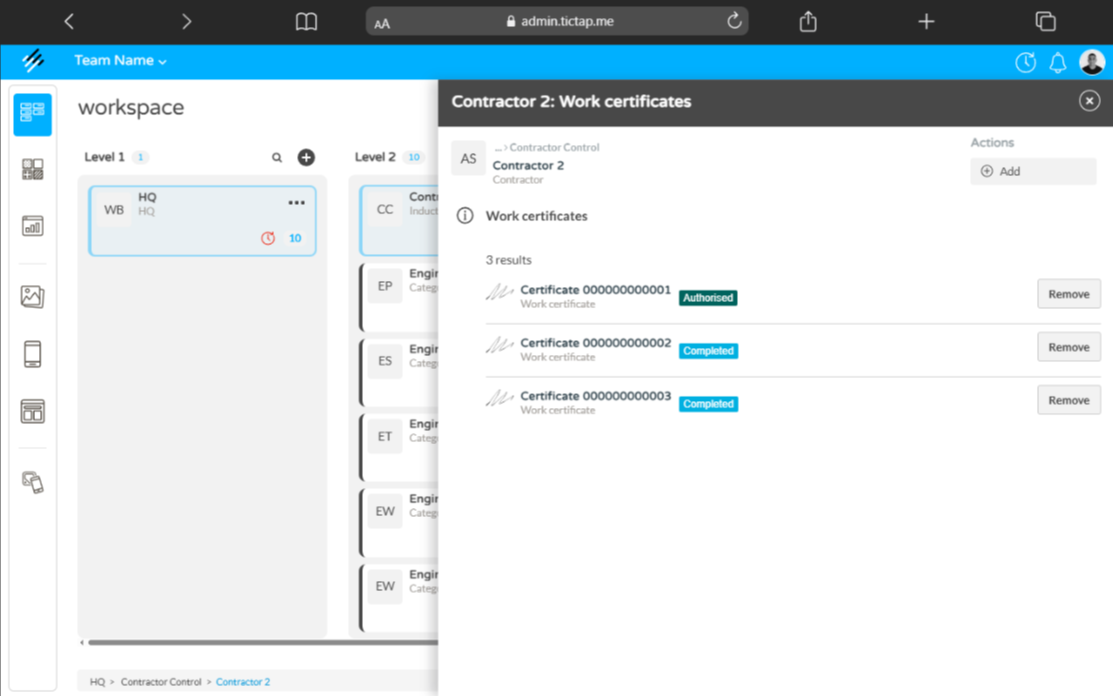
List and details of work certificates associated with a contractor.
Summary
The induction system at Whitworth Whitley Bridge operates through:
- QR scanning by authorized personnel.
- Control of the contractor's insurance status.
- Creation and signing of the work certificate.
- Authorization by personnel with permissions.
- Completion or conclusion of the certificate after the work is finished.
- Viewing and exporting reports.
This process guarantees safety and formal recording of the contractors' work at the plant.