Workspace
The Workspace is the core interface of TicTAP, providing users with a structured view of their locations, assets, and services. It allows easy navigation through various hierarchical levels, each representing different organizational or operational categories.
Structure of the Workspace
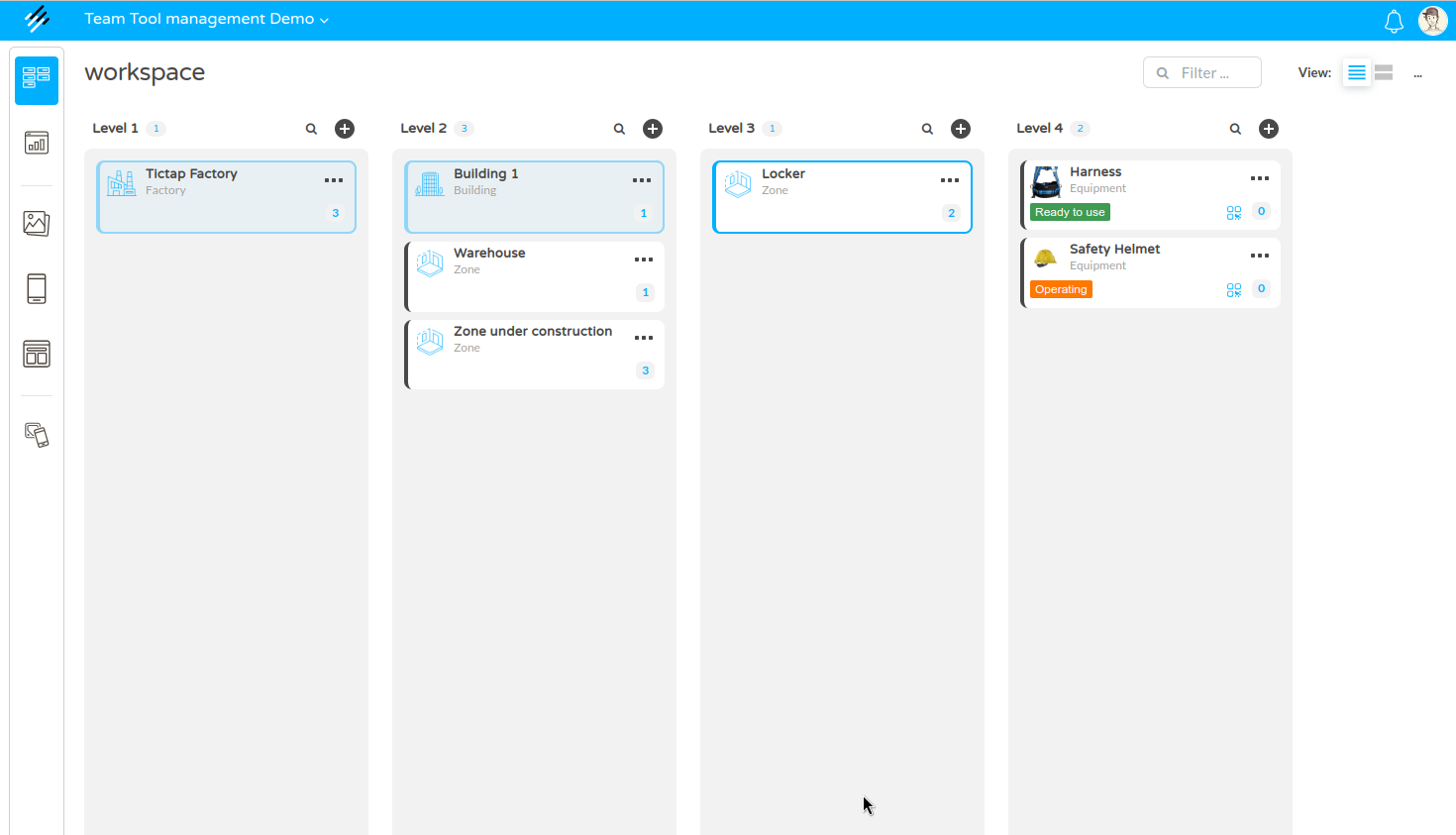
The workspace is divided into multiple levels, which help users navigate through locations and manage assets efficiently.
-
Level 1
The top-level overview displays major categories such as locations or departments. For example, in the screenshot, TicTAP Factory is selected. -
Level N
This level dives deeper into subcategories or departments within Level 1. In the example there are Building and Zone categories found, which are possible under the Factory level.
The hierarchy configuration depends on your enterprise configuration, and it is completely dynamic. You can learn more about how to customize your asset hierarchy in the Customize guide
Asset Details
When you select a specific asset (in this case, Harness), a detailed panel appears on the right side of the screen, displaying key information. This panel provides a comprehensive overview of the selected item:
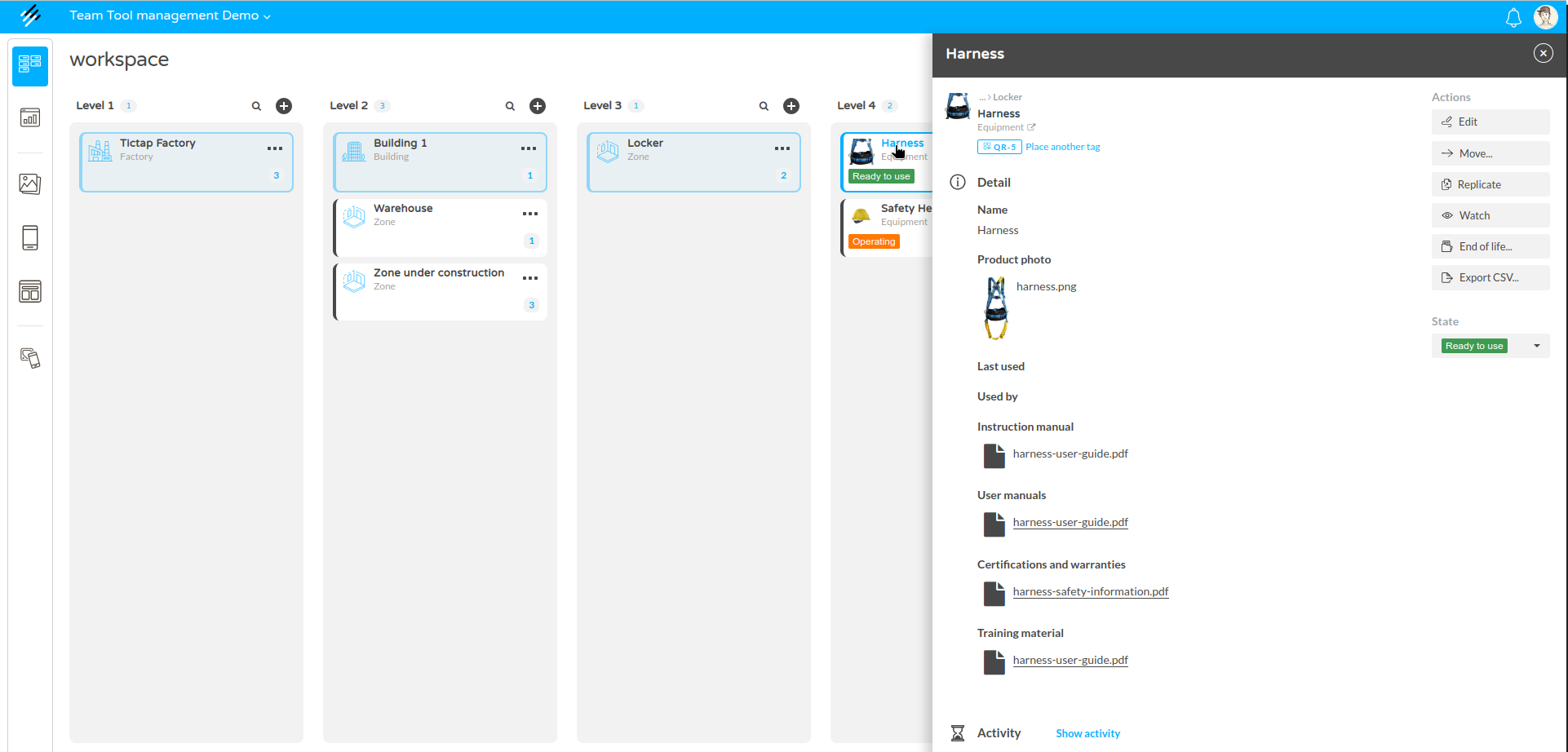
Based on the customization to your Enterprise, your asset will show a set of fields . If you want to know more about the asset details and how to interact with the asset, you can learn more in the Asset guide
Quick Add Functionality
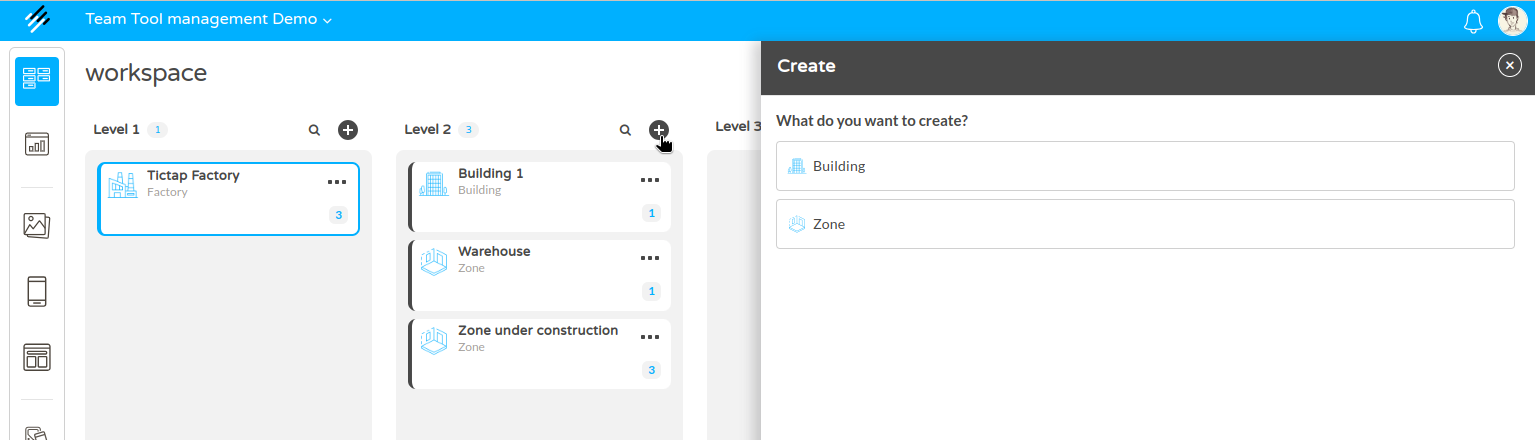
In each level, users can easily add new locations, assets, or categories by selecting the + (plus) icon. This allows for quick expansion of the workspace as needed.
Search Functionality
The search feature in the TicTAP workspace allows you to quickly locate assets based on name, reference, or other criteria. This powerful tool is designed to streamline navigation and improve efficiency when managing large sets of assets.
-
Search Box: Located at the top of the workspace, the search input allows you to find assets by entering their name or reference. Simply start typing in the search field, and the system will filter the assets in real-time.
-
Filter Options: The advanced filter panel (accessible via the filter icon) offers additional customization, allowing you to refine your search based on various criteria:
- Search In: Select the asset type or component type you want to search within (e.g., Equipment).
- State Filters: Filter assets by their current status, such as: Ready to use (Green), Operating (Orange), Out of service (Red) . These states can be defined per asset type in the Workflows guide
-
Advanced Search: By adding more filters, you can narrow your search further by specifying additional attributes like custom fields or asset conditions.
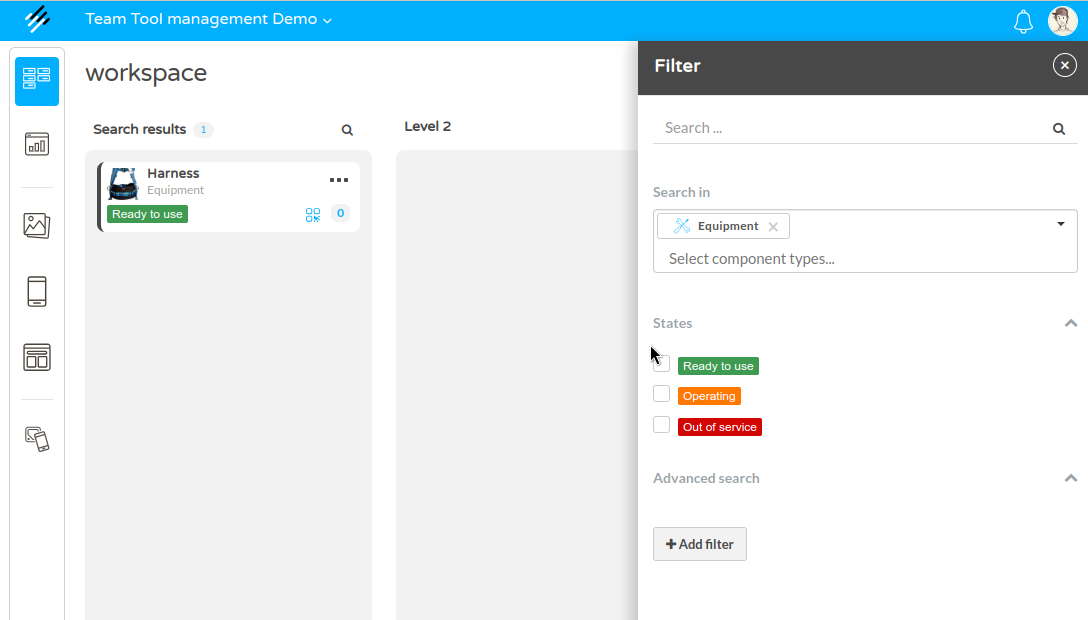
This combination of basic and advanced search features makes it easy to quickly find the specific asset you're looking for, saving time and ensuring effective management.
Reminders and Activity
- Reminders: A dedicated section for reminders related to the asset, such as restocking alerts or maintenance schedules. For instance, one reminder is active in the example.
- Activity Log: At the bottom of the asset details panel, users can access the full activity log by selecting Show activity, which tracks updates, changes, and interactions with the asset.